
Sales orders
A sales order is what a customer ordered. When you save one, FloorLine creates the delivery order that will ship it, and work orders for anything that stock and the orders already out don’t cover. On Mid and up it goes further down: it makes work orders for the subassemblies too, and lines up what has to be bought for you to review. Admins and managers can use sales orders. Open them from Sales → Sales orders.
Sales orders are numbered per shop from SO-1001. Each one has its own delivery order (DO-…), which you ship as usual.
Find a sales order
Section titled “Find a sales order”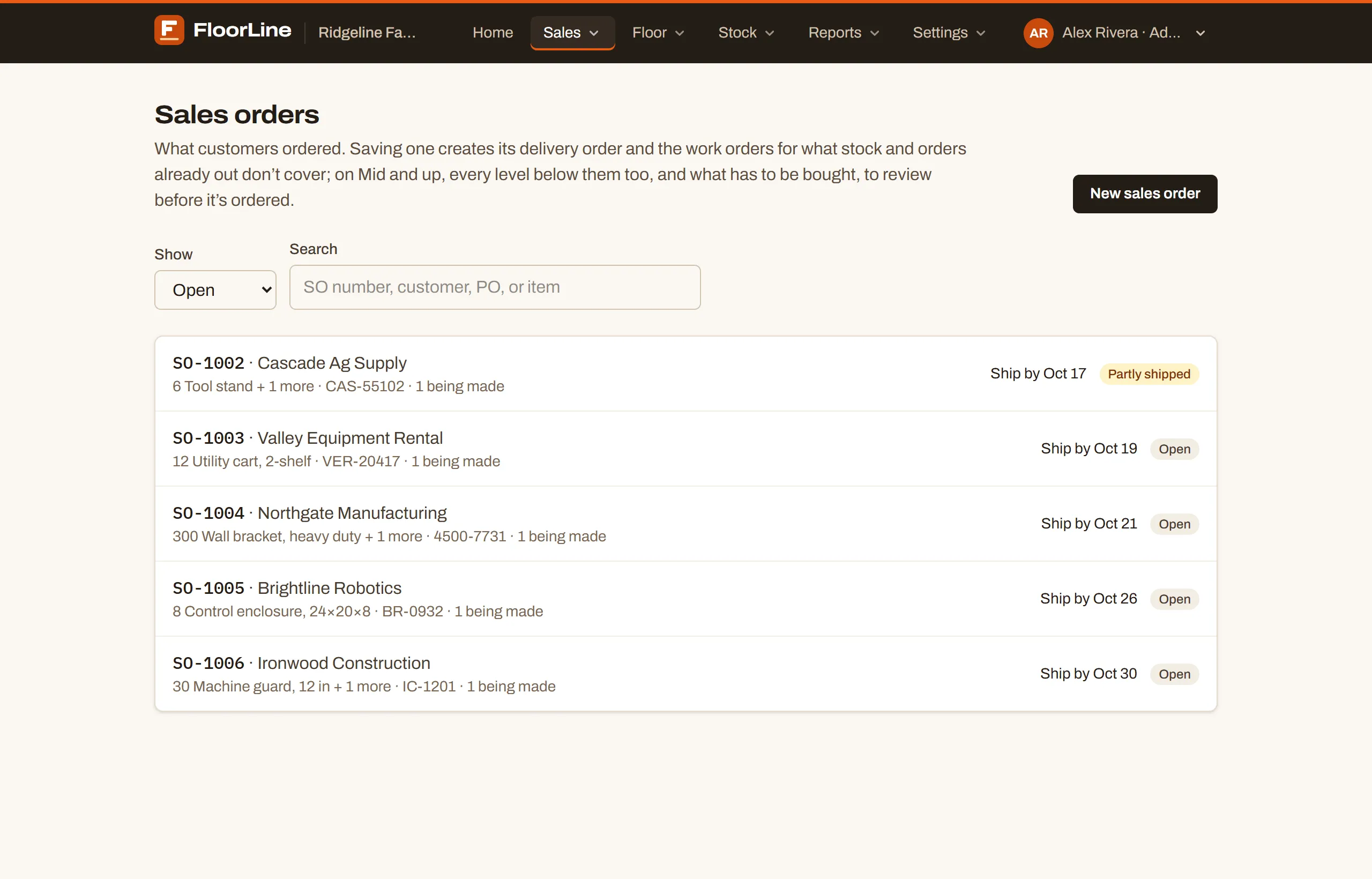
The list shows open orders first, soonest to ship at the top. Each row has the order number and customer, the first item (“6 Tool stand + 1 more”), the customer’s PO, how many work orders are being made for it, the Ship by date with a red Late badge once it’s past, and the status.
Use Show to switch between Open, Shipped, Canceled, and All. Use Search to find an order by its SO or DO number, the customer, the PO, or an item.
The Sales orders card on Home shows how many are open and how many are late.
Enter a sales order
Section titled “Enter a sales order”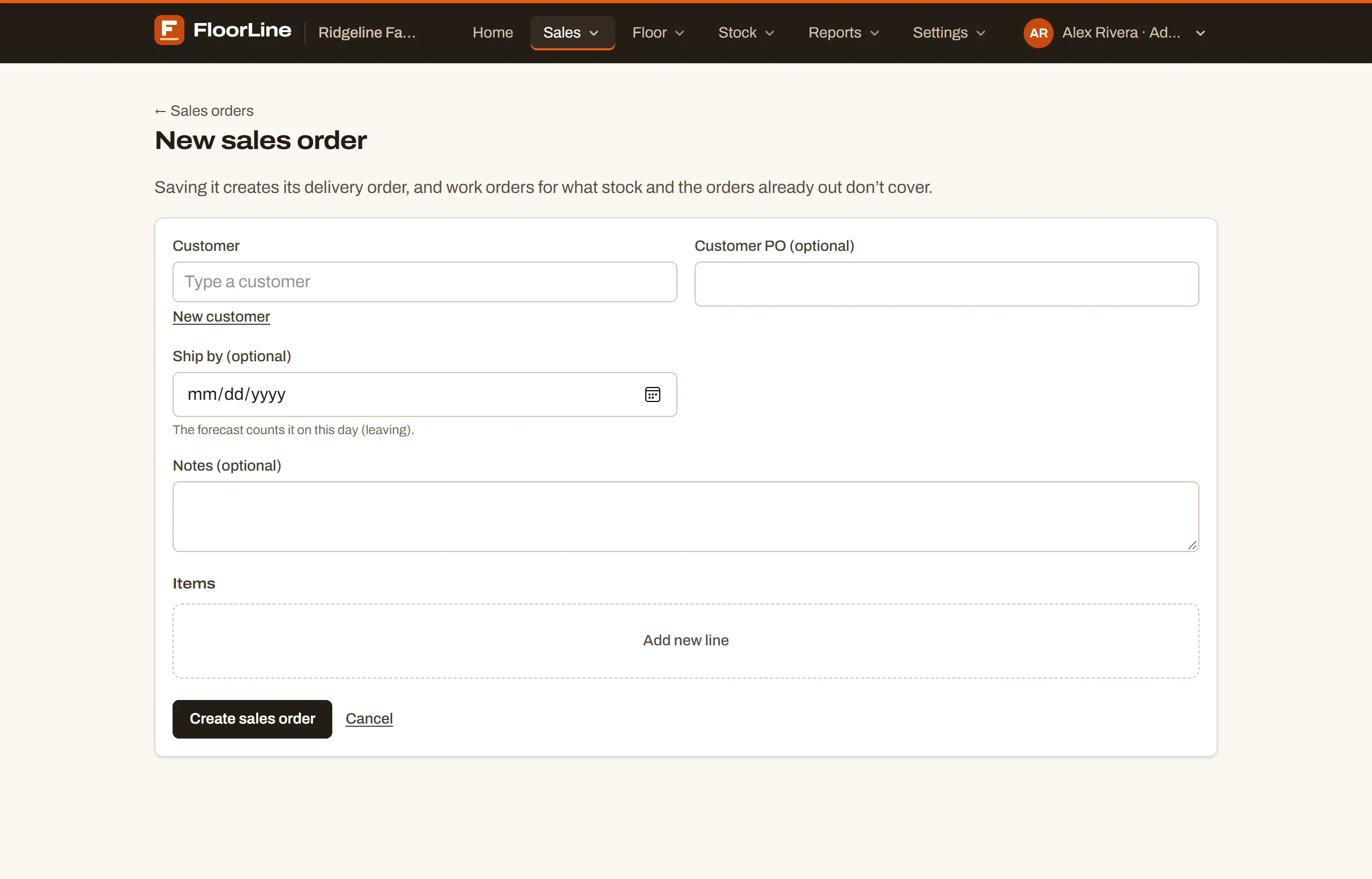
-
Go to Sales → Sales orders and choose New sales order.
-
Under Customer, type to find the customer and pick it. If it isn’t there yet, choose New customer, enter a Name (and an Email if you like), and choose Add customer.
-
Fill in the optional fields:
- Customer PO (optional): the customer’s purchase order number. It’s carried onto the work orders and their travelers.
- Ship by (optional): the day it must leave. Work orders made for it are due on this day.
- Notes (optional): anything else.
-
Under Items, choose Add new line, pick the item, and enter the Quantity. The Price starts at the item’s sale price; change it to what you quoted, or clear it. Choose Add line for each other item. Each item goes on one line only. A work order made for a priced line gets the line’s price times its quantity as its sale price, for job costing.
-
On Mid and up, check the Can ship card as you add lines. It says when the order can ship and whether that’s in time for the ship-by date. See When can it ship?.
-
Choose Create sales order.
On the High plan with more than one location, the form also has Ships from. See Locations.
What saving does
Section titled “What saving does”When you choose Create sales order, FloorLine:
- Creates the delivery order with the customer, PO, ship-by date, notes, and lines. This is what you ship.
- Takes what’s free. For each line, it looks at the item’s forecast before this order: on hand, less what orders already out will take, plus what they’ll bring in. Whatever’s free covers the line first.
- Makes work orders for what’s short. If a made-in-house item is short, it creates a work order for the shortfall, rounded up to the item’s batch size. The work order is due on the ship-by date, carries the customer and PO, and is noted “For SO-1001”.
An item that doesn’t track stock can’t be counted, so a made-in-house one is made in full.
The whole chain
Section titled “The whole chain”On Mid and up, FloorLine keeps going down each work order’s bill of materials (including scrap):
- A made subassembly that’s short gets its own work order. It’s due earlier than its parent by the parent’s lead time, in working days, and never before today.
- A purchased part that’s short becomes a firm planned order for its preferred vendor, in the vendor’s packs and minimum. It’s needed when its parent starts.
Nothing is sent to a vendor without you seeing it first. The planned orders wait on Replenishment, where you review them and Release them into purchase orders. Below Mid, a sales order only makes work orders for its own lines. Short components and parts show up on Replenishment’s min/max view as usual.
What it made
Section titled “What it made”After you save, a green box at the top of the order says what was made:
- “Made for it: WO-1060, WO-1061.” with links to the work orders
- “2 purchases to review and release on Replenishment.” (Mid and up)
- “Stock and the orders already out cover it: nothing needed making.”
If a made item couldn’t go on a work order, for example because it has no routing, the box says “Couldn’t plan Tool stand: give it a routing at active stations, then make it by hand.” Fix the routing (see Routings), then create that work order yourself.
Work orders count toward the plan’s limit on active work orders. If the limit is reached, the order isn’t saved, and you see “Your plan’s active work orders are all in use, so the work orders it needs can’t be made. Finish or cancel some, or upgrade.”
The sales order page
Section titled “The sales order page”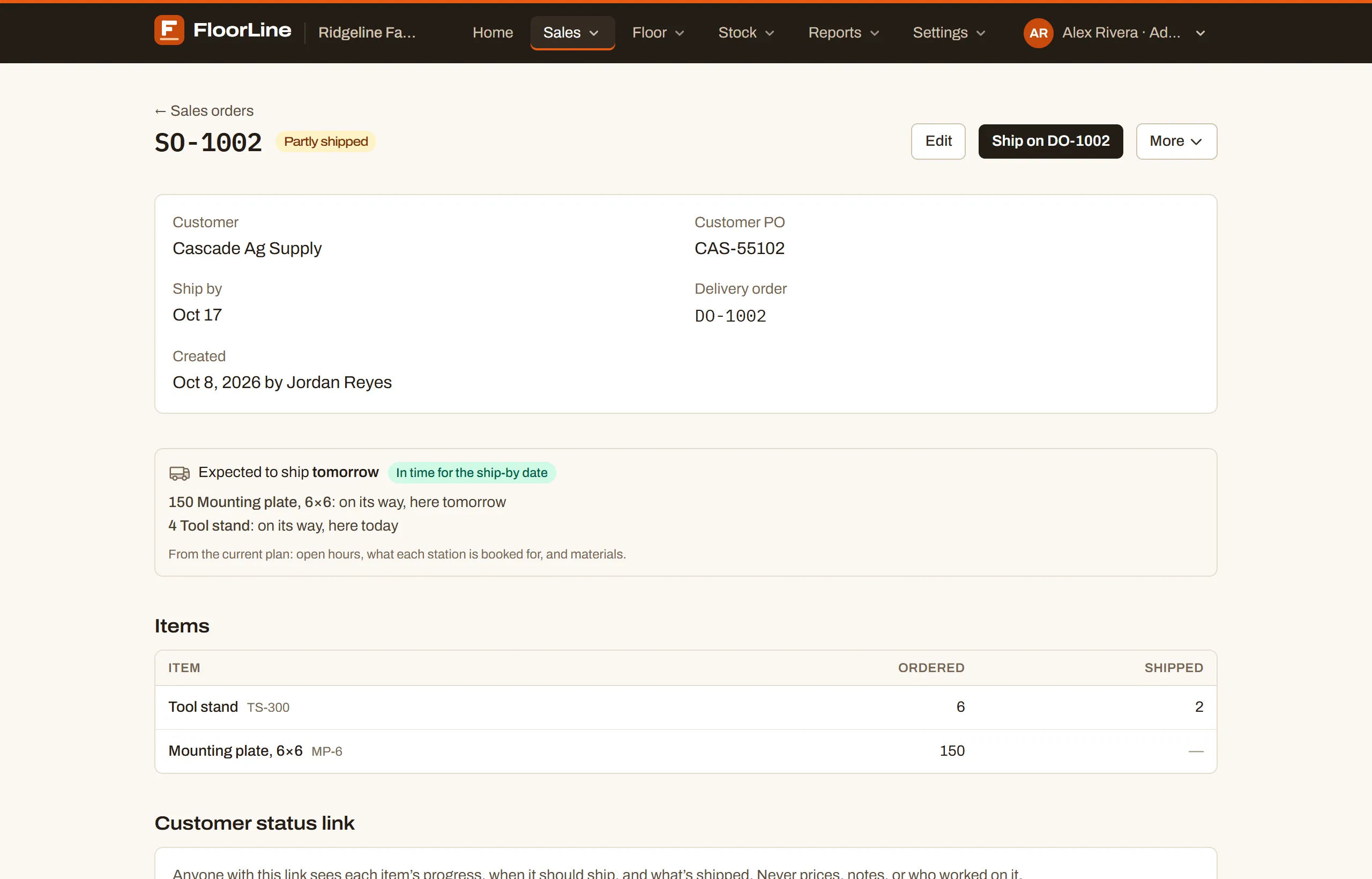
The top of the page shows the Customer, Customer PO, Ship by (with Late once it’s past), the Delivery order that ships it, and who created it. On Mid and up, Expected to ship gives the date from the current plan and whether it’s In time for the ship-by date. Items lists each line’s Ordered and Shipped quantities, Price, and Amount, with the Total once every line has a price. Prices never show on the customer’s status page.
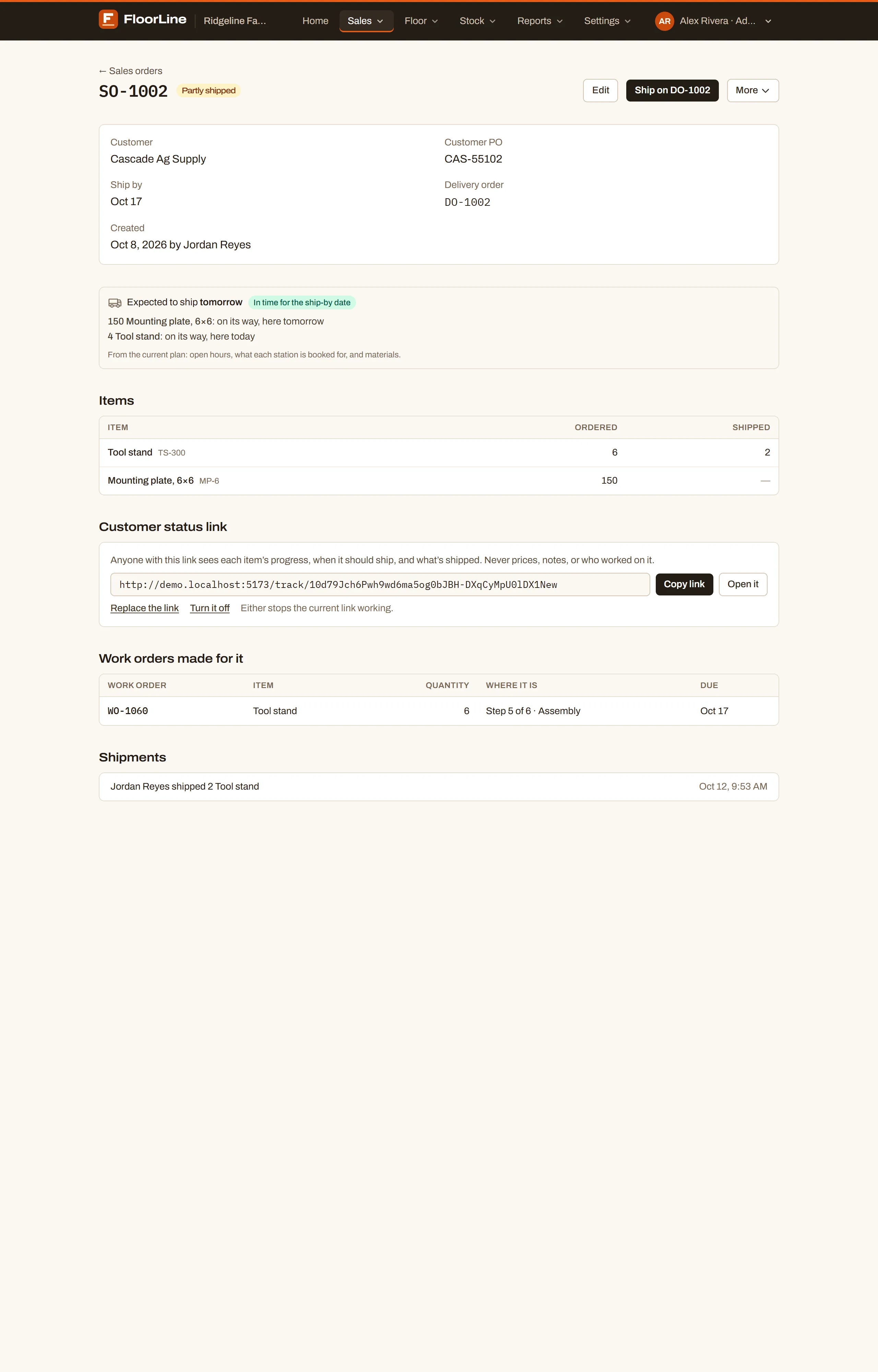
Further down:
- Customer status link: a private link for the customer (see Send the customer a status link).
- Work orders made for it: each work order with its item, quantity, due date, and Where it is: the current step and station (“Step 5 of 6 · Assembly”), “(on hold)” if it’s held, or its status if it hasn’t started. Choose a work order number to open it.
- To buy for it (Mid and up): the firm planned orders kept for this order, each with its vendor (or “no vendor yet”), the day to order it by, and the day it’s needed. They stay here until they’re released on Replenishment, where each becomes a purchase order to its vendor.
- Shipments: who shipped how much of which item, with the note, and when.
Statuses
Section titled “Statuses”| Status | Meaning |
|---|---|
| Open | Nothing shipped yet. |
| Partly shipped | Some lines or units have shipped. |
| Shipped | Everything has shipped. |
| Canceled | Canceled before anything shipped. |
| Closed | Canceled after some had shipped. |
Ship it
Section titled “Ship it”A sales order ships through its delivery order. Choose Ship on DO-1002 (the button names its delivery order), then fill in the Ship form and choose Save shipment. You can ship in parts. See Ship a delivery order.
The delivery order itself can’t be edited, canceled, or reopened. Its page says “Made for SO-1002: change, cancel, or reopen it there. Ship it here.”
Change the lines
Section titled “Change the lines”-
On an open sales order, choose Edit.
-
Change the customer, PO, ship-by date, notes, or lines. A line that has shipped can’t go below what’s shipped or come off the order.
-
Choose Save changes.
- A line that grows, or a new line, is built for like a new order: free stock first, then work orders (and on Mid and up, the chain below them) for what’s short. The green box says what was made.
- A line that shrinks lowers the delivery order. The work orders already out stay as they are. On Mid and up, MRP’s action messages on Replenishment say what to reduce or cancel.
Cancel or reopen
Section titled “Cancel or reopen”-
On an open sales order, choose More → Cancel order.
-
Choose Cancel SO-1002 (the order’s number) to confirm, or Keep it to back out.
Canceling cancels its delivery order and the work orders made for it that haven’t started, and takes off what was still to buy. Work already on the floor carries on into stock.
To bring a canceled order back, open it and choose Reopen. FloorLine makes what’s left on its lines again, the same way as a new order.
Send the customer a status link
Section titled “Send the customer a status link”
You can give a customer a private web page where they can follow their order without signing in.
-
On the sales order’s page, under Customer status link, choose Make a link.
-
Choose Copy link and send it to the customer by email or however you usually reach them. Open it shows you the page they’ll see.
The link stays on the sales order page, so you can copy it again any time.
- Replace the link makes a new one. The old link stops working.
- Turn it off stops the link working. Choose Make a link to start a new one later.
Someone who opens a link that’s been replaced or turned off sees “This link isn’t working. It may have been replaced or turned off. Ask whoever sent it for a new one.”
What the customer sees
Section titled “What the customer sees”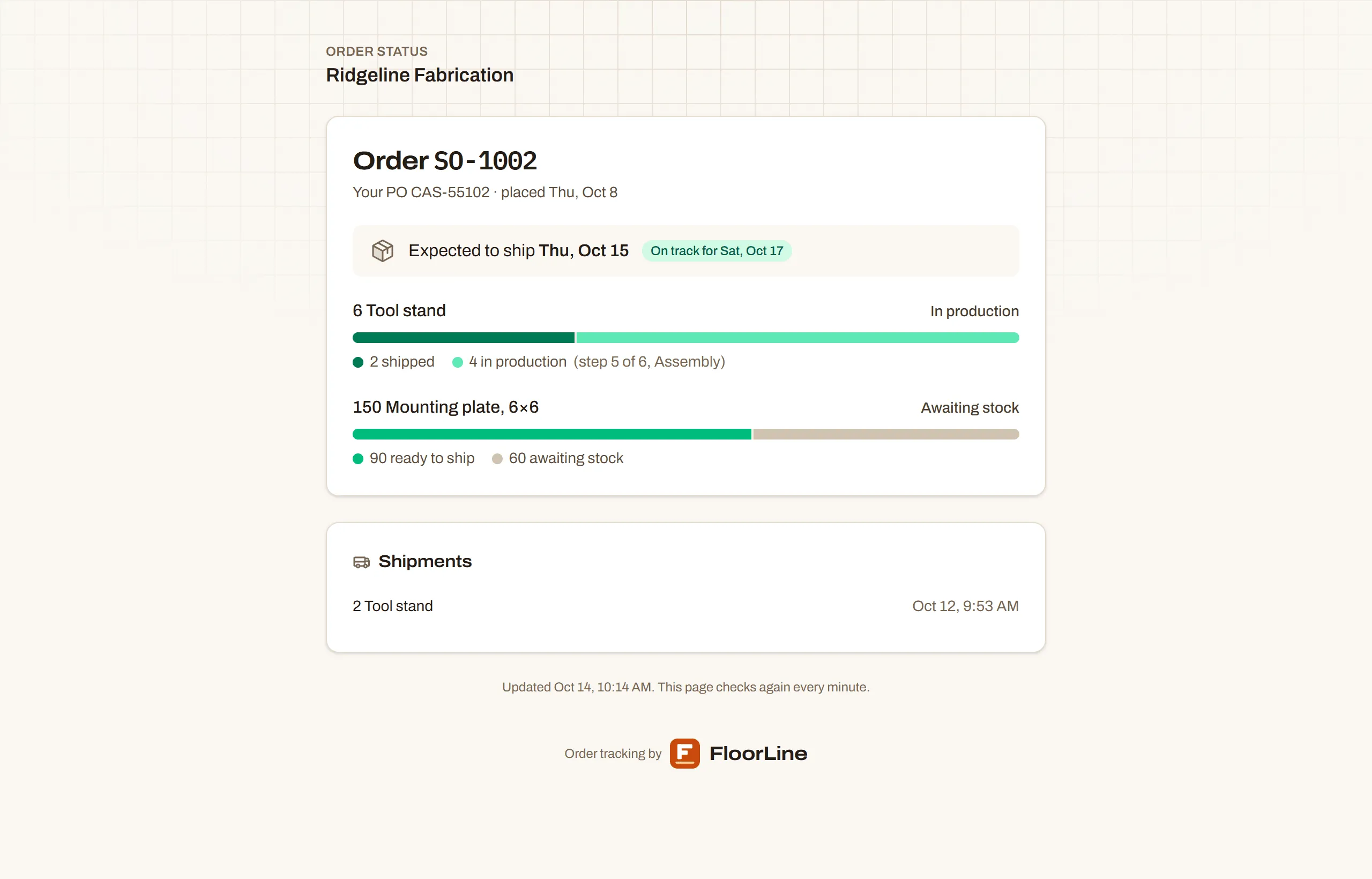
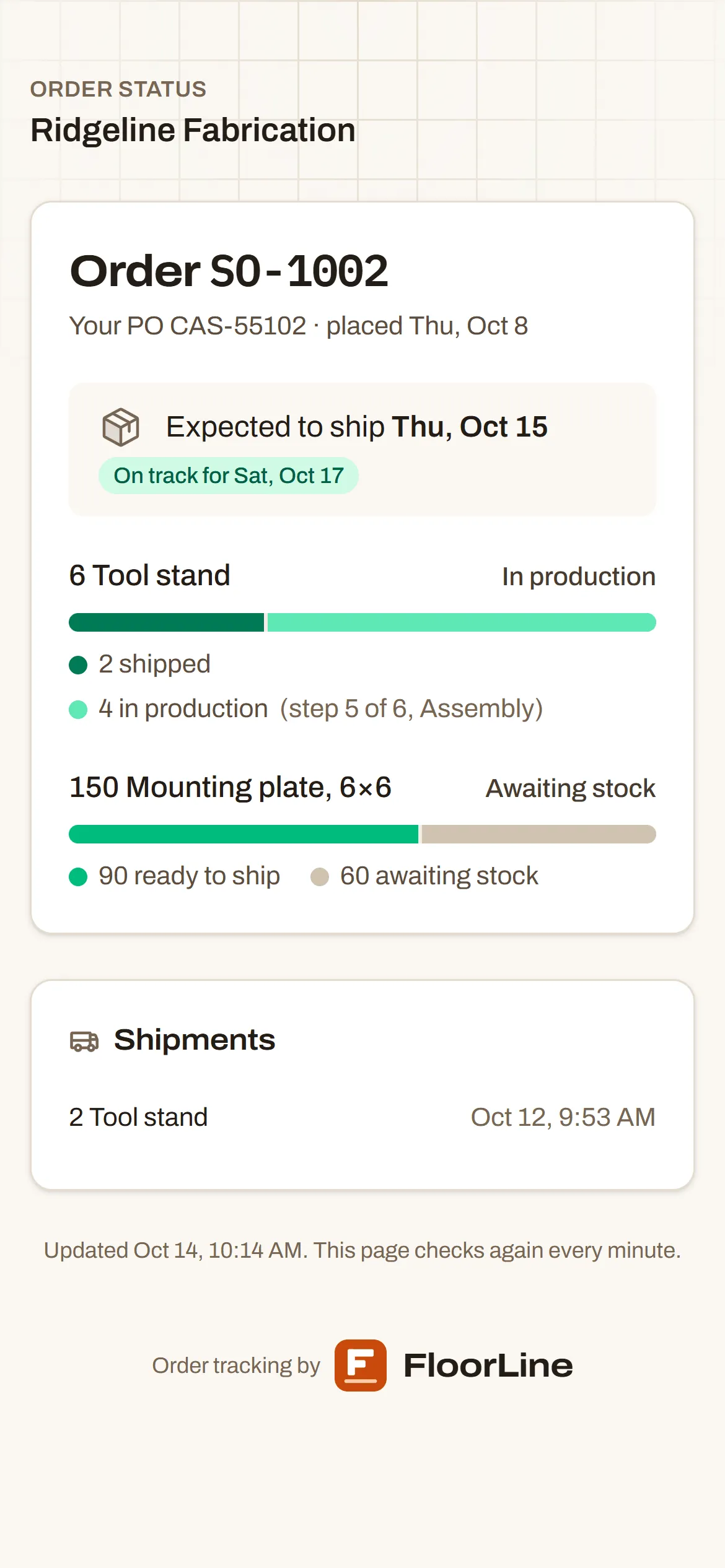
The page is on your shop’s own address and shows:
- your shop’s name and logo
- the order number, their PO, and the day it was placed
- on Mid and up, while it’s open: Expected to ship and the day, with On track for the ship-by date or Later than it. Below Mid, it says “To ship by” the ship-by date instead.
- “Everything has shipped.” or “This order was canceled.” once it’s done
- each item with a progress bar and how many units are Shipped, Ready to ship (in stock), In production (on started work orders made for it, with the step and station, such as “step 2 of 5, Weld”), Waiting to start, or Awaiting stock
- each shipment: how much of which item, and when
It never shows prices, notes, who worked on the order, or work order numbers. The page checks again every minute while it’s open, and says when it last updated. It’s kept out of search engines.
When can it ship?
Section titled “When can it ship?”On Mid and up, the new sales order form shows Can ship and a day as you fill in lines, worked out by the planner without saving anything. The new order goes behind every order already out, so nothing else moves. It lists each line (in stock, on its way, or to be made or ordered) and What it waits on. Once saved, the order’s page shows Expected to ship from the current plan. See When can we ship it?.