
Shop settings
Shop settings hold what applies to the whole shop: its name, the hours it works, its logo, the reasons a station can be down, the reports emailed each week or month, the labor and station rates for job costing, (on High) its locations, and, for the owner, deleting the shop. Only admins can open this page, the owner included. Go to Settings → Shop settings.
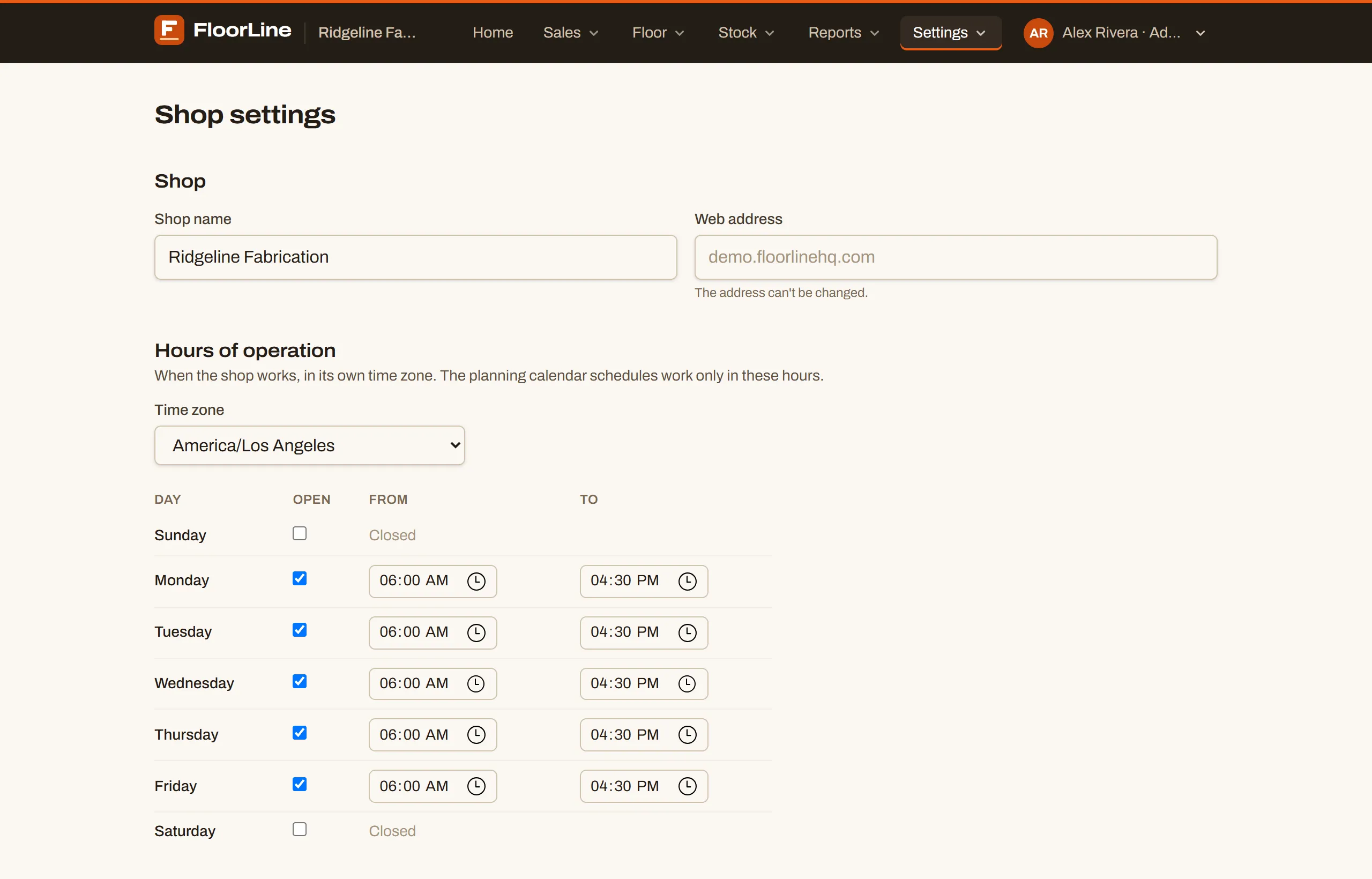
The page has two kinds of sections:
- Shop and Hours of operation are one form. Change them, then choose Save settings at the bottom of that form.
- Logo, Custom domain, Scheduled reports, Downtime reasons, Locations, TV screens, and Delete this shop save on their own, as soon as you make each change. Job costing has its own Save rates button.
Change the shop name
Section titled “Change the shop name”The shop name shows in the app’s header, on the floor screen, on travelers, and in emails.
-
Go to Settings → Shop settings.
-
Type the new name in Shop name (2 to 80 characters).
-
Choose Save settings.
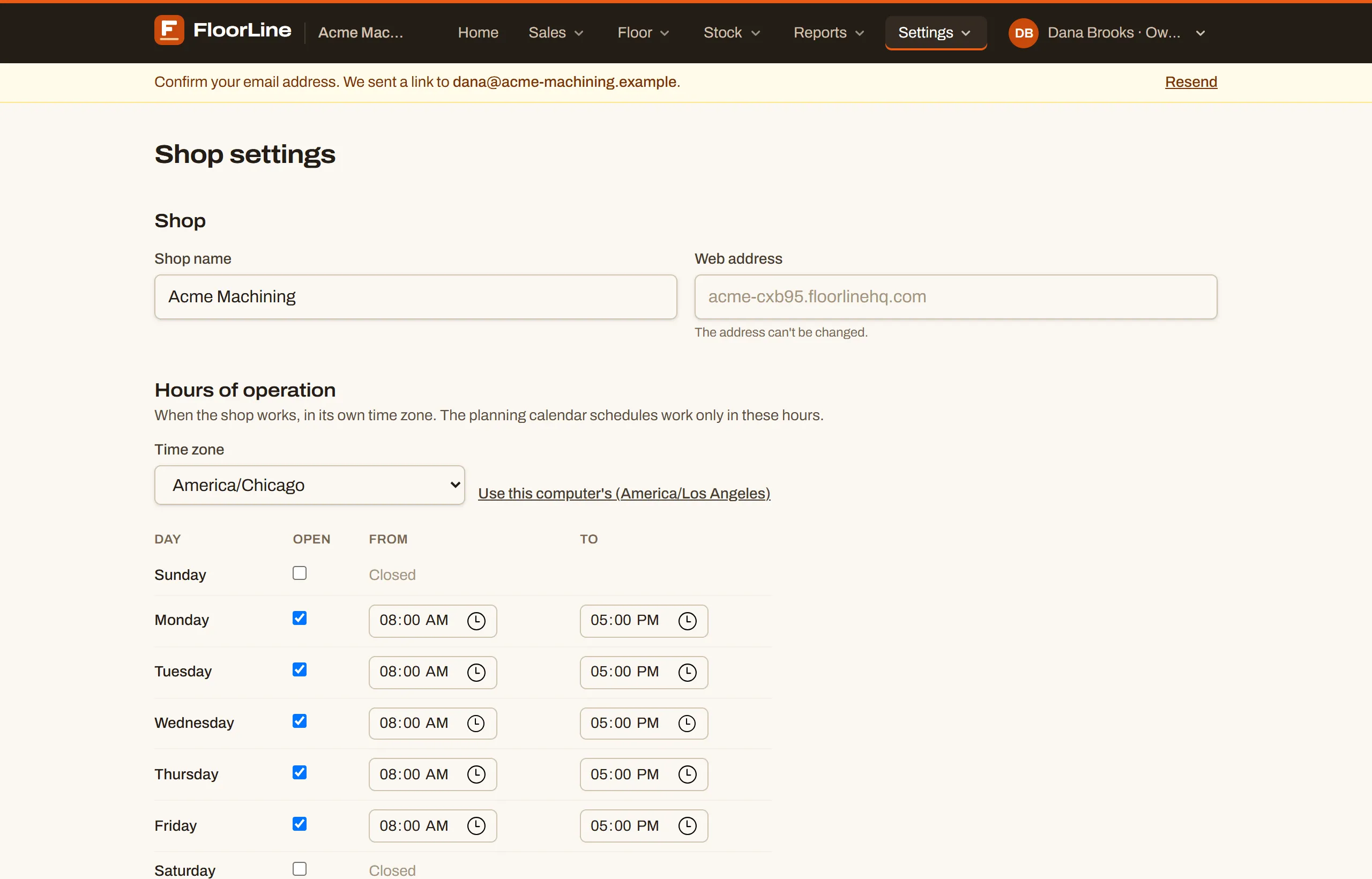
The Web address next to it (like acme.floorlinehq.com) is your shop’s address. The address can’t be changed, so bookmarks, tablets, and emailed links keep working.
Set the time zone and hours of operation
Section titled “Set the time zone and hours of operation”The time zone and hours say when your shop works. FloorLine uses them to:
- schedule work only in open hours on the planning calendar;
- send the daily summary at 6 a.m. your time on days you’re open, about the last day you were open;
- send scheduled reports at the hour you pick, in your time;
- start the dashboard’s days at your local midnight.
-
Go to Settings → Shop settings.
-
Under Hours of operation, pick your Time zone. If the computer you’re on is in the shop’s time zone, choose Use this computer’s to fill it in.
-
In the hours table, tick Open for each day the shop works, and set From and To. Untick a day to mark it Closed. Weekends are in the table too.
-
Choose Save settings.
- A new shop starts on Central time (America/Chicago), open Monday to Friday, 8 to 5. Set yours during the trial.
- The closing time has to be after the opening time on the same day. Overnight shifts aren’t supported yet.
- Below Mid this section shows an upgrade prompt. The time zone and hours already saved stay as they are.
- On High, a location can keep its own time zone and hours. See Locations.
Add your logo
Section titled “Add your logo”Your logo shows on the app’s header and the floor screen, prints on travelers, and appears at the top of the daily summary email and on the order status page you can share with customers.
-
Go to Settings → Shop settings and find Logo.
-
Choose Upload a logo and pick the file. It saves right away.
-
To change it later, choose Replace logo. To take it off, choose Remove.

The logo has to print on a traveler, so it must be:
- a PNG or JPEG file, ideally on a white or clear background;
- under 2 MB, and at most 2000 pixels on a side.
If FloorLine says “That image can’t be printed on travelers: it may be damaged”, open the image in any editor, save it again as a PNG or JPEG, and upload that copy. The logo counts toward your shop’s file storage.
Set up downtime reasons
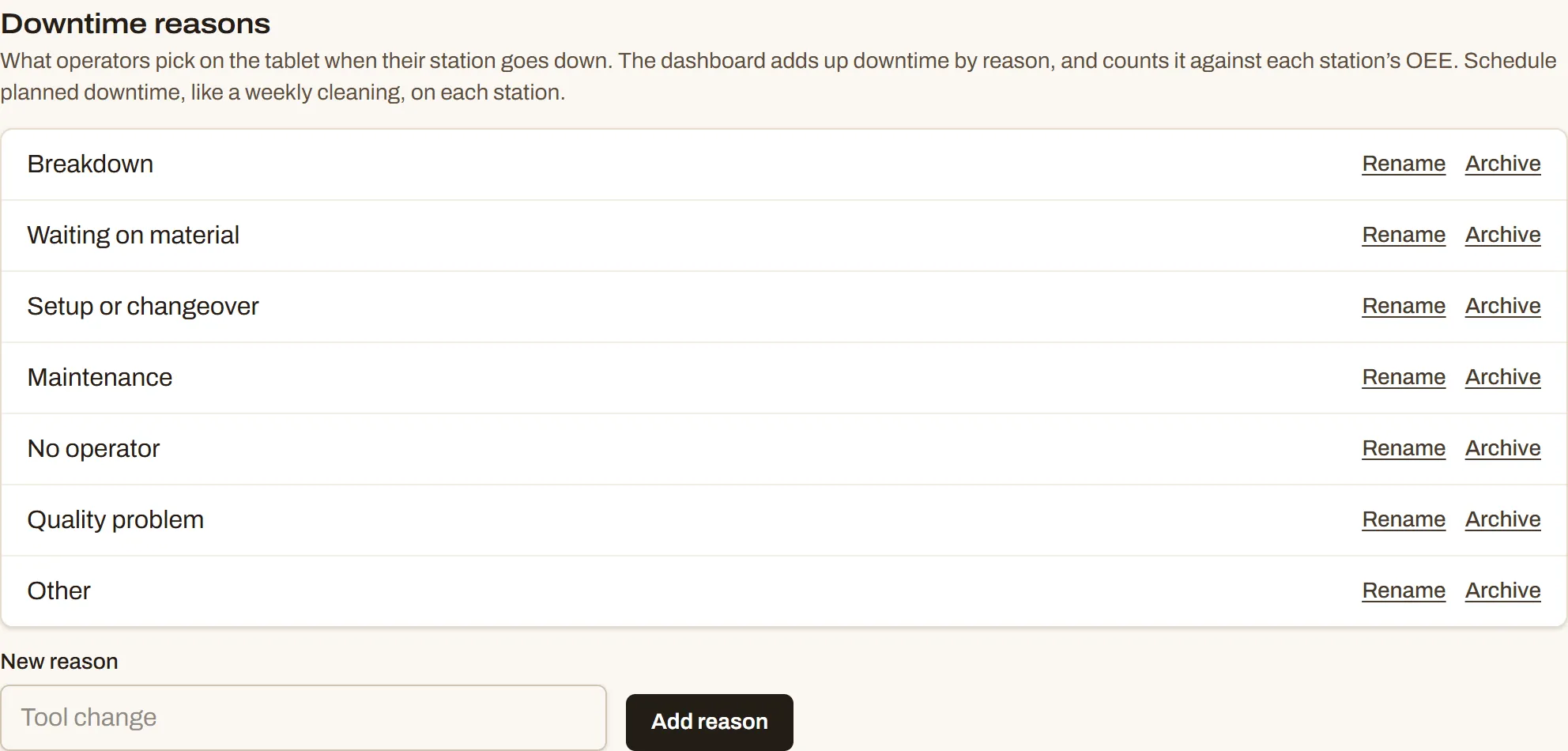
Section titled “Set up downtime reasons”Downtime reasons are what an operator picks on the tablet when their station goes down. The dashboard adds up downtime by reason and counts it against each station’s OEE. A shop starts with seven reasons: Breakdown, Waiting on material, Setup or changeover, Maintenance, No operator, Quality problem, and Other.
-
Go to Settings → Shop settings and find Downtime reasons.
-
To add a reason, type it in New reason and choose Add reason.
-
To rename one, choose Rename, change the name, and choose Save.
-
To stop offering one, choose Archive. Archived reasons are under Archived reasons, each with Restore.
- Active reason names must be different from each other (ignoring capitals). A shop can have up to 50.
- Archiving a reason keeps its history on the dashboard.
- Planned stops like a weekly cleaning aren’t reasons: schedule them on each station. See Set up stations and Downtime and OEE.
Set up scheduled email reports
Section titled “Set up scheduled email reports”A scheduled report emails the dashboard’s numbers for the week or month just ended to the people you pick: steps and orders finished compared with the period before, the on-time rate, each station’s and each person’s efficiency, and what’s late.
-
Go to Settings → Shop settings and find Scheduled reports.
-
Choose Add a report.
-
Give it a Name.
-
Under How often, pick Weekly: the 7 days before or Monthly: the month before.
-
For a weekly report, pick the Day it goes out. A monthly report goes out on the 1st of each month.
-
Pick the Time. Times are in the shop’s time zone. A new report starts at 7 a.m.
-
On High with several locations, pick the Location: The whole shop or one location.
-
Under Send it to, tick each person who should get it.
-
Choose Preview to see the email as it would go out today, then Save.
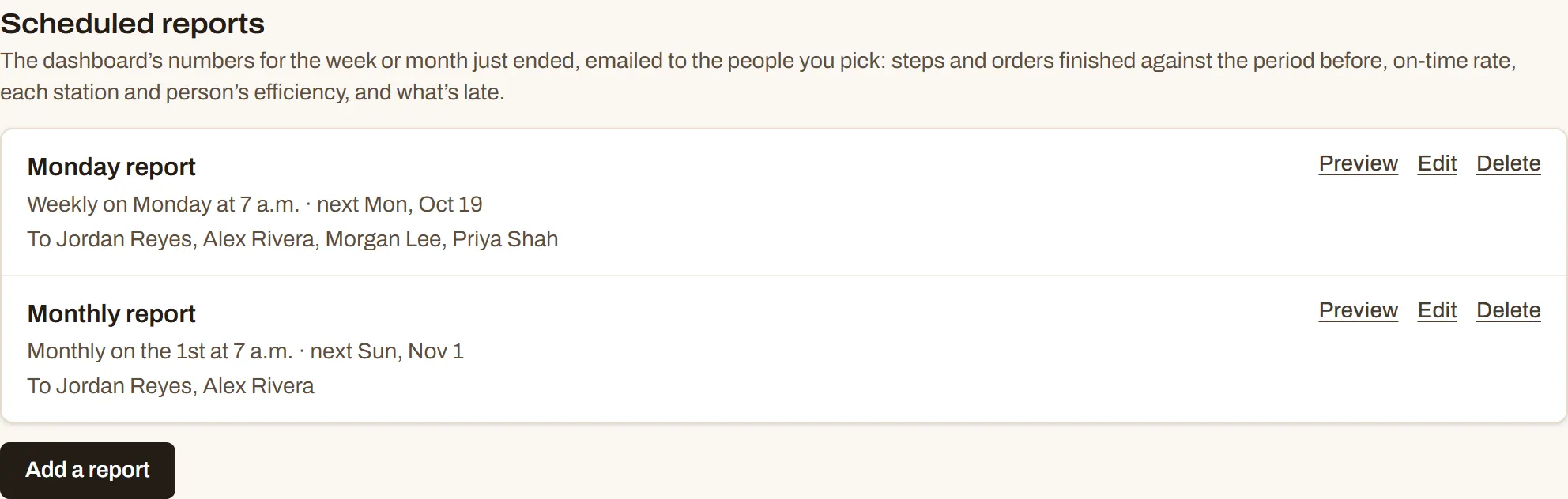
Each report in the list shows when it goes out, the next day it will, and who gets it. From the list:
- Preview shows the email as it would go out today, with your name in the greeting. On a saved report, Email it to me sends you a test copy.
- Edit changes the report.
- Delete asks you to confirm in the row (Delete the report, or Keep it).
Rules:
- Reports go to admins and managers who are active, have an email, and have set a password. If you don’t see someone, check their status on the Users page.
- If someone on a report is deactivated or is no longer an admin or manager, they stop getting it.
- A shop can have up to 20 reports.
- The demo shop doesn’t send email, but you can preview its reports.
Locations
Section titled “Locations”The Locations section lists the plants or buildings your shop works in. Each station is at one location, and a location can keep its own time zone and hours. See Locations for how to add them and what they change.
Job costing
Section titled “Job costing”The shop’s labor rate, what an hour at each station costs beyond labor, and labor rates for people paid differently, all in dollars an hour. Change them and choose Save rates. See Job costing.
TV screens
Section titled “TV screens”Make a link that shows the live board on a TV with nobody signed in, one per screen, and turn any of them off here. Each link is shown once when it’s made, so copy it then. See Put it on a TV for the steps.
Custom domain
Section titled “Custom domain”Open FloorLine at your own address, like floor.yourshop.com, as well as yourshop.floorlinehq.com. You need a domain you own and access to its DNS settings (at your registrar, or a host like Cloudflare or GoDaddy).
A custom domain comes with a paid Mid or High plan. During the free trial, the owner first adds a card and chooses Mid or High on the Billing page; the rest of the trial carries over, so nothing is charged until it ends.
Connect your domain
Section titled “Connect your domain”-
Go to Settings → Shop settings and find Custom domain.
-
Type the address under Address and choose Connect domain. Use a subdomain, like
floor.yourshop.com: a domain on its own (yourshop.com) can’t point at FloorLine. -
FloorLine lists the DNS records to add. Add each one where your domain’s DNS is managed, copying the Name and Value with the copy buttons:
Type What it’s for CNAME Sends the address to FloorLine. Its value is customers.floorlinehq.com.TXT Shows the address is yours. Sometimes a second TXT record is listed for the certificate; add it too.
-
Wait. FloorLine checks the records and sets up the address’s certificate by itself, usually within an hour, though DNS changes can take a few hours to reach everyone. The status says Waiting for its DNS records until then, and Live once it’s ready. Check now looks again right away.
Once it’s live
Section titled “Once it’s live”- Open it opens the shop at its new address. Your team signs in there with the same email and password; each address remembers its own sign-in.
- Tablets set up at the old address keep working there. To move one, exit floor mode and set it up again at the new address.
- The
floorlinehq.comaddress keeps working too. Emails from FloorLine (invites, password resets, the daily summary, reports, and billing notices) link to your own address once it’s live, and back to thefloorlinehq.comone if the domain is ever paused.
Change or remove it
Section titled “Change or remove it”- Use a different address connects another one in its place; the old one stops working.
- Remove domain, then Remove it, stops using it. Your shop stays at its
floorlinehq.comaddress.
If the shop’s plan drops below Mid, or the subscription ends, the domain is paused: its address says it isn’t connected to a shop. It’s kept, and works again as soon as the shop is back on a paid Mid or High plan.
Delete your shop
Section titled “Delete your shop”Only the owner can delete the shop, and only the owner sees this section at the bottom of Shop settings. Deleting takes everything in the shop, for good: work orders, items and stock, people, tablets, files, history, and its custom domain. It happens 7 days after you ask, so there’s time to change your mind.
- Download what you want to keep. The section has a button for each export your plan includes: Items, Work orders, Stock history, Purchase orders, Delivery orders, and Lots and serial numbers.
- Choose Delete this shop….
- Type the shop’s address (the
yourshopinyourshop.floorlinehq.com) and your password. - Choose Delete in 7 days.
FloorLine emails you the date. Until then:
- The shop works as usual. Everyone who signs in sees a banner with the date the shop will be deleted.
- Your subscription stops renewing right away. What’s already paid isn’t refunded. If the paid period ends first, the shop moves to Free for its last days.
- Keep my shop, in the banner or in this section, cancels the deletion. Everything stays as it is, and if the subscription was still running, it renews again as before. If it ended in the meantime, choose a plan again on Billing.
When the date comes, the shop is deleted within the hour, its subscription ends, and you get an email saying it’s done. Copies leave FloorLine’s backups within about 30 days. A deleted shop can’t be brought back, but you can always start a new one.