
Work orders
A work order says what to make, how many, and by when. It goes through the stations on its item’s routing, one step at a time, and operators work each step on the tablet at that station. This page covers the office side: finding work orders, creating them, reading a work order’s page, printing travelers, and changing an order’s status.
Admins and managers can open Floor → Work orders. Operators work orders on the tablet instead; see Use the tablet.
The work orders list
Section titled “The work orders list”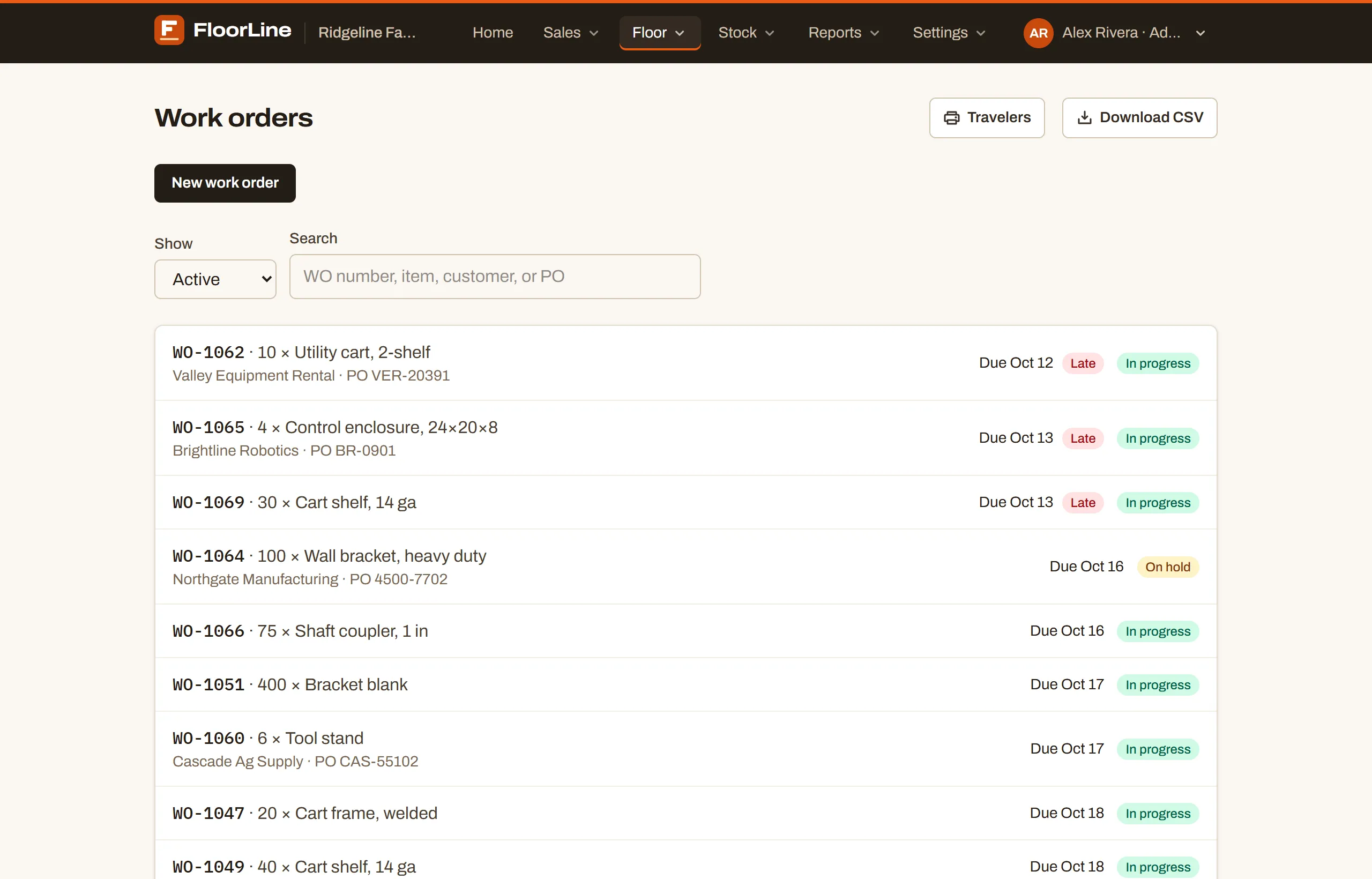
Each row shows the work order number (WO-1042), the quantity and item, the customer and customer PO, the due date, and the status. Click a row to open the order.
- Show picks which orders to list: Active (the default: open, in progress, and on hold), Done, Canceled, or All.
- Search finds orders by WO number, item name or SKU, customer, or customer PO.
- Orders are listed soonest due first, then by number. Orders with no due date say “No due date”.
- A red Late badge marks an active order whose due date has passed.
- The list shows at most 500 orders. If there are more, it says “Showing the first 500. Search or filter to narrow it down.”
- Download CSV downloads the orders the list is showing, with the same filter and search, as a spreadsheet file. See Export to CSV.
- Travelers prints travelers for a range of days. See Print travelers.
On the High plan with more than one location, the location picked in the header narrows the list to orders with a step at that location, and the heading shows its name. See Locations.
Create a work order
Section titled “Create a work order”A work order can only make an item that is made in house and has a routing whose stations are all active. Purchased items and items without a routing don’t appear in the list. If no item is ready, the form says so and points you to the Items page. See Items and Routings.
-
Go to Floor → Work orders and choose New work order.
-
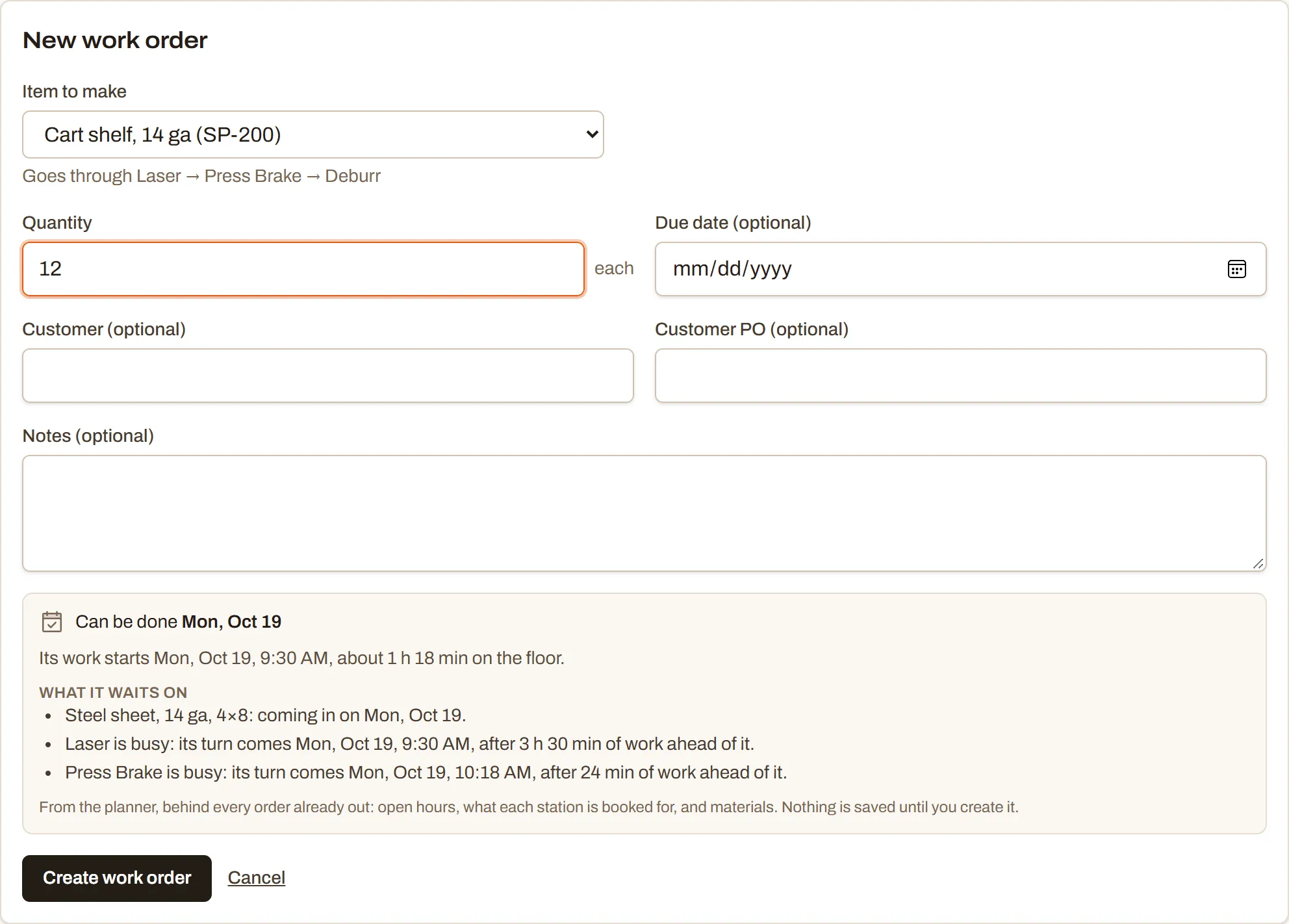
In Item to make, choose the item. The form shows the stations it goes through, like “Goes through Saw → Weld → Paint”.
-
Enter the Quantity. The item’s unit shows next to it.
-
Fill in what you need of the optional fields: Due date, Customer, Customer PO, and Notes. Notes show on the tablet and the traveler, so they’re a good place for anything the floor should know.
-
Choose Create work order. The new order opens, numbered from WO-1001 up.
When the order is created, FloorLine copies the item’s routing (stations, operations, throughput, instructions, and quality checks) and its bill of materials onto it. Changing the item later doesn’t change orders already out.
Work orders are also created for you from other places: a sales order makes what isn’t in stock, Replenishment creates orders from its suggestions, and you can bring in open orders from a spreadsheet with Import from spreadsheets.
When can it be done?
Section titled “When can it be done?”On Mid and up, once you pick an item and enter a quantity, the form asks the planner when the order could be finished. It plans the new order behind every order already out, in the shop’s open hours, at each station’s pace, and waiting for materials.
The estimate says:
- Can be done and the day, with “In time for the due date” or how many days after the due date it lands.
- When its work starts and about how long it takes on the floor.
- What it waits on: materials not on hand (when they arrive, or their lead time if they aren’t ordered yet) and busy stations (when its turn comes).
Nothing is saved until you choose Create work order, and orders already out never move to make room. If the shop has no open hours set, the form says “Set the shop’s hours in Shop settings to get a date.” See Plan the floor.
The Free plan’s limit
Section titled “The Free plan’s limit”The Free plan allows 50 active work orders at a time (open, in progress, or on hold). The list shows how many are in use, like “42 of 50 active work orders on your plan”. When all 50 are in use, New work order is replaced by a note, and reopening an order is blocked until you finish or cancel one. Orders already out keep working. Basic and up have no limit. See Plans and limits.
The work order page
Section titled “The work order page”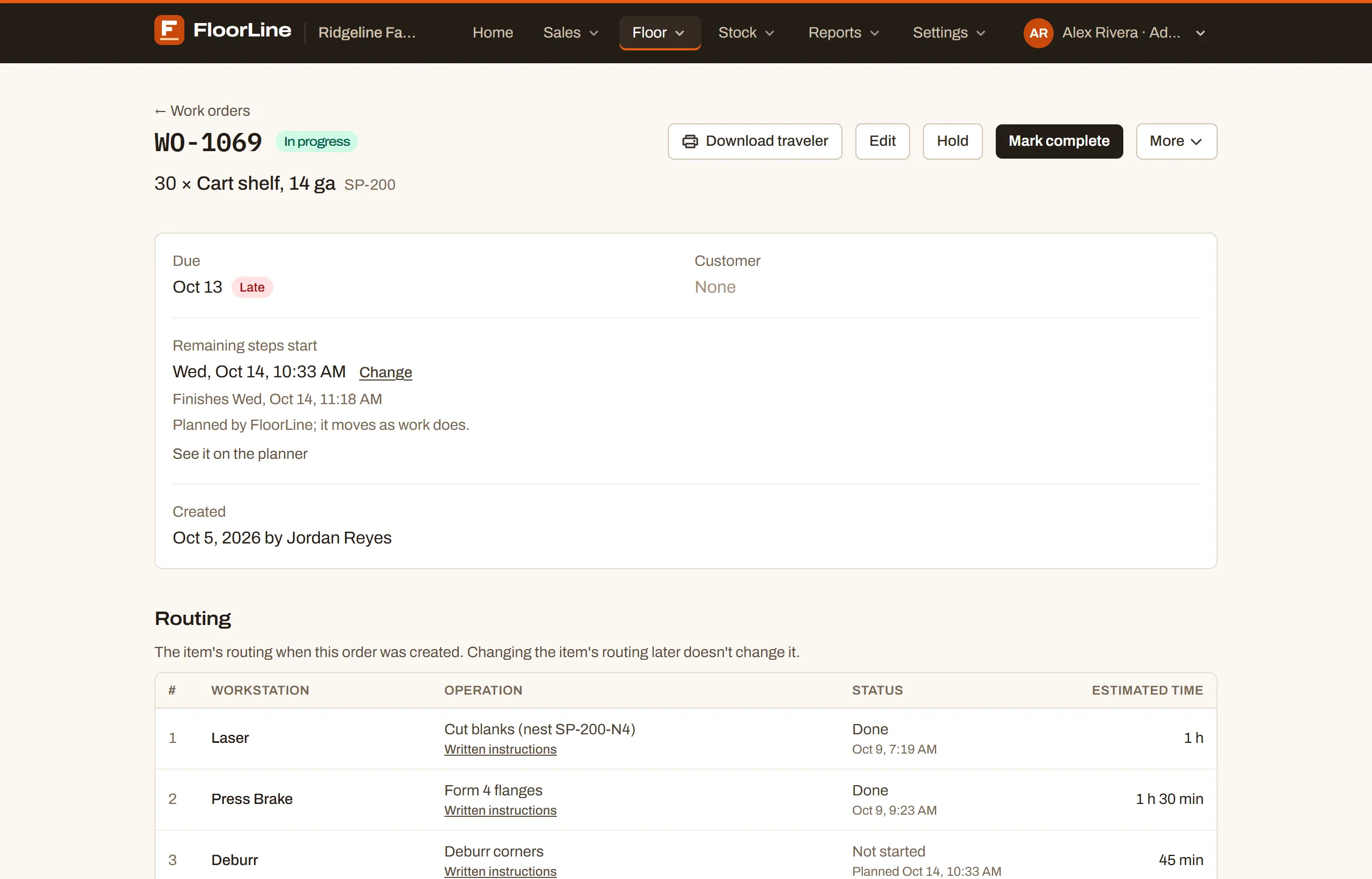
The top of the page has the WO number and its status, the buttons for what you can do with it, and the quantity and item (linked to the item’s page). Below that:
- Due (with a Late badge once it’s past), Customer and its PO, Created (when and by whom), and, once finished, Completed and Finished goods (how many went into stock, and when).
- Notes, if there are any.
- A banner when the order is On hold, with the reason given, and one when it’s Short on materials (below).
- On Mid and up, “3 of 5 finished” when some units were reported finished early, and “2 scrapped” when units were scrapped.
Scheduled start
Section titled “Scheduled start”On Mid and up, an active order shows when the planner has it starting and finishing: Scheduled start, or Remaining steps start once a step has started. “Planned by FloorLine; it moves as work does” means the planner placed it and will move it as the floor changes.
To set the start yourself, choose Change (or Schedule if it isn’t scheduled yet), pick a date and time on the shop’s clock, and choose Save. Steps that already started stay put; the rest move together, and the planner plans other work around them. If the time you picked isn’t open (closed hours, or the past), the page tells you when it was scheduled instead. An order placed by hand says “Placed by hand: the planner keeps it here.” Choose Let the planner decide to hand it back. See it on the planner opens the planning calendar.
Routing
Section titled “Routing”The Routing table lists the order’s steps in order: the Workstation, the Operation, and the Status of each.
| Step status | Meaning |
|---|---|
| Not started | Nobody has started it yet. On Mid and up it shows the planned start. |
| Running | Someone started it on the tablet and it’s being worked. Shows when it started. |
| Paused | It was started, then stopped (a break, end of shift, or a hold). |
| Done | Completed, with the time. |
Steps go in order: only the first step that isn’t done can be worked, and only on the tablet at its own station. If a step has instructions, the Operation column has a link to them (“Written instructions” or the file’s name).
On Mid and up, Estimated time shows each step’s time for the order’s quantity, from the routing’s throughput, with a total at the bottom. Steps with no throughput say “No throughput set”.
Quality checks
Section titled “Quality checks”If the routing has quality checks, the Quality checks section lists them by step with what was recorded on the tablet, who recorded it, and when. A measurement outside its range shows Out of range. Checks not recorded yet say “Not recorded”. The tablet won’t complete a step until its checks are recorded. Mark complete on this page doesn’t ask for them, so a manager can close an order by hand.
Bill of materials
Section titled “Bill of materials”On Basic and up, the Bill of materials table shows what the order takes: each Component, its Per unit quantity (plus any scrap %), the Required total for the order’s quantity, the step it’s Consumed at (with “Used” and the date once it’s been taken from stock), and the component’s On hand.
While the order is active, a component with less on hand than it needs gets a red Short flag with how much is missing, and a banner at the top lists them. This is a warning, not a stop: the floor can still start the step, and stock goes below zero. The tablet shows the same warning before the step starts. See How stock moves.
Lots and serial numbers
Section titled “Lots and serial numbers”When a material or the item itself is tracked by lot or serial number, a Lots and serial numbers section shows what’s been entered and what’s still needed: Enter lots or Enter serials for a material, and Enter lot or Enter serials for what the order makes. You can enter them here any time the order is active and not on hold, or the operator enters them on the tablet. See Lots and serial numbers.
Job cost
Section titled “Job cost”On Mid and up, Job cost shows the order’s estimated and actual labor, station time, and materials, what it Sold for (choose Add the price to enter it), the margin, and the actual cost per unit. See Job costing.
Waste and scrap, finished so far, and activity
Section titled “Waste and scrap, finished so far, and activity”- Waste and scrap lists every loss reported on the order: what was lost, at which step, the note, who reported it, and when.
- Finished so far lists finished units reported before the order was done.
- Activity lists the latest 50 floor events: who started, stopped, or completed which step, and who put the order on hold or released it, with the reason.
Work order statuses
Section titled “Work order statuses”| Status | Meaning |
|---|---|
| Open | Created; no step has started yet. |
| In progress | The first step has started. |
| On hold | Paused on purpose. Nobody can work it on the floor until it’s released. |
| Done | The last step was completed on the tablet, or someone chose Mark complete. |
| Canceled | Canceled by hand, or every unit was scrapped. |
Open, in progress, and on hold orders are active: they show on the tablets and the Live view, and they count toward the Free plan’s limit.
Change a work order
Section titled “Change a work order”The buttons at the top of the page depend on the order’s status.
While an order is active, choose Edit to change its Quantity, Due date, Customer, Customer PO, or Notes, then Save changes (or Discard). The item can’t change; cancel the order and create a new one instead. If some units were already reported finished, the quantity can’t go below that.
Hold and release
Section titled “Hold and release”Put an order on hold when it must not be worked: a material problem, a customer change, a question about the drawing.
-
Choose Hold.
-
Type the reason in Why? (optional). The tablet and the work order page show it.
-
Choose Put on hold (or Never mind).
A running step pauses, and nobody can start, stop, or complete steps on the order until it’s released. Choose Release hold to let the floor carry on. Operators can also hold and release on the tablet.
Holding is on Basic and up. Releasing works on every plan, so an order held before a downgrade is never stuck.
Mark complete
Section titled “Mark complete”Mark complete finishes the order by hand, for example when the work was done without the tablet. Choose it, then confirm with Complete WO-1042 (or Not yet).
On Basic and up, completing an order (by hand or on the tablet’s last step) takes any materials it hasn’t used yet out of stock and puts the order’s quantity of the item into stock. If units were reported finished earlier, only the rest go in. On Mid and up, if the order uses or makes lot or serial items, their lots and serial numbers must all be entered first.
Cancel
Section titled “Cancel”Choose More → Cancel order, then confirm with Cancel WO-1042 (or Keep it). Stock that already moved stays moved. A canceled order no longer shows on the floor and no longer counts toward the Free plan’s limit.
Reopen
Section titled “Reopen”A done or canceled order has Reopen, which makes it active again. Reopening a done order takes its finished goods back out of stock (units reported finished early stay); materials it used stay used. On the Free plan, reopening needs a free active slot.
Mark complete and canceling also work while the shop is read-only because of an overdue payment, since they free room. See Billing.
The More menu
Section titled “The More menu”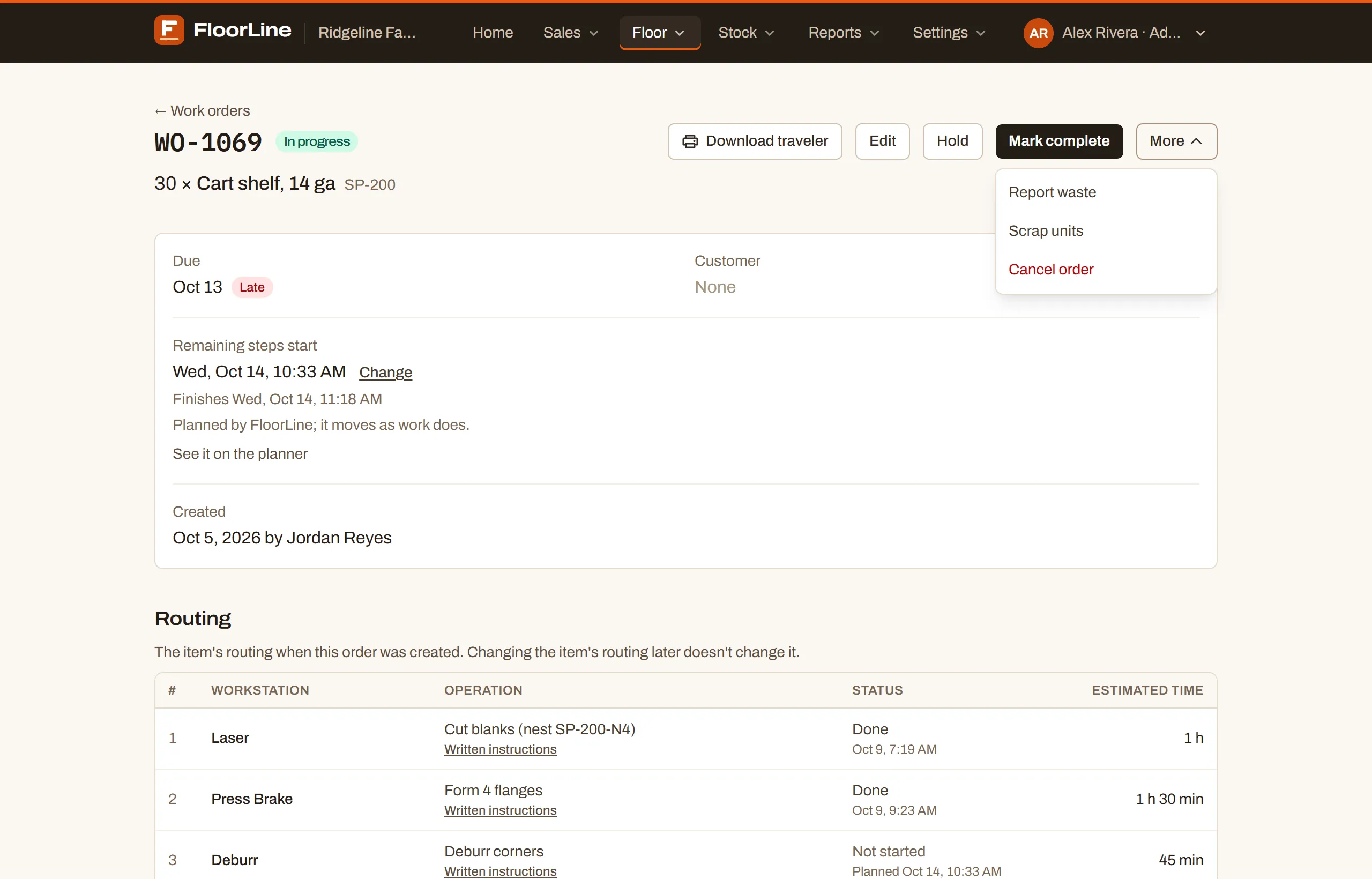
Actions you need less often are under More. Report finished, Report waste, and Scrap units are on Mid and up; Cancel order is on every plan. The same reports can be made on the tablet.
Report finished
Section titled “Report finished”Use Report finished to put some finished units into stock before the whole order is done, for example a first pallet that has to ship today. It’s offered once the last step has started.
-
Choose More → Report finished.
-
Enter How many are finished (for a serial-tracked item, tick which serial numbers instead) and an optional Note.
-
Choose Put them in stock.
It must be fewer than what’s left. If it’s everything that’s left, complete the order instead. The order shows “3 of 5 finished” and a Finished so far list, and completing it later puts in only the rest.
Report waste
Section titled “Report waste”Waste is material lost beyond what the order planned, like a mis-cut bar. Choose More → Report waste, pick the Material, enter How much was lost, add What happened (optional), and choose Report waste. That much comes out of stock now, and the order still makes its full quantity. For a lot or serial material, you also pick which lots or serial numbers.
Scrap units
Section titled “Scrap units”Scrap is units of the order itself that were lost, like frames bent in the jig.
-
Choose More → Scrap units.
-
Enter how many were lost.
-
Under What was lost with them, each material is ticked with its share for the lost units. Untick a material that can still be used (it shows Kept), or change the amount.
-
Add What happened (optional) and choose Scrap them.
The order’s quantity drops by the units scrapped. A ticked material comes out of stock as scrap; one the order already took that wasn’t lost goes back into stock. Scrapping everything that’s left cancels the order (the button says Scrap them and cancel the order).
Print travelers
Section titled “Print travelers”A traveler is a printed sheet that goes with the work order through the shop. Travelers work on every plan.
One order: on the work order page, choose Download traveler. A PDF downloads; open it and print.
Several orders at once:
-
On the Work orders list, choose Travelers.
-
Set From and To. Both start on today.
-
Check the list of orders the dialog found, then choose Download PDF. You get one PDF with a traveler for each.
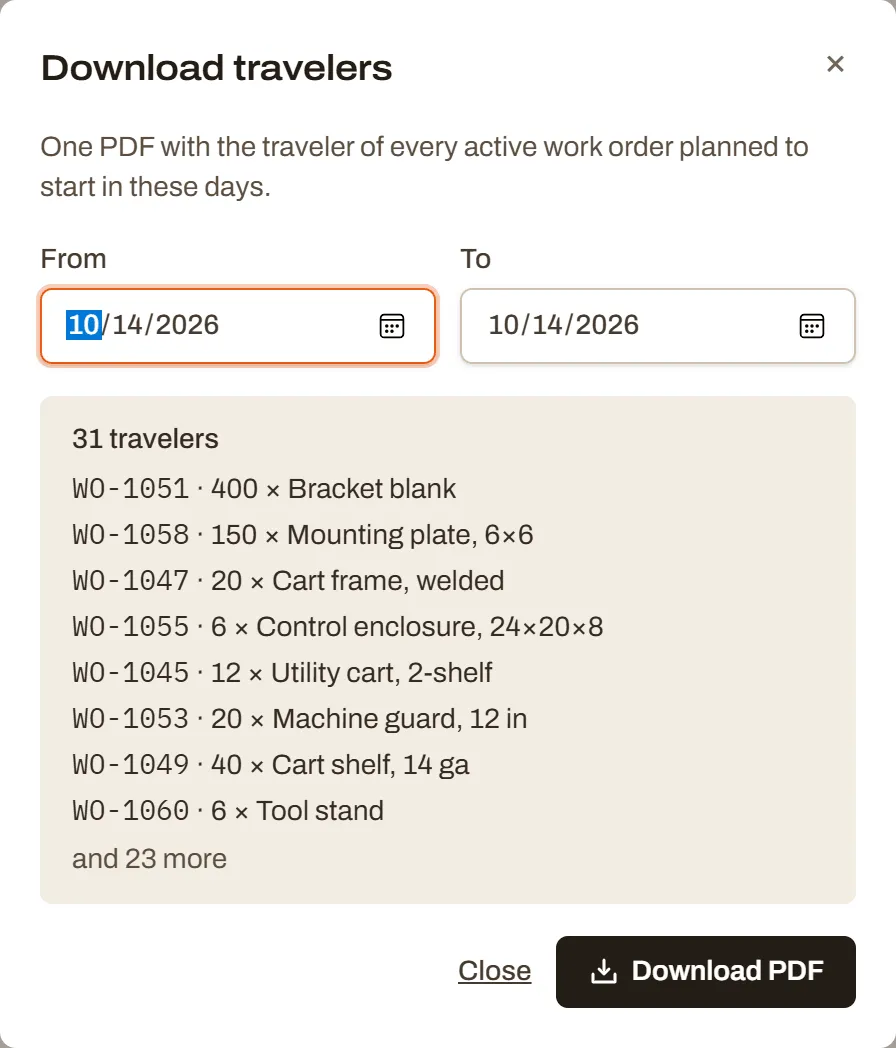
On Mid and up, the dialog picks active orders planned to start in those days. Below Mid, it picks active orders due in those days. One download holds up to 200 travelers and up to 31 days; for more, pick fewer days.
What’s on a traveler
Section titled “What’s on a traveler”- The header: your shop’s name (and logo, on Basic and up), the WO number, the status if it isn’t open, and a barcode for the order.
- The order: item, quantity, customer, customer PO, due date, the planned start and finish (Mid and up), the hold reason if it’s on hold, and the notes.
- The routing: each step’s station and operation, its planned start, its own barcode, and two write-in lines (“Initials and time”) for who started it and who finished it. A step with instructions says “Instructions on the tablet”. Below a step, each of its quality checks has a box to tick and a line to write the answer.
- The materials: each component, how much is needed, the step it’s taken at, and a box to tick when it’s pulled.
Long routings run onto more pages. The footer has the print time and the page number.
The barcodes are what the tablet’s Scan reads: the order’s barcode opens the order, and a step’s barcode starts that step. See Scan a traveler.