
Your account
This page is for admins and managers, who sign in to FloorLine with an email address and password. It covers signing in, your Account settings page, your tablet PIN, your emails, and what to do when you forget your password.
Operators don’t have an email login. They sign in on a station’s tablet by tapping their name and entering a PIN, which an admin sets on the Users page. If you’re an operator and forgot your PIN or got locked out, ask an admin: see Set up users.
Sign in
Section titled “Sign in”Each shop has its own address, such as acme-machining.floorlinehq.com. You sign in there.
-
Go to your shop’s address. If you don’t remember it, go to floorlinehq.com, choose Sign in, type the part before
.floorlinehq.comunder Shop address, and choose Continue. -
Enter your Email and Password.
-
Choose Sign in.
You stay signed in on that browser for up to 30 days, unless you sign out or your password is reset.
If you were invited by an admin, use the link in your invite email first: it lets you set your name and password and signs you in. Invite links work for 7 days; if yours has run out, ask an admin to choose Resend invite on the Users page.
Some messages you might see:
- “That email and password don’t match an account at this shop.” Check both, and check you’re at the right shop’s address. FloorLine doesn’t say which of the two was wrong.
- “There’s no shop at … .floorlinehq.com” The shop address is misspelled. Addresses made from a shop name often have a hyphen.
- “Too many tries. Wait N minutes, then try again.” Several wrong tries in a short time pause sign-in for that account for a few minutes. Wait, or reset your password.
Sign out
Section titled “Sign out”Choose your name at the top right of the header, then Sign out. On a phone or narrow screen, open the menu button; Sign out is at the bottom, next to your name.
Signing out ends your session on this browser only. Other computers or phones you’re signed in on stay signed in.
Open Account settings
Section titled “Open Account settings”-
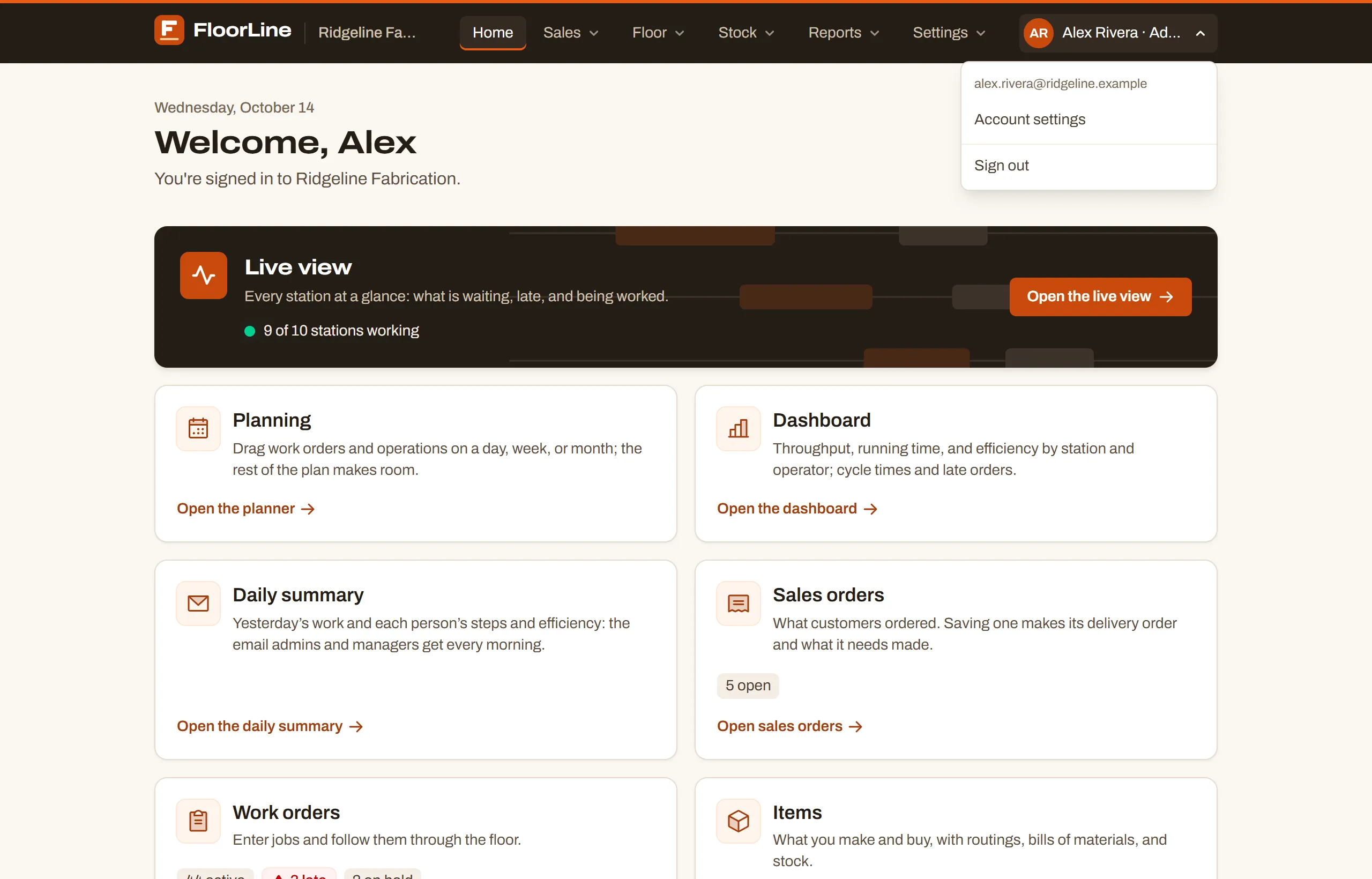
Choose your name at the top right of the header. The menu shows your email address.
-
Choose Account settings.
The page, Your account, shows your Name, Email, and Role (the shop owner shows as Owner (admin)). Below that are your Emails and your Tablet PIN.
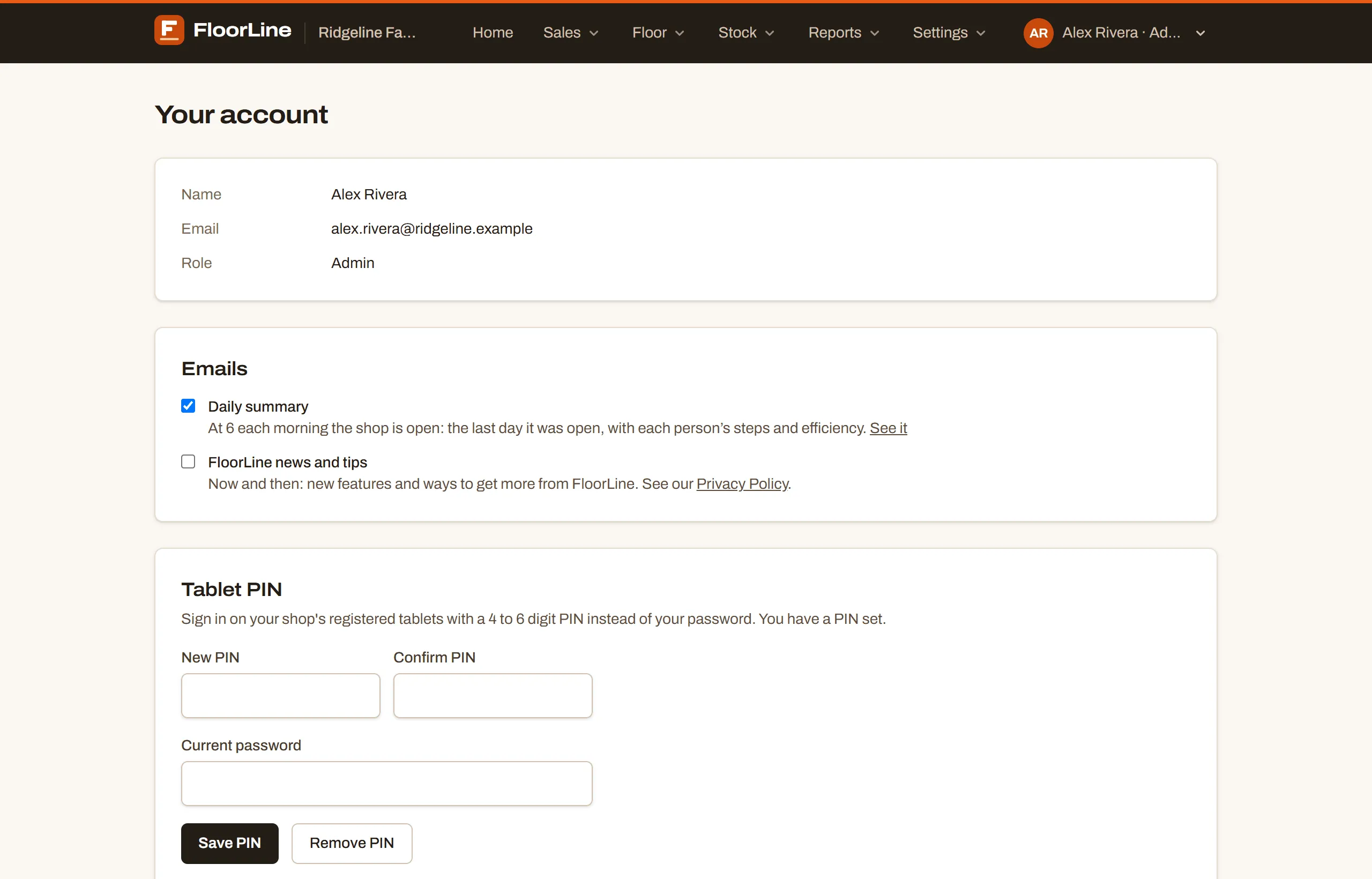
Your name and email can’t be changed on this page. If one of them needs to change, email support@floorlinehq.com from the address on your account. To change your role, ask an admin (nobody can change their own role).
Set or change your tablet PIN
Section titled “Set or change your tablet PIN”Admins and managers can set a PIN of their own, so they can sign in on the shop’s tablets the way operators do: tap their name, enter the PIN. You don’t need one to use FloorLine in the office.
-
Open Account settings and find Tablet PIN. It says whether you have a PIN set.
-
Type a 4 to 6 digit PIN under PIN (or New PIN if you have one) and again under Confirm PIN.
-
Enter your Current password. It’s required, so nobody can set a PIN on your account from a computer you left signed in.
-
Choose Save PIN. You’ll see “Your PIN is saved.”
Once you have a PIN, your name shows on the tablet’s name grid at every station. On the Mid plan and up, stations limited to chosen operators still let admins and managers with a PIN sign in.
Five wrong PINs in a row on a tablet lock you out of PIN sign-in for 15 minutes. Another admin can unlock you early on the Users page, or you can set a new PIN here, which also unlocks it.
Remove your PIN
Section titled “Remove your PIN”Enter your Current password and choose Remove PIN. You’ll see “Your PIN was removed,” and your name no longer shows on the tablets.
Choose your emails
Section titled “Choose your emails”The Emails section has two checkboxes. Each change saves as soon as you tick or untick it.
- Daily summary (Basic and up): an email at 6 each morning the shop is open, about the last day it was open: steps done, orders finished, what’s late, what’s short, and each person’s steps (with efficiency on Mid and up). It’s on by default. See it opens the same summary in the app. Below Basic the checkbox is greyed out. See Daily summary.
- FloorLine news and tips: whether FloorLine may email you about new features and ways to use them. It’s off unless you ticked it when you signed up or tick it here.
Account emails (confirming your address, password resets, invites) and, for the owner, billing emails always go out; they aren’t controlled here. Scheduled email reports (Mid and up) are set up by admins in Shop settings; to stop getting one, ask an admin to take you off it.
Confirm your email address
Section titled “Confirm your email address”When you create a shop, FloorLine sends a link to confirm your email address. Until you use it, a banner across the top of every page says “Confirm your email address. We sent a link to …”.
-
Open the email “Confirm your email for … on FloorLine” and choose Confirm email.
-
The page says “Your email is confirmed.” Choose Continue to FloorLine.
If the email didn’t arrive, check your spam folder, then choose Resend in the banner. The link works for 3 days. An old or used link says “This confirmation link has expired or was already used”; sign in and choose Resend for a new one.
Nothing is blocked while your email is unconfirmed, but confirm it anyway: it’s how you get back in if you forget your password. People who accept an invite, or reset their password, are confirmed automatically.
Reset a forgotten password
Section titled “Reset a forgotten password”-
On your shop’s sign-in page, choose Forgot password? (If you’re signed in, sign out first.)
-
Enter the Email you sign in with and choose Email me a reset link. The page always answers the same way, whether or not that email has an account, so nobody can use it to find out who works at your shop.
-
Open the email “Reset your FloorLine password for …” and choose Choose a new password. The link works for 1 hour and only once.
-
Enter a New password (at least 12 characters) and the same again under Confirm new password, then choose Save new password.
-
Sign in with your new password.
There’s no separate “change password” form. To change a password you still know, sign out and use Forgot password? in the same way.
If the reset link says “This reset link has expired or was already used,” choose Get a new link and start again.