
Find your way around
This page shows how the office app is laid out: the header and its menus, Home, and what each role can open. It also covers using FloorLine on a phone and installing it as an app.
Your shop’s address
Section titled “Your shop’s address”Your shop lives at its own address, like acme.floorlinehq.com. That’s where everyone in your shop signs in, and where the floor tablets run. The address is set when the shop is created and can’t be changed.
If you don’t remember it, go to floorlinehq.com/sign-in. Sign in to your shop asks for your shop’s address and takes you to its sign-in page.
The header
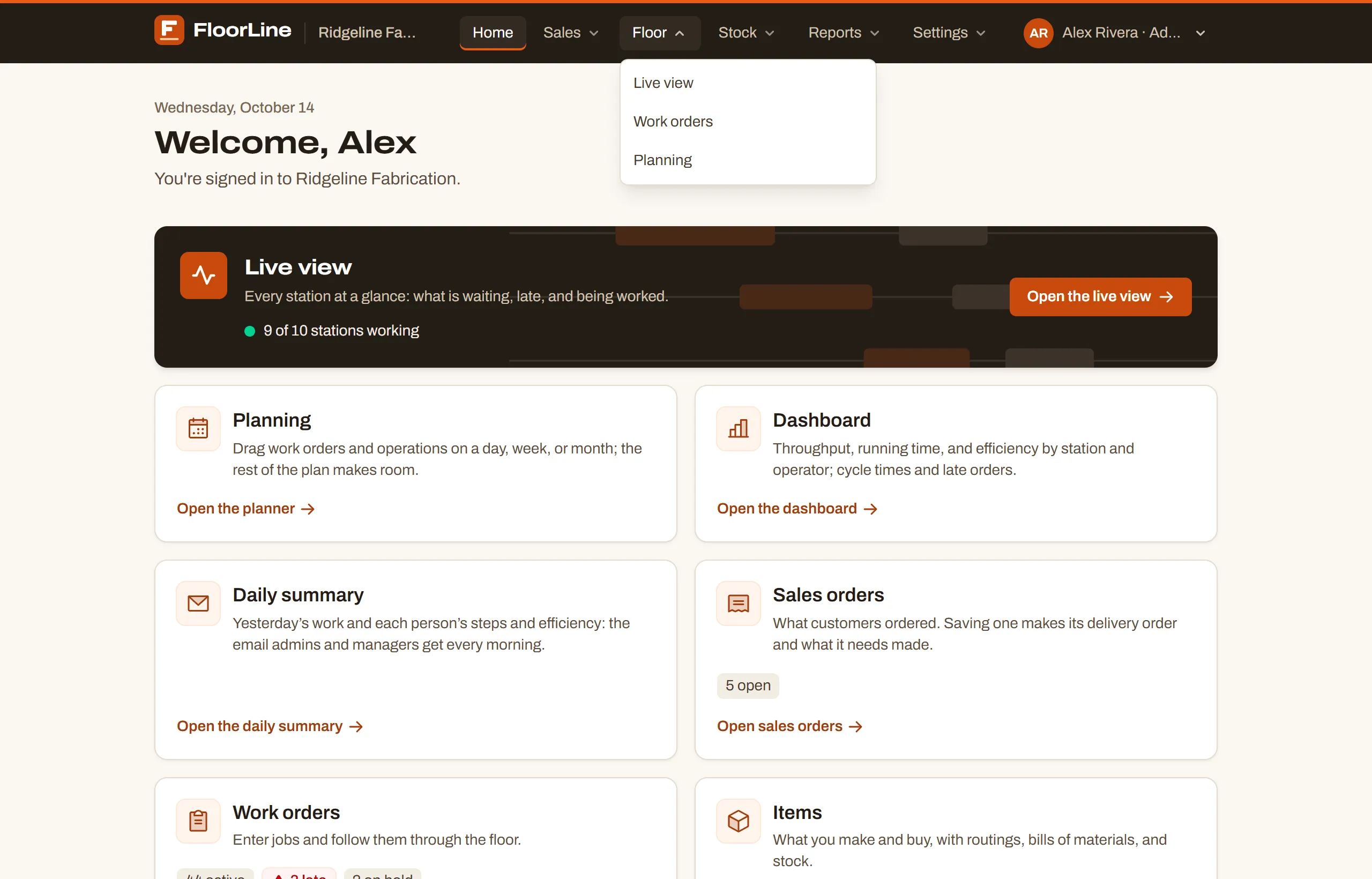
Section titled “The header”The dark bar across the top of every page has, from left to right:
- The FloorLine logo, which goes to Home, then your shop’s name (and its logo, on Basic and up).
- Home.
- A menu for each section: Sales, Floor, Stock, Reports, and Settings. Select one to see its pages.
- Help, which opens this help center at the article for the page you’re on.
- Your name and role, which opens the account menu.
The section you’re in is marked in the header, and the page you’re on is marked in its menu.
Sections and their pages
Section titled “Sections and their pages”| Section | Pages | Who sees them |
|---|---|---|
| Sales | Sales orders, Customers | Admins and managers |
| Floor | Live view, Work orders, Planning | Admins and managers |
| Stock | Items, Replenishment, Shipping and receiving, Expiring soon | Admins and managers. Expiring soon is listed only on Mid and up. |
| Reports | Dashboard, Daily summary | Admins and managers |
| Settings | Users, Stations, Tablets, Shop settings, Audit log, Import from spreadsheets, Billing | Users, Shop settings, and Audit log: admins. Billing: the owner. Stations, Tablets, and Import from spreadsheets: admins and managers. |
A few pages hold more than their name says:
- Shipping and receiving has tabs: Receiving (purchase orders), Shipping (delivery orders), Vendors, and Customers, plus Transfers on High with more than one location.
- Replenishment links to the master schedule on Mid and up.
The account menu
Section titled “The account menu”Select your name at the right of the header to open the account menu. It shows your email address, Account settings (your password, your tablet PIN, and which emails you get), Help center, and Sign out.
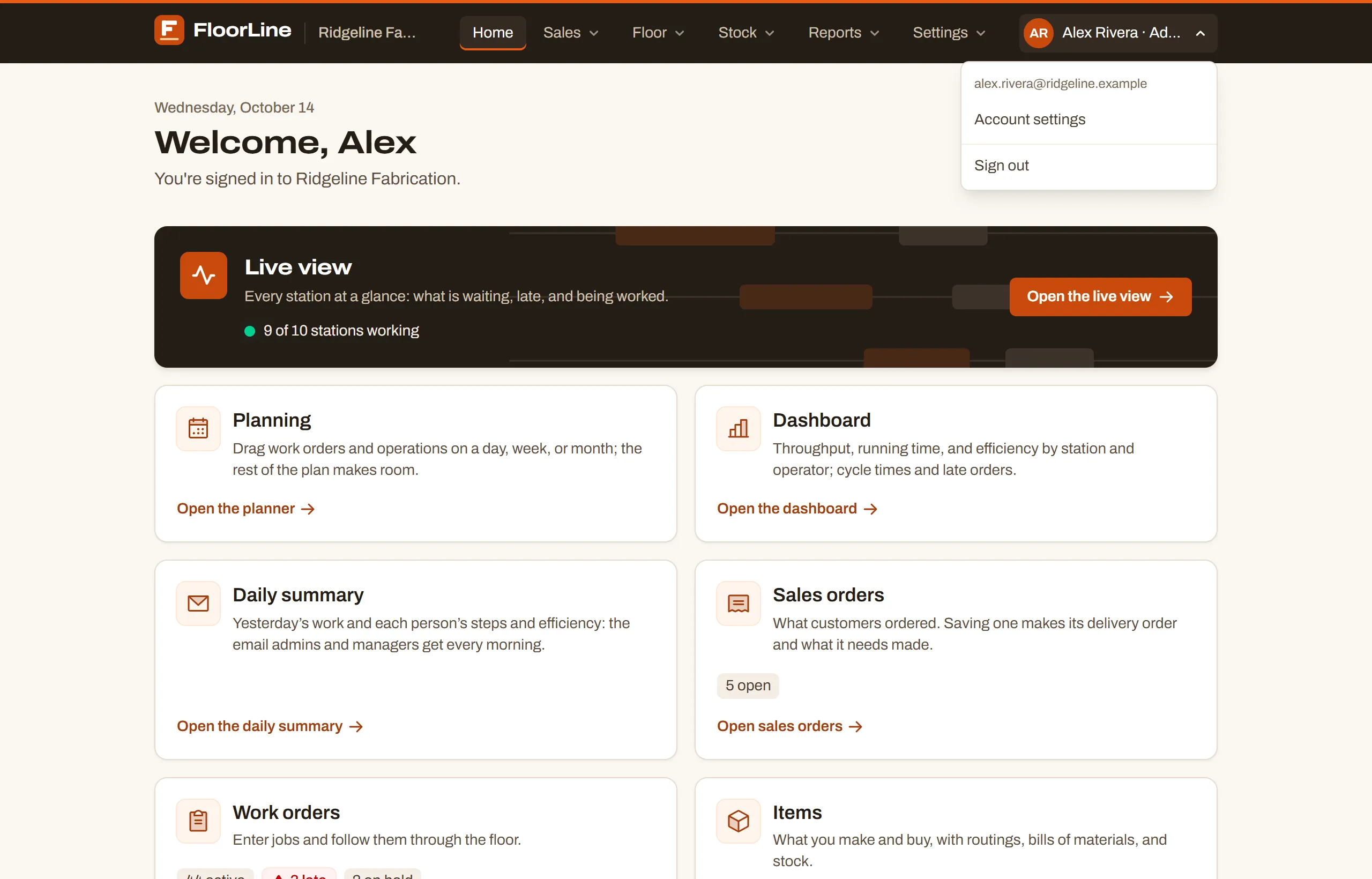
The shop’s own settings are under Settings in the header, not here. See Your account.
Location
Section titled “Location”On the High plan, with more than one active location, a location picker appears in the header next to your shop’s name. It narrows Live view, Work orders, the Dashboard, Planning, and Stations to one location, or shows All locations. FloorLine remembers your choice in that browser. See Locations.
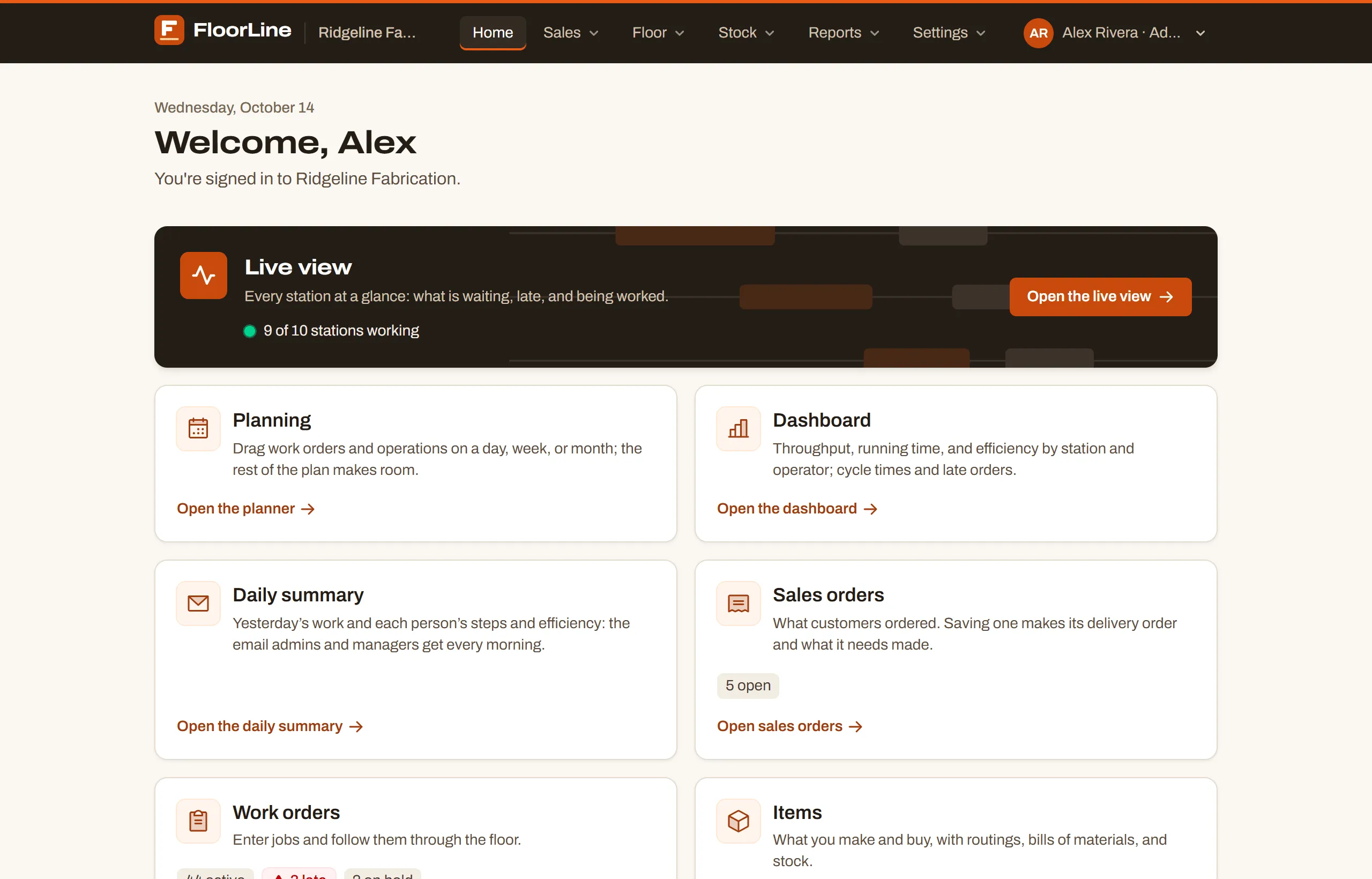
Home is the first page after you sign in. It greets you, then shows a card for each part of FloorLine with where it stands right now:
- Live view leads across the top, with how many stations are working.
- Cards follow for Planning, Dashboard, Daily summary, Sales orders, Work orders, Items, Replenishment, Expiring soon (Mid and up), Shipping and receiving, and Stations.
- Counts appear on the cards where they apply: active, late, and on-hold work orders; items low on stock; what’s open to receive and ship, and how many are late; how many stations have a tablet. Late counts show in red.
Select a card to open its page.
What each role sees
Section titled “What each role sees”| Owner | Admin | Manager | Operator | |
|---|---|---|---|---|
| Signs in | Email and password | Email and password | Email and password | Name and PIN, on a tablet |
| Home, and the Sales, Floor, Stock, and Reports pages | Yes | Yes | Yes | No |
| Users, Shop settings, Audit log | Yes | Yes | No | No |
| Stations | Sees and changes | Sees and changes | Sees only | No |
| Tablets, Import from spreadsheets | Yes | Yes | Yes | No |
| Billing | Yes | No | No | No |
| Works jobs on a tablet | With their own PIN | With their own PIN | With their own PIN | Yes |
The owner is the admin who created the shop. Only the owner changes the plan and manages billing.
Operators work only on the station tablets. Admins and managers can set their own PIN under Account settings to sign in on a tablet too. See Users and roles.
Pages your plan doesn’t include
Section titled “Pages your plan doesn’t include”Pages for features your plan doesn’t include stay in the menus and on Home, so you can see what’s there. Opening one shows a short note saying which plan has it, like “Analytics is on Mid and up.” The owner sees a See plans link to Billing; everyone else sees “Ask the shop owner about upgrading.”
The one exception is Expiring soon, which appears only on Mid and up. See Plans and limits.
On a phone or narrow screen
Section titled “On a phone or narrow screen”Below about 1,024 pixels wide, on a phone or a narrow window, the header folds into a menu button at the right. Tap it to see Home and every section’s pages listed under the section’s name, with your name (the account menu), Help, and Sign out at the bottom. Tap it again to close it.
Install FloorLine as an app
Section titled “Install FloorLine as an app”FloorLine runs in the browser, and you can also install it so it opens in its own window or full screen, from an icon like any other app. Once installed, it opens even without a connection. There are two apps, both from your shop’s address:
- The office app opens at Home. Install it from your browser’s own install option while you’re on any office page. Browsers that offer installing web apps, like Chrome and Edge, show it in their menu or address bar.
- The floor app opens straight to the floor screen, full screen. This is the one for station tablets. On a tablet that’s already set up, the name grid shows Install app. On an iPhone or iPad, Install app shows the steps instead: tap Share in Safari’s toolbar, choose Add to Home Screen, then Add.
Install app doesn’t appear once the app is installed, or in a browser that can’t install it.
When FloorLine updates, the installed app picks up the new version on its own. A floor tablet reloads into it the next time it’s back on the name grid, never in the middle of someone’s work.
When a page isn’t there
Section titled “When a page isn’t there”If you follow an old link or mistype an address, FloorLine shows There’s no page here, with the address you tried, a Go to Home button, and a list of the pages you can open. It never quietly sends you somewhere else.