
Lots and serial numbers
Some items need more than a count. Powder coat comes in batches that can expire; steel comes with a mill heat number you may have to trace; a control enclosure ships with its own serial number. FloorLine can count an item by lot (a batch number, with a quantity in each) or by serial number (one number per unit), and record every move each lot or unit makes: received on which purchase order, used on which work order, shipped on which delivery order.
Admins and managers set items up and handle receiving, shipping, and counts. Operators enter the lots and serial numbers they use and make on the tablet.
Count an item by lot or serial number
Section titled “Count an item by lot or serial number”-
Open the item (Stock → Items). It must have Track how many are on hand ticked.
-
Under Counted by, choose Lot or batch or Serial number (the default is Quantity).
-
Set the dates, if the item has them (next section).
-
Choose Save.
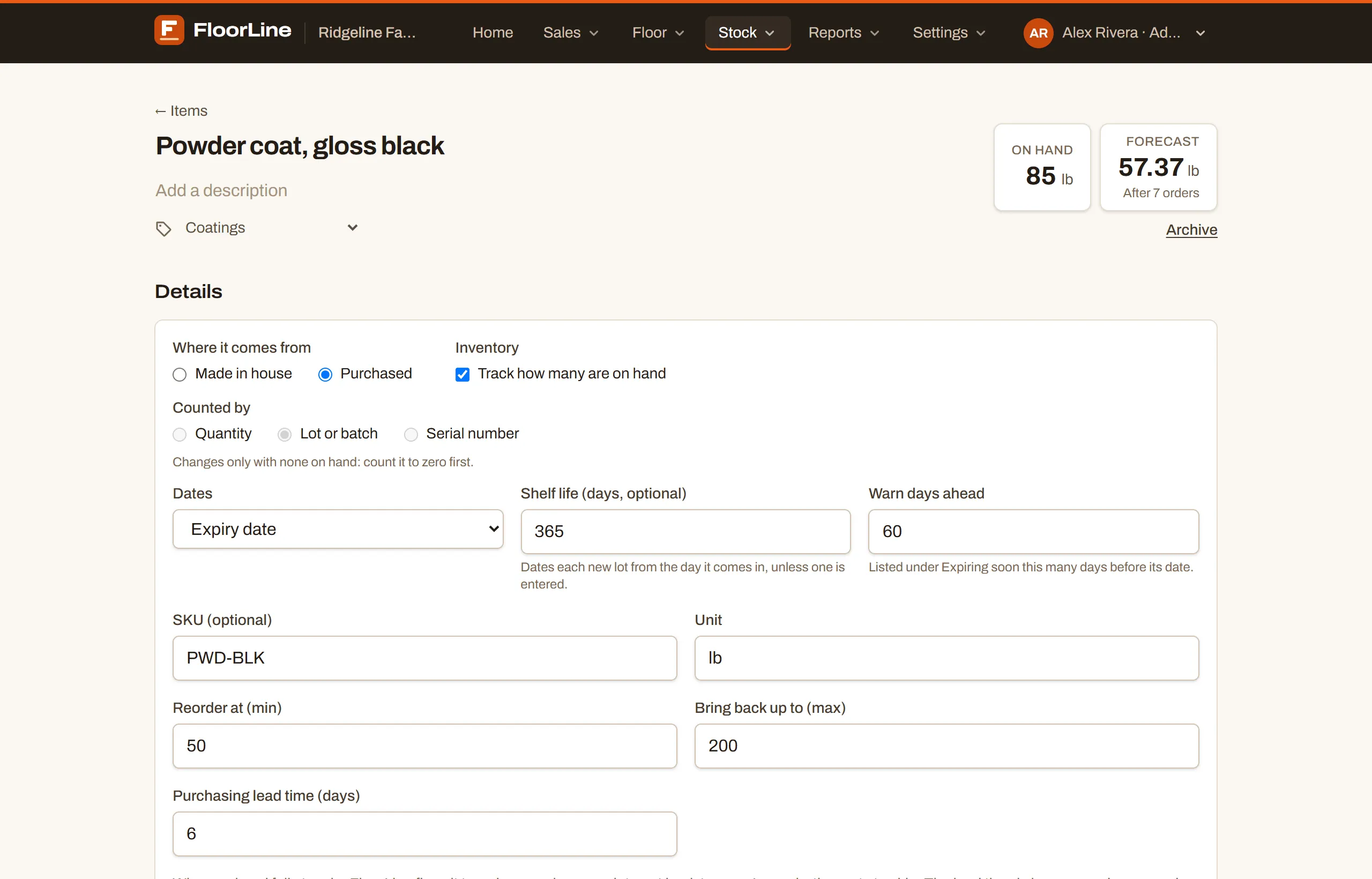
- Counted by changes only when the item has none on hand: “Changes only with none on hand: count it to zero first.” Count it to zero, change it, then count its lots or serial numbers back in.
- On hand and the item’s stock history work just as before. The lots or serial numbers move alongside, and they always add up to on hand.
- Serial numbers are unique per item; lot numbers are unique per item too, so the same lot number on two different items is two different lots.
Expiry and best-by dates
Section titled “Expiry and best-by dates”Lots and serial numbers can carry a date. Set how on the item, next to Counted by:
- Dates: Expiry date (don’t use it after) or Best-by date (may lose quality after).
- Shelf life (days, optional): dates each new lot or serial number that many days from the day it comes in, unless someone enters a date. Something made on a work order is dated from the day it’s finished.
- Warn days ahead: how many days before its date it’s listed under Expiring soon (30 unless you change it).
A date is good through the end of that day, on the shop’s clock. Where a lot or serial number stands shows as a badge: red once expired, amber past best-by or coming up within the warn days.
Nothing is ever blocked by a date. FloorLine fills picks with the soonest-dated stock first and skips expired stock, but you can still choose an expired lot by hand. It then warns, for example “Lot SC-24088 is past its expiry date. Use only if it’s still good.”
To change one lot’s or serial number’s date, open it (below) and choose Change next to its date.
See an item’s lots or serial numbers
Section titled “See an item’s lots or serial numbers”A lot item’s page has a Lots section; a serial item’s has Serial numbers.
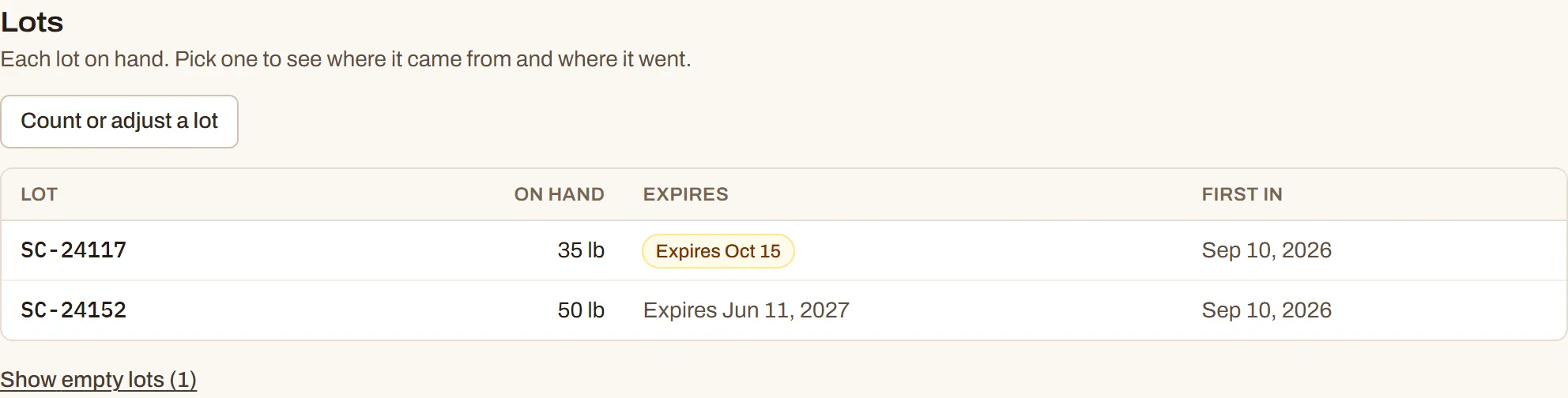
- Lots lists each lot with stock: Lot, On hand, the date (Expires or Best by), and First in. Show empty lots lists the ones used up.
- Serial numbers lists each one in stock, with its date. Show serial numbers no longer in stock lists the shipped, used, and removed ones.
- On the High plan with several locations, each lot shows where it is, and each serial number its location.
Stock is listed soonest-dated first (undated last), then oldest first. Every picker in FloorLine uses that order.
Trace a lot or serial number
Section titled “Trace a lot or serial number”Click a lot or serial number to open its history: how much is on hand now (or whether the unit is in stock, shipped, used, or removed), its date, and every move, oldest first: each receipt, each work order that used it or made it, each shipment, each count, with who and when, and links to the orders.
That’s your traceability. If a customer reports a bad part, open the serial number and see which work order made it, then open that order to see which lots of material it used, and open those lots to see which purchase order they came in on and what else used them.
Receive lots and serial numbers
Section titled “Receive lots and serial numbers”When you receive a purchase order (see Shipping and receiving), lines for lot and serial items ask for more than a quantity. Lines are marked By lot or By serial number.
For a lot item:
-
In the Receive now column, type the Lot number printed on the delivery and the quantity in that lot.
-
If the delivery came as more than one lot, choose Split into another lot and add the next lot and its quantity. The lots must add up to what you’re receiving on that line.
-
Optionally enter each lot’s date. Left blank, a lot you already have keeps its date and a new lot takes the item’s shelf life.
-
Choose Save receipt.
A new lot number starts a new lot; one you already have adds to it.
For a serial item:
-
Choose Enter serial numbers.
-
Type or paste them, separated by commas or one per line. A barcode scanner works too. Choose Done.
-
Optionally set their date.
-
Choose Save receipt.
You need one serial number per unit received. A serial number already in stock is refused (“Already in stock: …”); one that was shipped can come back in.
Ship lots and serial numbers
Section titled “Ship lots and serial numbers”When you ship a delivery order:
- Lot items come pre-filled with lots, soonest-dated first, then oldest first, skipping expired lots. Pick a different lot from the list (each shows how much is on hand, and “(expired)” or “(past best-by)” where it applies), change the quantities, or choose Take from another lot. A lot can’t ship more than it has: “Lot … has only … on hand.”
- Serial items: choose Pick serial numbers. Find them by typing, tick each one going out, or choose Pick the first N (soonest-dated first, expired last), then Done. Only serial numbers in stock can ship.
Then choose Save shipment. The order’s history lists each shipment’s lots and serial numbers.
On the floor
Section titled “On the floor”Lot and serial items on work orders need two things entered: the lots or serial numbers of the materials used, and those of what the order makes. Both show in a Lots and serial numbers section on the tablet’s step and under the work order page’s bill of materials.
Materials used
Section titled “Materials used”A lot or serial material isn’t taken from stock when its step starts, as other materials are. It’s taken when someone enters which lots or serial numbers were used.
-
On the tablet at the station where the material is used, with that step current, find the material in Lots and serial numbers. It says “Needed before step N completes”.
-
Tap Enter lots or Enter serials.
-
Lots come pre-filled from what’s in stock, soonest-dated first, skipping expired lots. Change them to the lots actually used, and use Add another lot if it came from more than one. They must add up to exactly what the order needs. For serial numbers, scan or type them, or tap Fill from stock.
-
Tap Save. They come out of stock now.
A manager can also enter them from the work order page at any time while the order is active. Entering them again before the step completes replaces the earlier entry: what was taken goes back first.
What the order makes
Section titled “What the order makes”A work order that makes a lot or serial item needs its lot number, or a serial number for every unit, before its last step completes. It can be entered at any step.
- Lot item: tap Enter lot and type the Lot number for these units. Once some finished units have gone into stock in that lot, the lot can’t change.
- Serial item: tap Enter serials and enter A serial number for each unit still to make. New serial numbers must not already exist for the item.
- Optionally set an Expiry or best-by date. Left blank, the item’s shelf life is counted from the day it’s finished.
When the order completes, the lot’s quantity or the serial numbers go into stock.
Complete step waits for them
Section titled “Complete step waits for them”Until the lots and serial numbers for a step are in, the tablet won’t complete it and says “Enter the lots and serial numbers above before completing the step.” On the last step that includes what the order makes. Mark complete on the work order page needs all of them.
Finished early, waste, scrap, and reopening
Section titled “Finished early, waste, scrap, and reopening”- Report finished (units into stock before the order is done) asks which serial numbers are finished.
- Report waste and Scrap units ask which lots or serial numbers were lost. Lots coming back from scrap go back to the lots the order took, latest first, unless you name them.
- Reopening a done order takes its lot or serial numbers back out of stock. If any of those serial numbers already left stock (shipped, for example), it can’t be reopened.
Count a lot, or add and remove serial numbers by hand
Section titled “Count a lot, or add and remove serial numbers by hand”For a lot or serial item, stock is changed lot by lot or serial by serial. The on-hand button at the top of the item page opens the same dialog as the button in the section.
Count or adjust a lot:
-
Choose Count or adjust a lot.
-
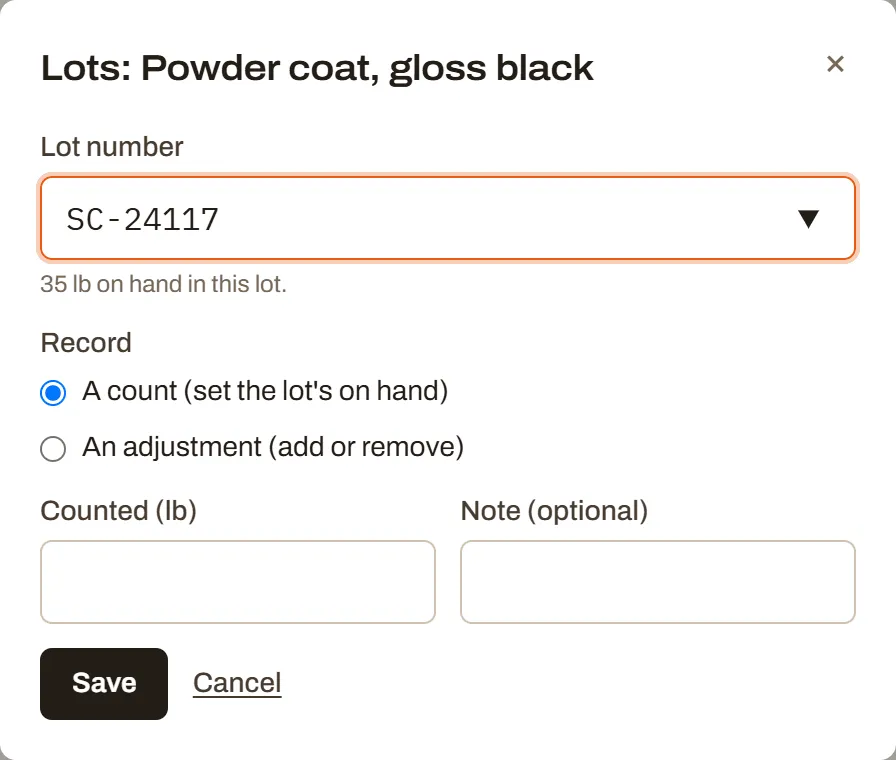
Pick the Lot number, or type a new one to start a lot (you can give a new lot its date).
-
Choose A count (set the lot’s on hand) or An adjustment (add or remove), and enter the amount (a minus sign removes).
-
Add a Note if it helps, and choose Save.
Add or remove serial numbers:
-
Choose Add or remove serial numbers.
-
Under Put into stock, list serial numbers to add (and optionally their date). Under Take out of stock, list ones that were lost or damaged. Commas or one per line.
-
Add a Note and choose Save.
On the High plan, both dialogs have At to choose the location.
If the item shows “… on hand aren’t in any lot” (or serial number), some stock moved while lot tracking was off, for example after a downgrade. Count its lots or serial numbers so they match on hand.
Expiring soon
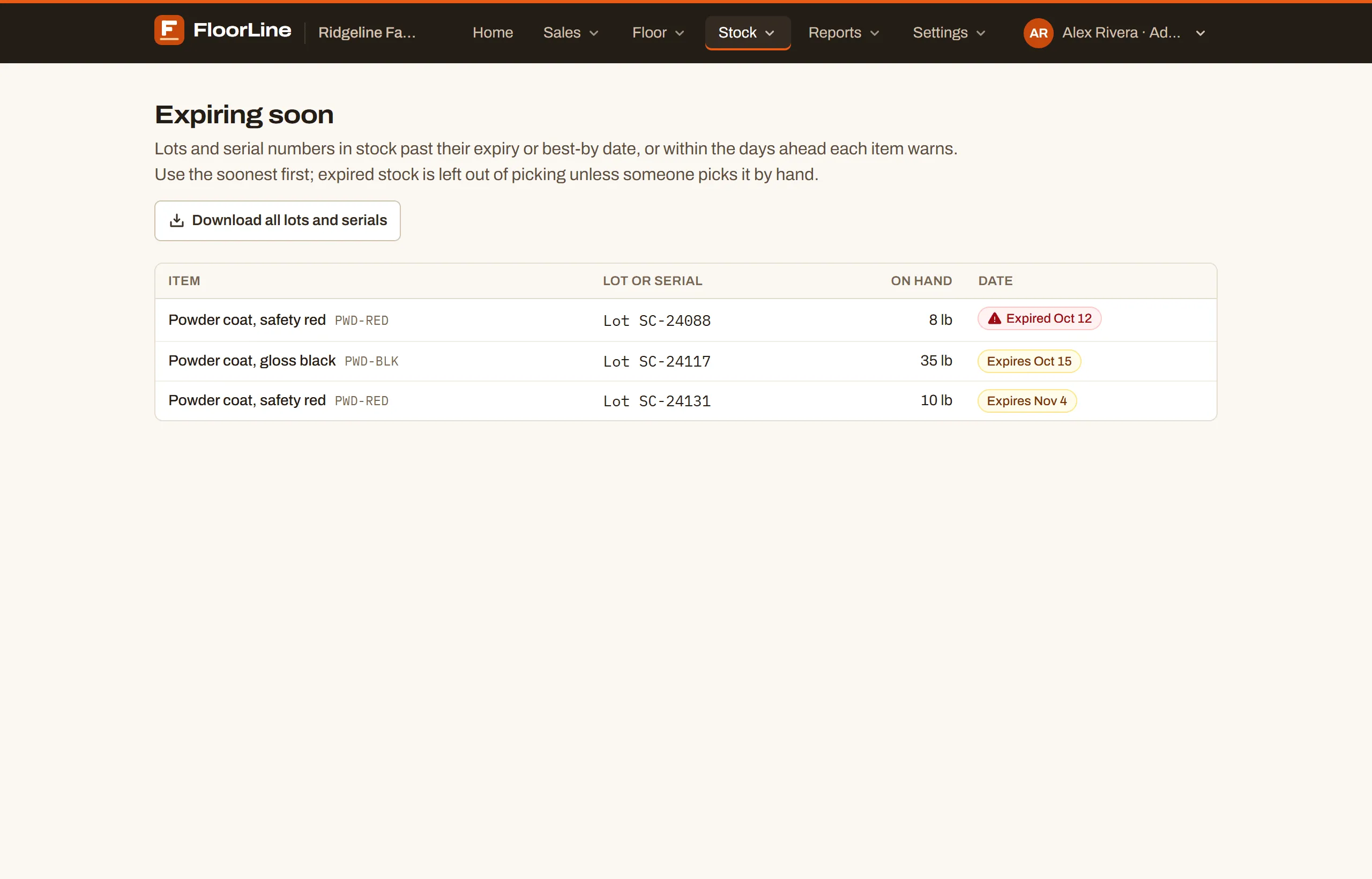
Section titled “Expiring soon”Stock → Expiring soon lists every lot and serial number in stock that’s past its date, or within its item’s warn days, soonest first: the item, the lot or serial number, how much is on hand, and its date. Each line opens its item. Use what’s listed first, and decide what to do with what’s expired.
Home has an Expiring soon card too, and the daily summary email lists stock dated today or tomorrow, or already past.
Download all lots and serials on that page gives a CSV of every lot and serial number in stock, with its date and where it stands. See Export to CSV.
Below Mid
Section titled “Below Mid”Lots, serial numbers, dates, and Expiring soon are on Mid and up. If a shop moves below Mid, its lots and serial numbers are kept but items move by quantity alone until it’s back on Mid.