
Downtime and OEE
Stations stop: a blade snaps, a changeover runs long, nobody is there to run it, or it’s the Monday cleaning. FloorLine keeps track of both kinds of stop:
- Scheduled downtime is planned ahead on each station (an inspection every Monday at 6:00 for 30 minutes). The planner pauses work across it, like closed hours.
- Downtime on the floor is reported on the station’s tablet, with a reason, when the station goes down. It stops the jobs running there and keeps new work off the station until it’s back up.
The dashboard then turns that into OEE (overall equipment effectiveness) for each station and the whole shop, and adds up downtime by reason.
Admins set up reasons and scheduled downtime. Anyone signed in on a station’s tablet can mark it down and back up. Admins and managers can also mark a station back up from the office.
Set up downtime reasons
Section titled “Set up downtime reasons”Reasons are the buttons an operator picks when the station goes down, and how the dashboard groups downtime. Each shop starts with seven: Breakdown, Waiting on material, Setup or changeover, Maintenance, No operator, Quality problem, and Other.
-
Go to Settings → Shop settings and scroll to Downtime reasons.
-
To add one, type it under New reason (for example “Tool change”) and choose Add reason.
-
To rename one, choose Rename, change the name, and choose Save.
-
To stop offering one, choose Archive. Archived reasons are listed under Archived reasons with Restore.
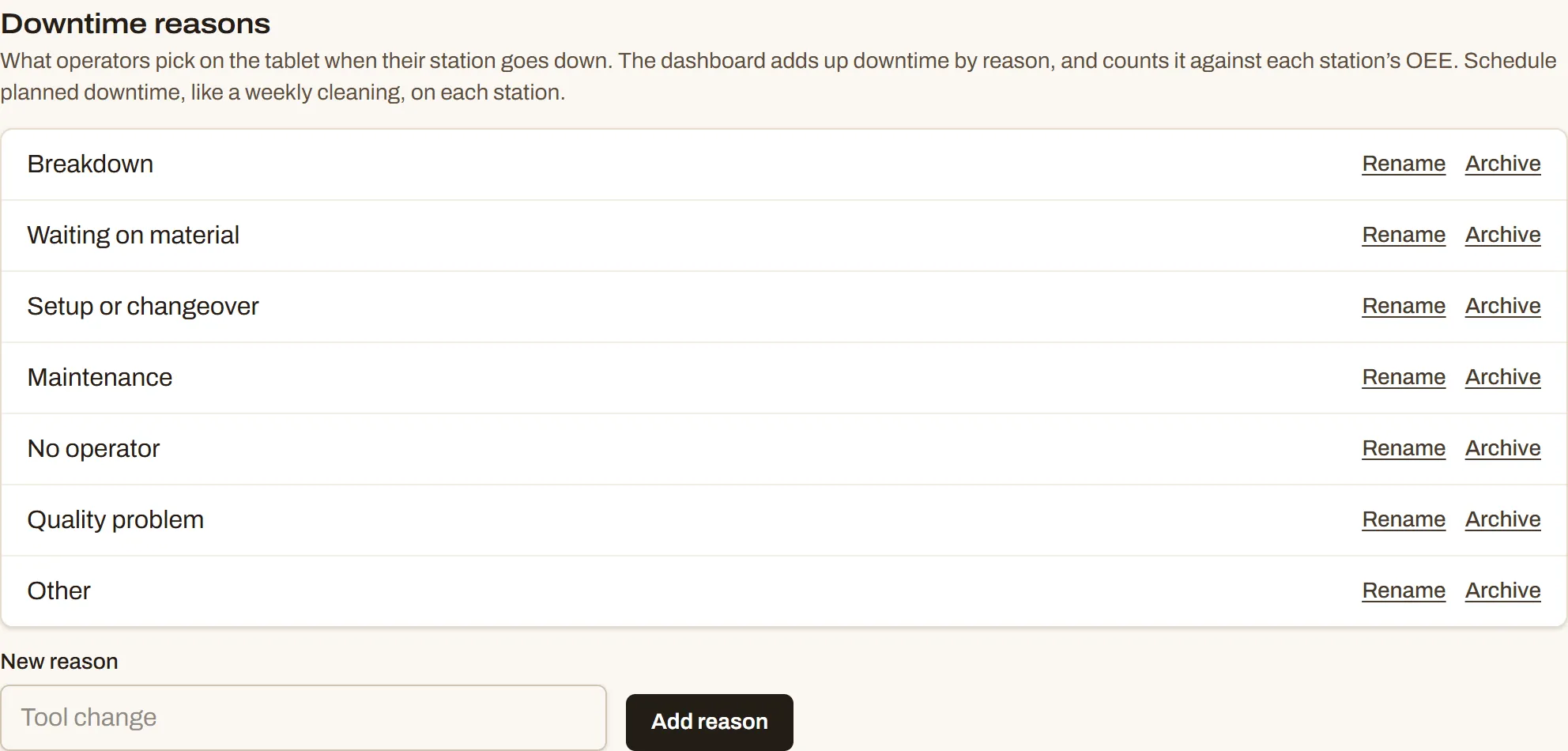
- Names are unique among active reasons (ignoring case). A shop can have up to 50.
- Archiving keeps the history: past downtime still shows under its reason on the dashboard.
- Keep the list short. Six to ten reasons an operator can pick in a second are worth more than thirty precise ones.
Schedule planned downtime on a station
Section titled “Schedule planned downtime on a station”Use scheduled downtime for stops you know about ahead of time: inspections, cleaning, preventive maintenance, a one-time service visit.
-
Go to Settings → Stations.
-
Under the station, choose Schedule downtime (or Change scheduled downtime if it has some).
-
Choose Add scheduled downtime.
-
Fill in What for (for example “Inspection and cleaning”) and choose how it Repeats:
- Every week: pick the days under On.
- Every few weeks: set Every (2 to 12 weeks), Starting the week of, and the days.
- Once a month: pick The (First, Second, Third, Fourth, or Last) and the Weekday, for example the last Friday of each month.
- Just once: pick the Day.
-
Set Starts at (on the station’s clock) and Minutes (5 to 1,440). The dialog shows the rule in words, such as “Every Monday at 6:00 AM for 30 min”.
-
Add more if the station has them, then choose Save.
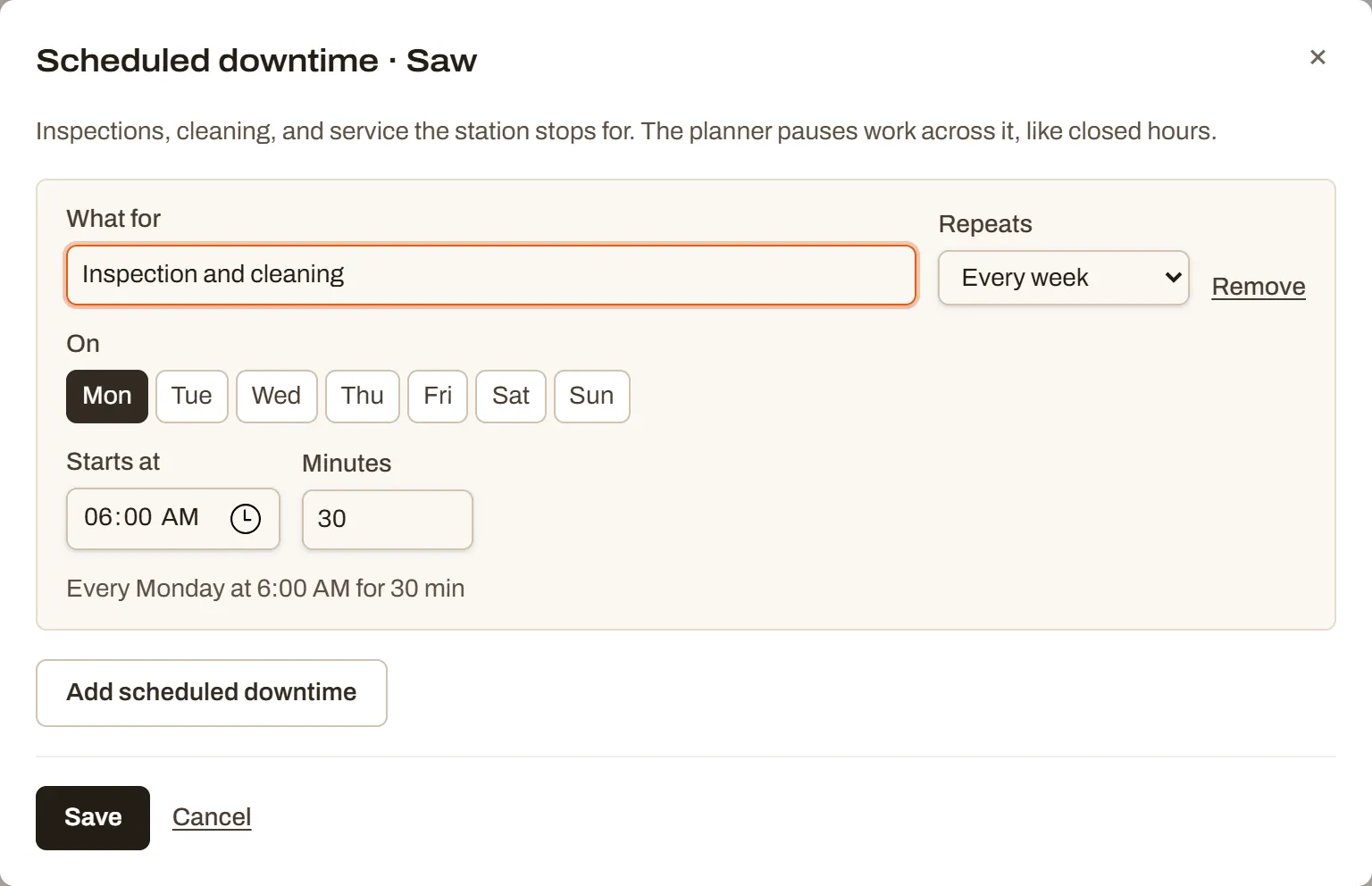
- A station can have up to 20 scheduled downtimes. Remove takes one out.
- The Stations page lists each one under its station.
- The planner treats scheduled downtime like closed hours: a step that runs into it pauses and continues after.
- OEE leaves scheduled downtime out of the time the station was meant to run, so a planned cleaning doesn’t count against the station.
Mark a station down on the tablet
Section titled “Mark a station down on the tablet”When the station stops, whoever is signed in on its tablet reports it.
-
On the floor screen, tap Station down.
-
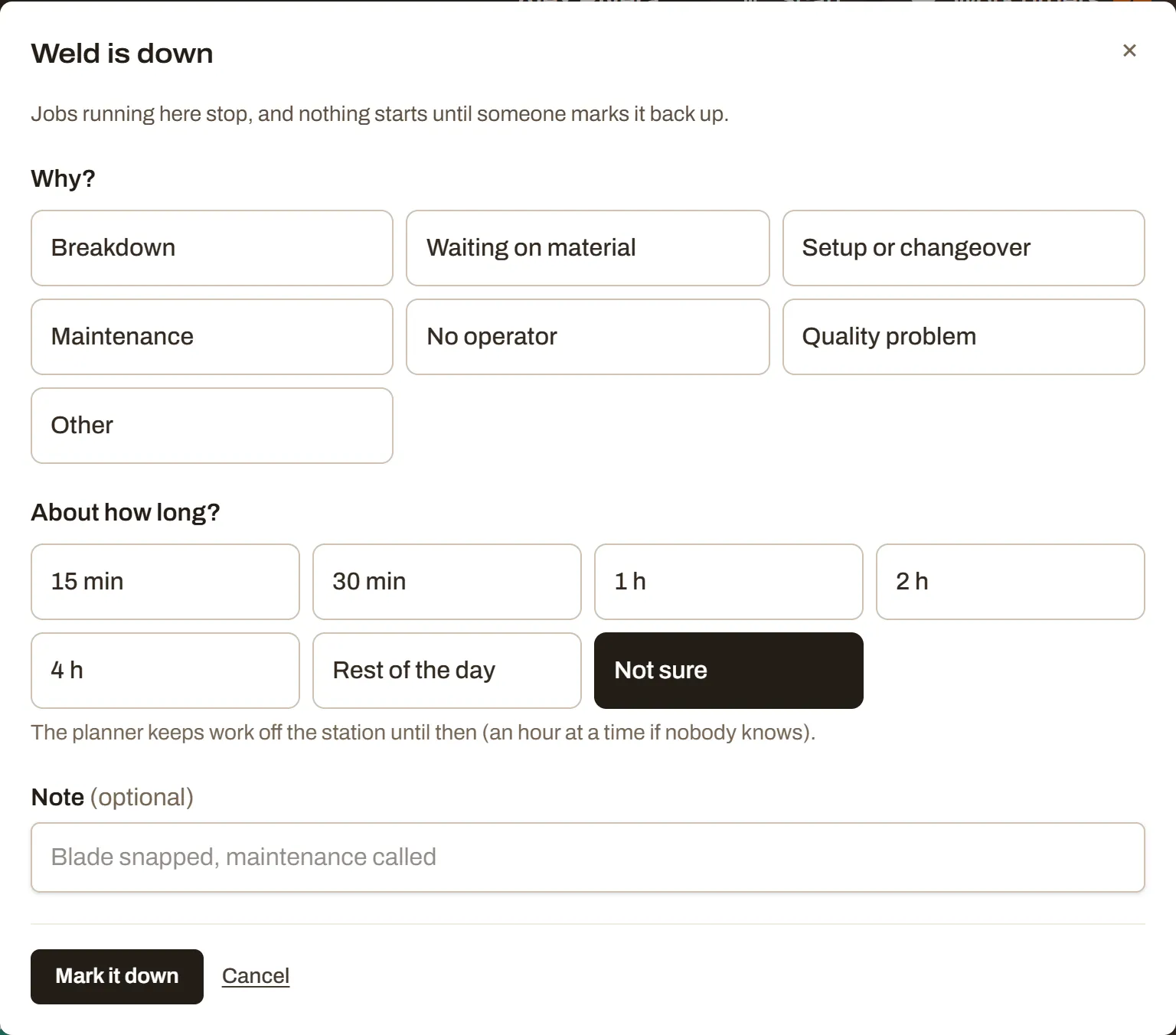
Under Why?, tap the reason.
-
Under About how long?, tap a rough length: 15 min, 30 min, 1 h, 2 h, 4 h, Rest of the day, or Not sure.
-
Add a Note if it helps (for example “Blade snapped, maintenance called”).
-
Tap Mark it down.
What happens:
- Jobs running at the station stop. Their steps are paused, and the stop is recorded in each order’s activity like any other stop.
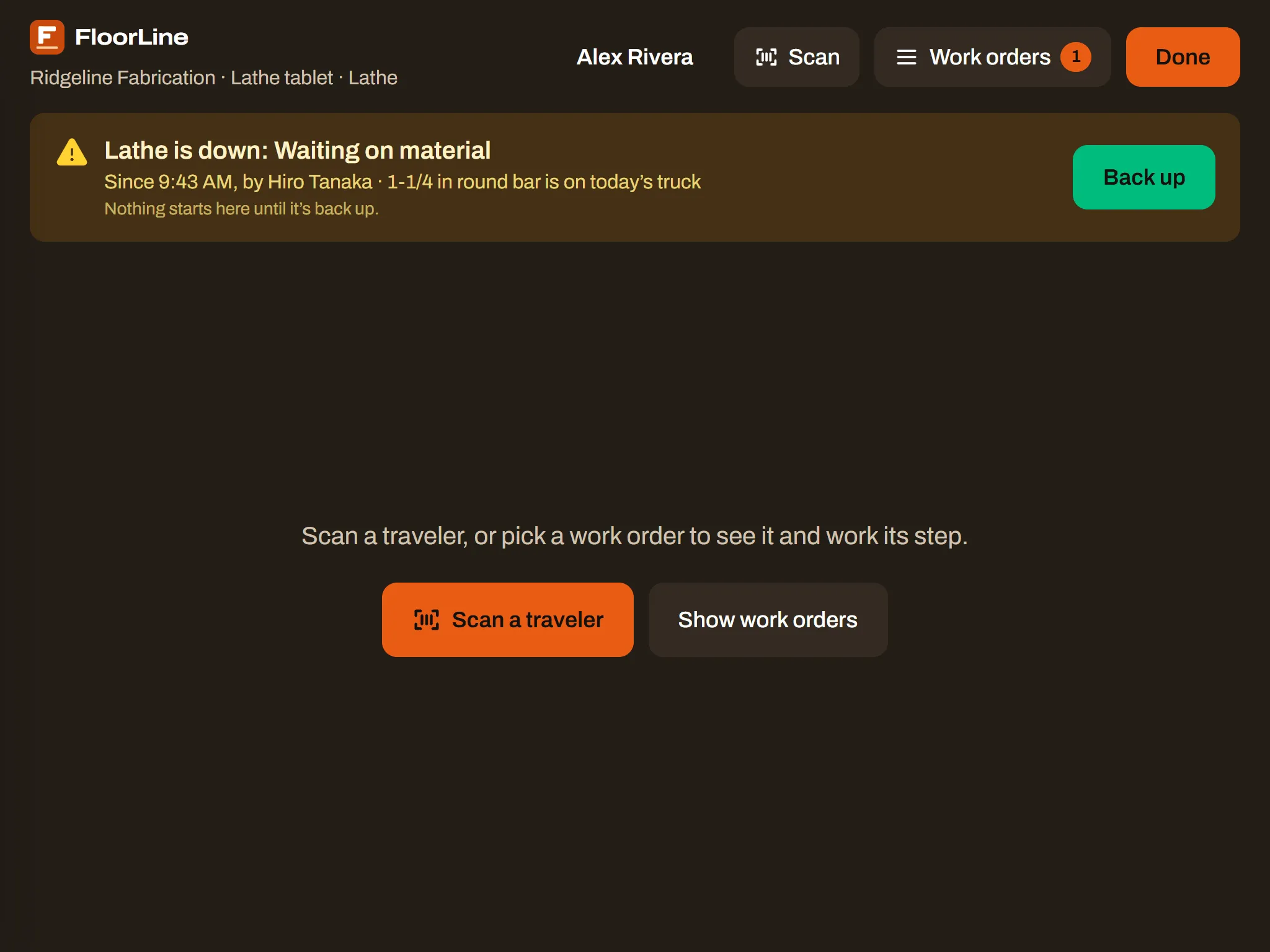
- Nothing starts at the station until it’s back up. The tablet shows an amber banner with the reason, since when, who marked it, and when it’s expected back: “Nothing starts here until it’s back up.”
- The planner keeps work off the station until the time you picked. With Not sure, or once that time has passed, it keeps the station clear an hour at a time until someone marks it back up. Work planned there moves later, and orders that depend on it move with it.
- The live view puts the station first, with a Down badge and the reason. The dashboard says how many stations are down now.
Marking a station down needs the connection. If the tablet is offline, it says to try again once it’s back online.
Mark a station back up
Section titled “Mark a station back up”When it’s running again, tap Back up on the tablet’s banner. Then start the paused jobs again as usual.
If nobody did, an admin or manager can do it from the office: go to Settings → Stations, find the station showing Down since a time, and choose Mark back up.
OEE explained
Section titled “OEE explained”OEE answers “of the time this station was meant to run, how much did it spend making good parts at the speed it should?” It’s three percentages multiplied together.
| Part | Question | How FloorLine works it out |
|---|---|---|
| Availability | Was it running when it was meant to? | Planned time is the station’s open hours in the period, less its scheduled downtime. Availability is the planned time not lost to downtime logged on the tablet, divided by the planned time. Only downtime inside open hours counts. |
| Performance | When it ran, did it run at the routing’s pace? | The time the routings say the steps finished there should take (from each step’s throughput and the order’s quantity), divided by the time they actually ran (from each start until the next stop, hold, or complete). It’s capped at 100%. |
| Quality | Were the units good? | Good units (the quantities of the steps finished there) divided by good units plus units scrapped at that station. |
OEE = availability × performance × quality.
A worked example
Section titled “A worked example”Say the Saw is open 40.5 hours in a week and has a 30-minute scheduled cleaning, so its planned time is 40 hours.
- Operators marked it down for 4 hours in that time (a blade change and waiting on material). It was available 36 of 40 hours: availability 90%.
- The steps it finished should have taken 27 hours by their routings, and actually ran 30 hours: performance 90%.
- It finished steps for 190 good units, and 10 units were scrapped there: quality 95% (190 of 200).
OEE = 0.90 × 0.90 × 0.95 = 77%.
Each part points somewhere different. Low availability: look at Downtime by reason. Low performance: the station runs slower than its routings say, or the throughputs need updating. Low quality: look at scrap reported at that station.
What it needs
Section titled “What it needs”- Performance needs throughputs on the routing steps that run at the station. Without them, performance (and so OEE) shows “—”.
- Quality needs finished units at the station. Scrap counts only when it’s reported with Scrap units, which records the station of the order’s current step.
- Availability needs open hours in Shop settings.
When any of the three can’t be worked out, OEE shows “—” and the tile says “Needs throughputs and finished units”.
Read OEE on the dashboard
Section titled “Read OEE on the dashboard”Go to Reports → Dashboard and pick Last 7 days, Last 30 days, or Last 90 days. The OEE sections cover that period.

- Overall equipment effectiveness: four tiles for the whole shop (every station’s time and units added together). Availability shows the hours down of the hours planned; Quality shows how many were scrapped of the total. If any station is down now, a line says so with See the live view.
- OEE by station: each active station’s downtime, availability, performance, quality, and OEE with a bar.
- Downtime by reason: each reason’s total time down (open hours only) and how many times, longest first, with a bar. “No downtime logged in this period.” when there’s none.
On the High plan, picking a location in the header narrows the dashboard to its stations, on its clock.