
Billing
Billing is for the shop owner only: the person who created the shop. The owner chooses and changes the plan, buys add-ons, and manages the card and invoices. Other admins don’t see Billing in the menu; if they open the page, it says “Only the shop owner can see and change billing. Ask them if you need a different plan.”
Payments are handled by Stripe. FloorLine never sees or stores your card number.
To find it, go to Settings → Billing.
Plans and prices
Section titled “Plans and prices”| Plan | Monthly | Quarterly | Annual | Users | Stations (each with a tablet) |
|---|---|---|---|---|---|
| Free | $0 | $0 | $0 | 3 | 3 |
| Basic | $39 | $108 | $390 | 10 | 5 |
| Mid | $99 | $273 | $990 | 50 | 25 |
| High | $249 | $689 | $2,490 | 250 | Unlimited |
Quarterly billing is about 8% off monthly, and annual is 10 times the monthly price (two months free). Every person of every role counts toward the user limit, operators included. Free also allows 50 active work orders at a time; the paid plans have no limit. For what each plan includes, see Plans and limits, or open Compare all plan features at the bottom of the Billing page.
Need more than 250 users, or custom terms? Email contact@floorlinehq.com for a quote.
The free trial
Section titled “The free trial”Every new shop starts with a 14-day trial of the Mid plan. No card is needed. When it ends, the shop moves to the Free plan unless you’ve chosen a plan; nothing is deleted.
During the trial, the Billing page shows Current plan: Mid and when the trial ends, with the plans to choose from below.
The owner gets a few short emails about the trial: a welcome with the first setup steps, a reminder on day 3 if any of them are left, a note three days before the trial ends, and one when it has. They stop as soon as you choose a plan.
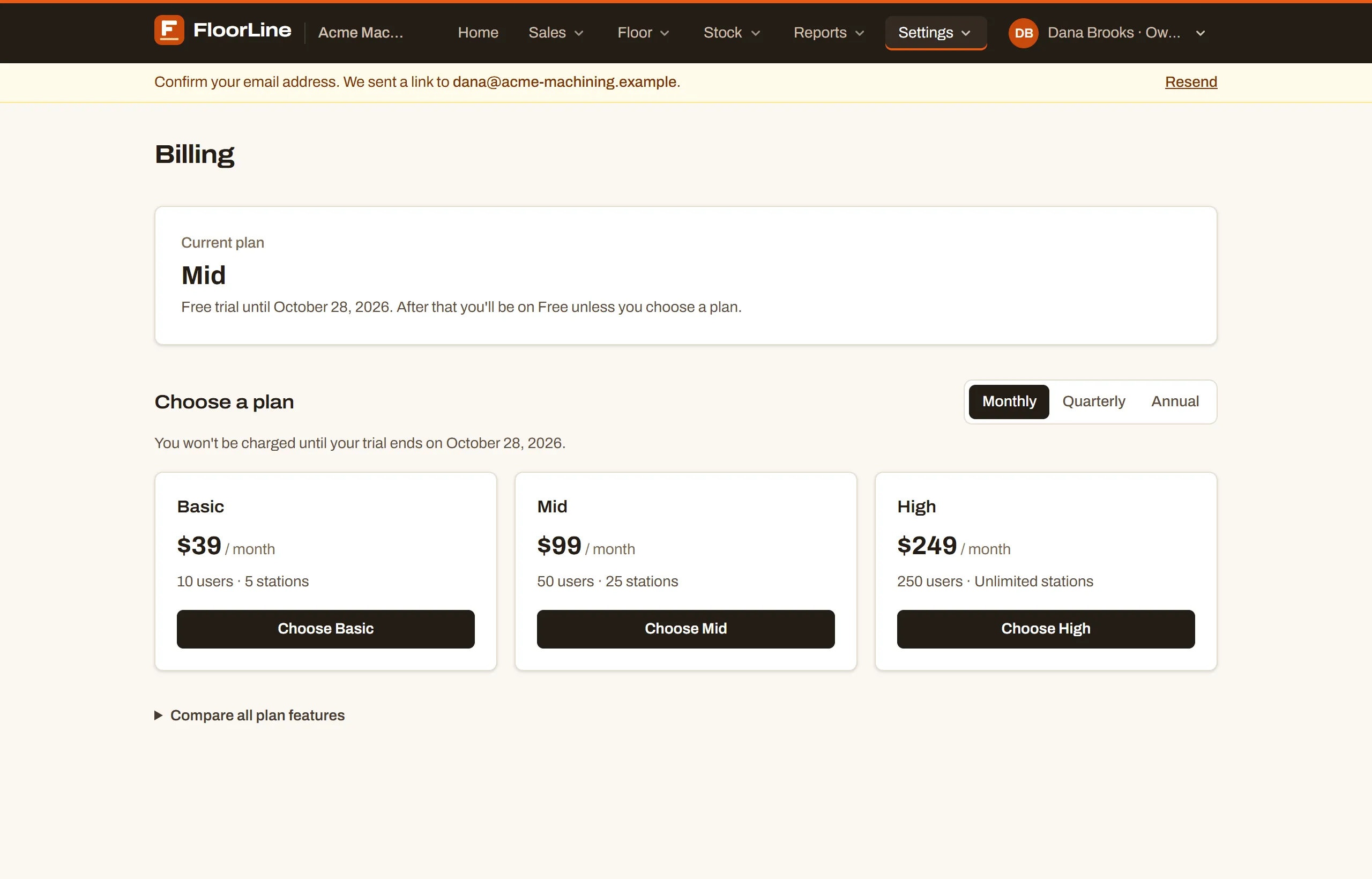
Choose a plan
Section titled “Choose a plan”Do this during the trial, or any time you’re on Free.
-
Go to Settings → Billing.
-
Under Choose a plan, pick the billing cycle: Monthly, Quarterly, or Annual. The prices change to match.
-
Choose Choose Basic, Choose Mid, or Choose High. Stripe’s checkout page opens.
-
Enter your card and billing details there and confirm.
-
You come back to the Billing page. It says “Thanks! Confirming your subscription with Stripe…” for a few seconds, then “Thanks! You’re on the Mid plan” (or whichever you chose).
Choosing during the trial doesn’t cut it short. If more than two days of the trial are left, they carry over: the page says “You won’t be charged until your trial ends on …”, and the first charge is on that date. With less than two days left, the first charge is right away.
Once you’ve subscribed, the Current plan box shows what you pay and when, for example “$99 every month. Your next charge is on November 3, 2026,” and the Choose a plan section is replaced by Change plan and Add-ons.
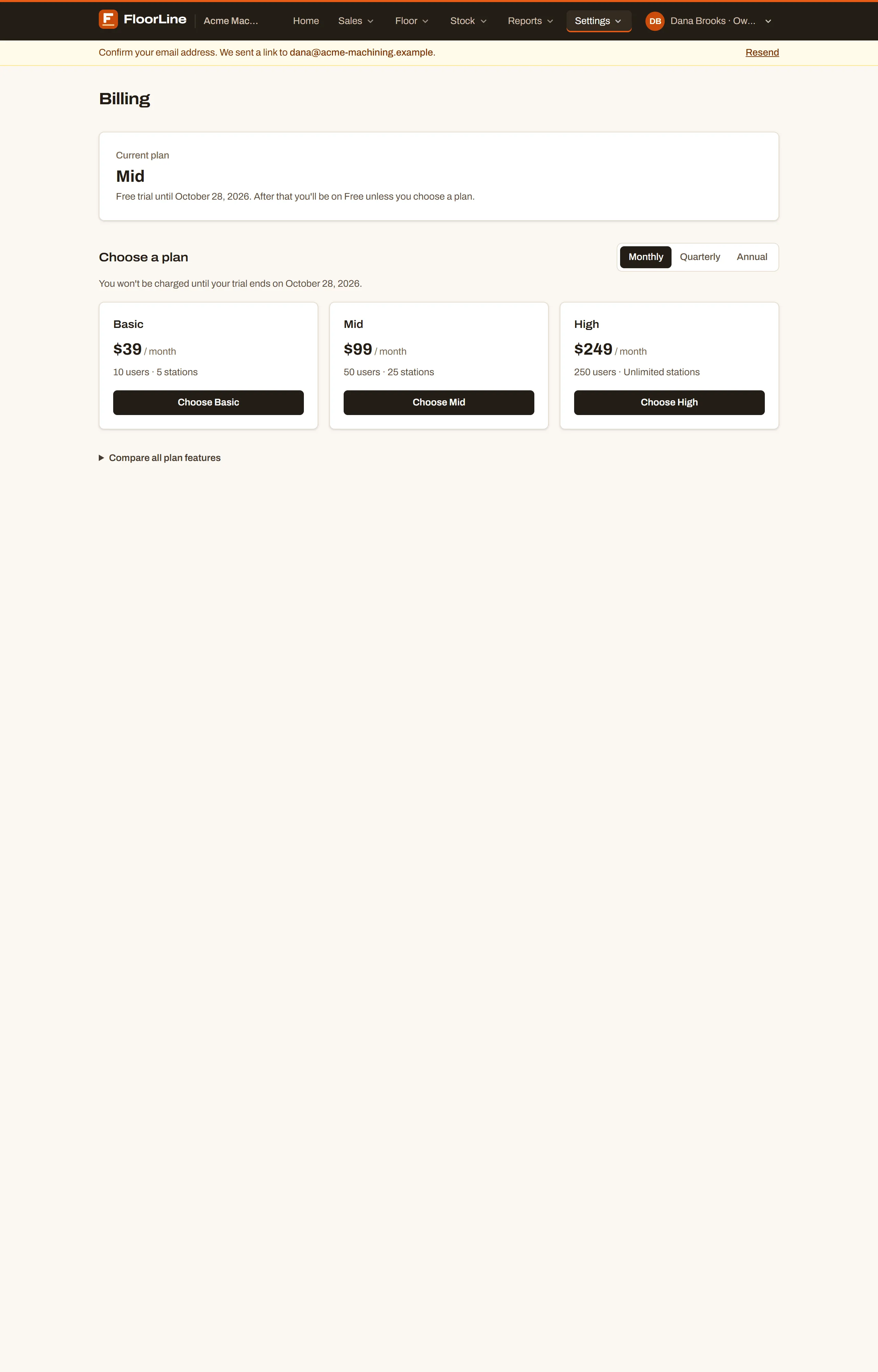
Change your plan or billing cycle
Section titled “Change your plan or billing cycle”-
Go to Settings → Billing and find Change plan.
-
Pick the billing cycle you want at the top right: Monthly, Quarterly, or Annual.
-
Choose Switch to Basic, Switch to Mid, or Switch to High. To keep the same plan on a different cycle, pick the cycle and choose Switch to quarterly (or monthly, or annual) on your current plan.
-
Read the box that opens. It says when the change happens and what it costs.
-
Choose Confirm, or Cancel to back out.
When the change happens depends on its direction:
| Change | When | What you pay |
|---|---|---|
| A higher plan (Basic to Mid, Mid to High) | Right away | The prorated difference is charged to your card today |
| The same plan, longer cycle (monthly to annual) | Right away | The prorated difference, today |
| A lower plan (High to Mid, Mid to Basic) | At the end of the current billing period | The new price from then on |
| The same plan, shorter cycle (annual to monthly) | At the end of the current billing period | The new price from then on |
| Any change while your subscription is still in its trial | Right away | Nothing until the trial ends |
If your card is declined on a change that applies right away, you’ll see “Your card was declined, so your plan is unchanged. Update it in Manage billing, then try again.”
A change booked for later
Section titled “A change booked for later”A move to a lower plan or shorter cycle shows at the top of Change plan, for example: “Switching to Basic (monthly) on November 3, 2026. Until then you keep Mid, and add-ons can’t be changed.” You keep everything on your current plan until that date.
Changed your mind? Choose Keep Mid (or Keep annual billing) in that box, and the switch is called off.
Add-ons move with the plan
Section titled “Add-ons move with the plan”- Changing only the cycle keeps your add-ons, at the new cycle’s price.
- Changing plans sets your add-ons to just what you need to cover the people, stations, and file storage your shop is using on the new plan. Moving down to Basic with 12 active users, for example, includes one 5-user bundle.
- If the new plan can’t hold what you use even with the most add-ons, the switch is refused: “Your shop has 60 active users, more than Basic allows even with add-ons (50). Deactivate some first, then switch.” Deactivate people on the Users page or archive stations on the Stations page, then try again.
Add-ons
Section titled “Add-ons”Add-ons give you a little more room without moving up a whole plan. They’re available on Basic and Mid, billed with the plan on the same cycle, at the same discounts. Free and High don’t have add-ons: Free moves up to Basic, and High already has unlimited stations.
| Add-on | Basic | Mid |
|---|---|---|
| Extra users | Bundles of 5: $7.50 a month ($20.70 a quarter, $75 a year) | Bundles of 10: $12.50 a month ($34.50 a quarter, $125 a year) |
| Extra stations, each with its tablet | $2 a month each ($5.52 a quarter, $20 a year) | $1.50 a month each ($4.14 a quarter, $15 a year) |
| Extra file storage | Blocks of 25 GB: $5 a month ($13.80 a quarter, $50 a year) | Blocks of 25 GB: $5 a month ($13.80 a quarter, $50 a year) |
| Most you can add | 8 user bundles (50 users), 20 stations (25), 40 storage blocks | 20 user bundles (250 users), 75 stations (100), 40 storage blocks |
File storage holds operation instructions, images, quality check photos, and your logo. Basic includes 2 GB, Mid 20 GB, and High 100 GB.
-
Go to Settings → Billing and find Add-ons.
-
Use − and + (or type a number) next to Extra users, Extra stations (each with a tablet), and Extra file storage. The line below shows what your shop will have, such as “With these, your shop has 15 users, 5 stations, and 2 GB of file storage for $7.50 / month on top of your plan.”
-
Choose Save add-ons. You’ll see “Saved.”
- Adding charges your card right away for the rest of the current billing period. During your subscription’s trial nothing is charged until it ends.
- Removing gives a prorated credit.
- You can’t remove more than you’re using. If you try, FloorLine says so (“Your shop has more active users than that allows. Deactivate some users first.”), and nothing changes.
- Add-ons can’t be changed while a plan change is booked, or while the plan is canceled or a payment is overdue. The Add-ons section is hidden until then.
Manage your card, invoices, and cancellation
Section titled “Manage your card, invoices, and cancellation”Manage billing, in the Current plan box, opens Stripe’s billing portal for your shop. There you can:
- update the card you pay with,
- change your billing details (name, address),
- see and download past invoices and receipts, and
- cancel your plan.
Plan and cycle changes happen on FloorLine’s Billing page, not in the portal.
Cancel your plan
Section titled “Cancel your plan”Cancel from Manage billing. The plan stays active until the end of the period you’ve paid for, and you aren’t charged again. The Billing page says, for example, “Canceled: your Mid plan stays active until November 3, 2026, then you’ll move to Free. You won’t be charged again.” While a cancellation is pending, Change plan and Add-ons are hidden.
When the period ends, the shop moves to Free. Nothing is deleted: your items, work orders, and history stay. Features above Free stop showing, and you can’t add people or stations past Free’s limits until you’re under them (you can choose a plan again at any time).
To close the shop for good instead, delete it from Shop settings. That stops the renewal too.
When a payment fails
Section titled “When a payment fails”If Stripe can’t charge your card, nothing stops right away. You get 7 days to fix it.
- Right away, you (the owner) get an email, “Your FloorLine payment for … didn’t go through,” with the date everything keeps working until. Stripe tries the card again during this time.
- During the 7 days, you see a banner on every page: “Your last payment failed. Update your card to keep your plan; the shop turns read-only after the grace period.” Choose Update payment, then Manage billing, and update the card. Plan changes and add-ons are paused until then.
- On day 6, if it’s still unpaid, you get “Last day to update payment for …”.
- On day 7, the shop becomes read-only and you get “… is now read-only on FloorLine.”
As soon as a payment goes through, the shop is back to normal and you get “Payment received for …”.
What read-only means
Section titled “What read-only means”Nothing is deleted, and everyone can still see everything. Everyone sees a banner saying the shop is read-only because a payment is overdue. While it lasts:
Still works
- Viewing every page, and signing in, on computers and tablets
- Work on the floor: tablets keep starting, stopping, and completing steps and releasing held jobs, so production doesn’t stop
- Billing, for the owner, so you can update the card
- Your own tablet PIN and password
- Things that free up room or protect the shop: deactivating people, revoking tablets, archiving stations, canceling invites, unlocking PINs, and completing or canceling work orders
Paused
- Most other changes: adding or editing items, orders, stations, users, and settings, and imports. These show “The shop is read-only until an overdue payment is made, so changes are paused.”
- Features above the Free plan. They come back when the payment goes through.