
Live view
The Live view is a board of your whole floor: a card for every station, showing what’s being worked there right now, who’s on it, and what’s waiting. It updates by itself as operators tap on the tablets, so a supervisor can see the floor from the office, and a TV link puts it on the shop TV with nobody signed in.
Admins and managers open it from Floor → Live view, or the Live view card on Home. The board is on every plan; some of the numbers on it need a paid plan, as noted below.
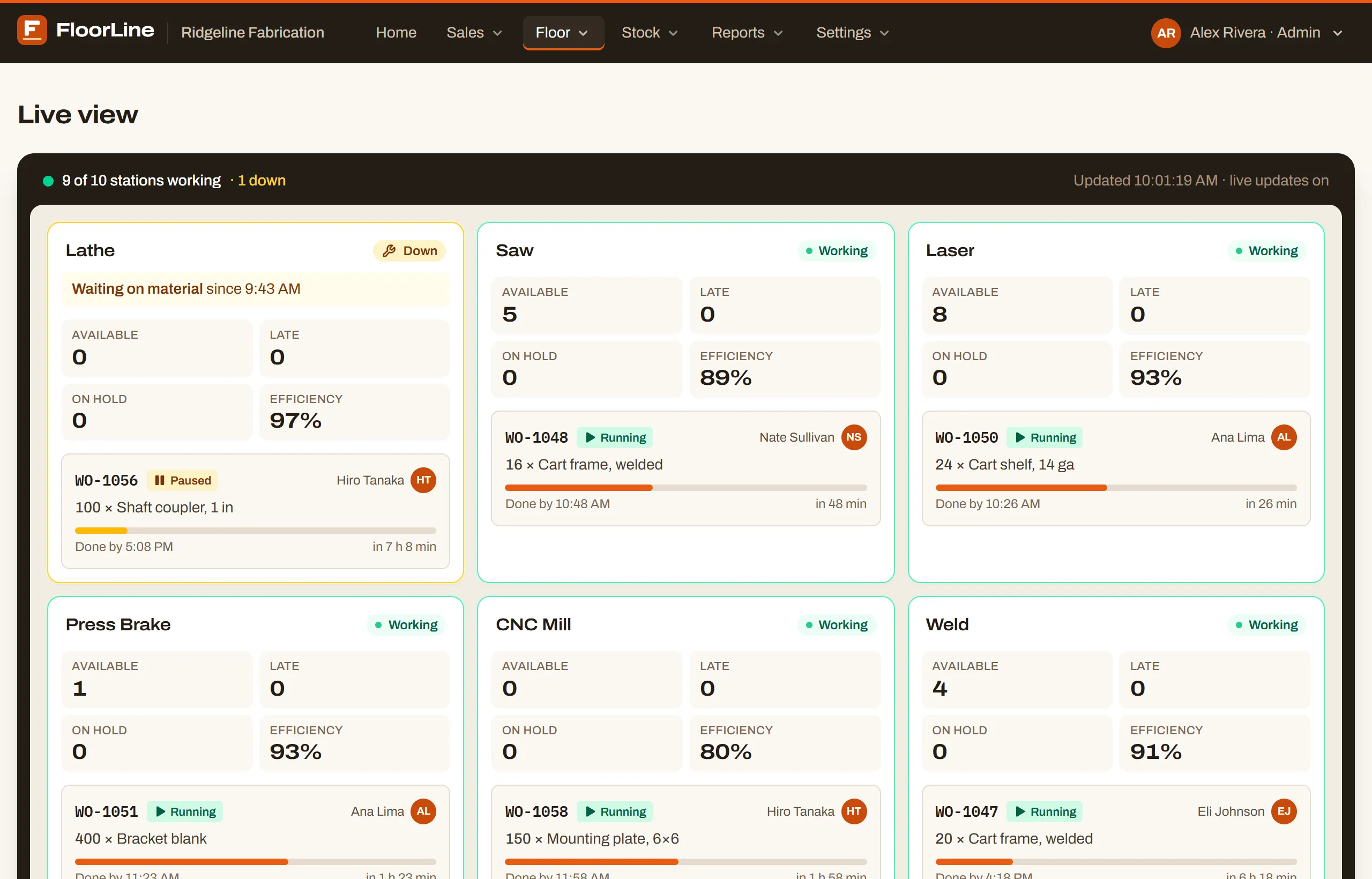
Read the board
Section titled “Read the board”Across the top of the board:
- “6 of 10 stations working”: how many stations have a step running right now. On Mid and up, “· 1 down” follows when stations are marked down.
- Updated and the time of the last change, then live updates on, or refreshes every 10 seconds if the live connection isn’t available.
Stations are in floor order (the order set on the Stations page), with stations that are down first, then stations with a step running, then the rest.
A station’s card
Section titled “A station’s card”Each card has the station’s name and a badge:
- Working (green): a step is running there.
- Down (amber, Mid and up): someone marked the station down on its tablet. The card shows the reason, since when, and when it’s expected back, like “Breakdown since 9:40 AM, back about 10:40 AM”. See Downtime and OEE.
- Idle: nothing is running.
Under the name, tiles count the station’s work:
| Tile | What it counts | Plan |
|---|---|---|
| Available | Jobs whose current step is here and hasn’t started yet: the station’s queue. | Every plan |
| Late | Active jobs at this station that are past their due date. Red when there are any. | Basic and up |
| On hold | Jobs at this station that are on hold. Amber when there are any. | Basic and up |
| Efficiency | How fast the station has been working against its routing estimates: the estimated time over the actual running time, for steps finished here in the last 7 days. Over 100% means faster than estimated. Shows “—” when there’s nothing to compare (no throughput set on those steps, or no steps finished). | Mid and up |
A job belongs to the station of its current step, so a job shows on one station’s card at a time and moves to the next station when its step is completed.
Job cards
Section titled “Job cards”Below the tiles is a small card for each job being worked at the station, running ones first, then paused ones. A station with none says “Nothing in progress.”
Each job card shows:
- The work order number (click it to open the work order) and Running or Paused.
- Who started the step, with their initials in a circle, or “No operator”.
- The quantity and item.
- On Mid and up, Done by and the time the step should finish (when it started plus its estimated time for the quantity), with how long is left (“in 25 min”) and a progress bar. The bar turns red and says “15 min over” when the step runs past its estimate. A step with no throughput on its routing says “No throughput set”. Set throughputs on the item’s routing; see Routings.
When an operator completes a step, its card stays a moment longer, marked Completed, flashes green, and fades out over about 3 seconds. That’s your cue that the job moved on. A job that leaves because it was put on hold just disappears and counts under On hold instead.
How it stays current
Section titled “How it stays current”The board updates by itself whenever anything changes on the floor or in the office: a tablet tap, a new work order, a hold. You don’t need to reload it. If the live connection drops (on some networks, or while FloorLine reconnects), the board checks for changes every 10 seconds instead, and the top says so.
Locations
Section titled “Locations”On the High plan with more than one location, the location picked in the header narrows the board to that location’s stations, and the heading shows its name. With all locations showing, each card says which location it’s in. See Locations.
Put it on a TV
Section titled “Put it on a TV”A TV link shows the board on a TV with nobody signed in. It’s made for the screen on the shop wall: big type, the whole floor in numbers across the top (working, ready to start, late, on hold, and stations down), and a card for each station. When the stations don’t all fit, it pages through them on its own every 15 seconds.
-
On a computer, go to Settings → Shop settings and find TV screens (admins). The Live view’s Show on a TV button takes you there.
-
Type a name for the screen, like Office TV, and choose Make a TV link. On the High plan with several locations, pick which location’s stations it shows.
-
Copy the link. It’s shown only this once, since FloorLine keeps only a scrambled copy of it.
-
On the TV’s browser (a smart TV, a TV stick, or a small computer plugged into it), open the link and make the browser full screen. Leave it there.
The board updates as operators tap their tablets, keeps the screen from going to sleep where the browser allows it, and hides the pointer. If the TV loses its connection, a note at the bottom says so and shows when the board was last updated, until it’s back.
Make one link per screen, so each can be turned off on its own. A link that’s been opened shows when it was last on.
You can try one on the demo: its Live view has Show on a TV.