
Set up bills of materials
A bill of materials (BOM) lists what goes into one of a made item: each component and how much of it. FloorLine uses it to work out what every work order needs, to take materials out of stock as the work happens, and to warn when an order is short. Admins and managers edit it on the item’s page under Stock → Items.
Build a bill of materials
Section titled “Build a bill of materials”-
Go to Stock → Items and open a made item.
-
In the Bill of materials section, click Add new line.
-
Under Component, start typing an item’s name and pick it from the list. The list shows each item’s SKU and description to help you pick the right one.
-
Enter the Quantity one of this item takes, in the component’s unit (shown next to the box). For a bracket that uses half a foot of tube, enter 0.5 ft.
-
If you like, enter a Scrap % and choose where it’s Consumed at (both below).
-
Click Add line for the next component. When you’re done, click Save in the bar at the top of the page.
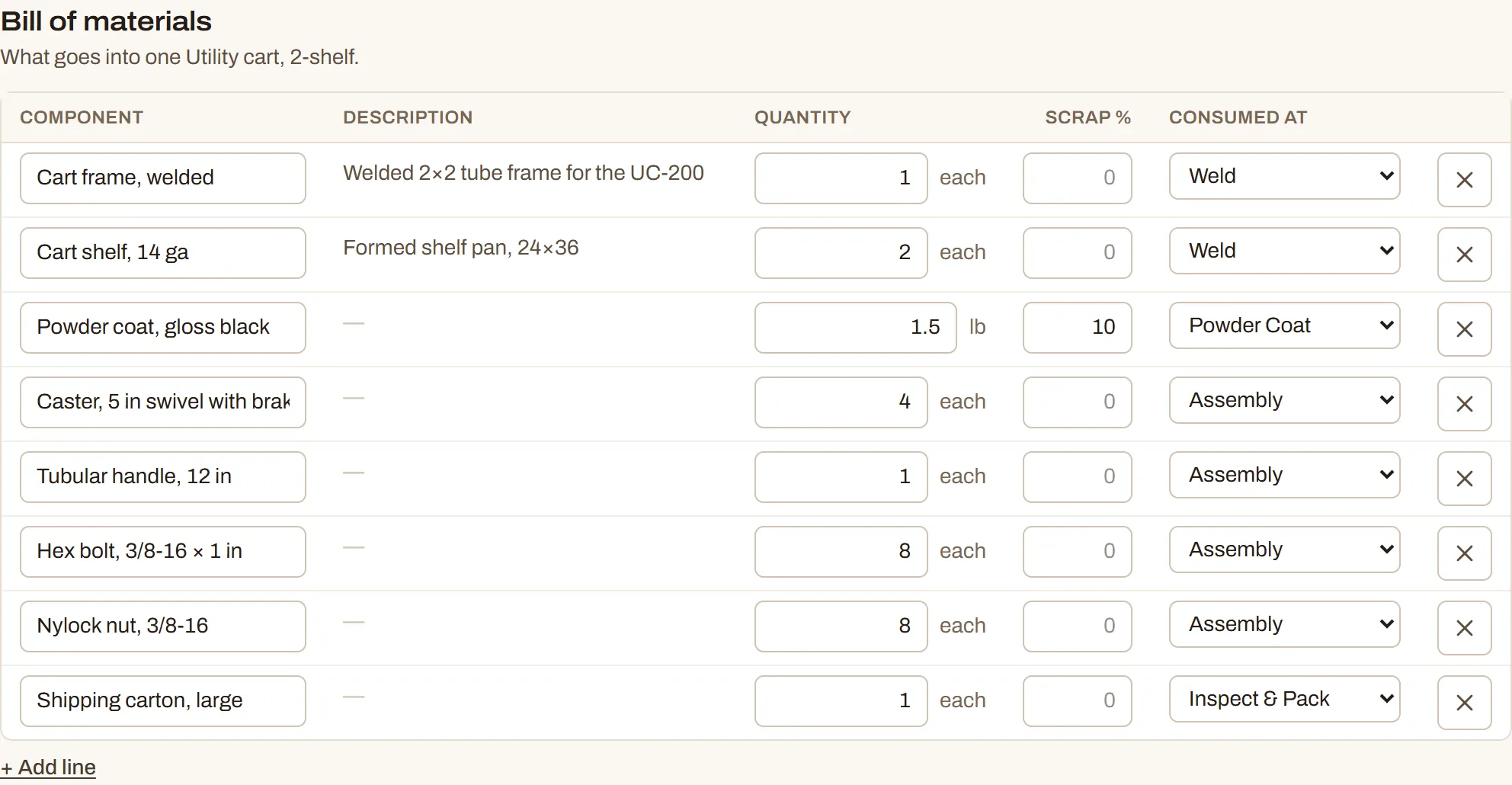
The X at the end of a line removes it. Like the rest of the item page, nothing changes until you click Save. A bill of materials can list up to 200 components, each once.
Components must be active items. They can be purchased items (steel, screws, powder) or items you make yourself (see Subassemblies). An item can’t be a component of itself.
Allow for scrap
Section titled “Allow for scrap”Scrap % adds an allowance for waste to a line, from 0 to 100. A work order needs the quantity per unit, times the order’s quantity, plus the scrap percent. For example, 0.5 ft of tube per bracket with 5% scrap means a work order for 100 brackets needs 52.5 ft.
The same amount is used everywhere: what the order takes from stock, its short warnings, the forecast, and Replenishment. Leave it blank for none.
Choose where each material is taken from stock
Section titled “Choose where each material is taken from stock”Consumed at is the station in the item’s routing where the material is used. Its menu lists the routing’s stations; the default, First step, is the first station in the routing.
This matters for timing. Materials leave stock when the step that consumes them first starts, so paint is taken at the paint booth rather than when the saw starts cutting. On Mid and up, the planner also holds back only the step that uses a material until it’s expected on hand.
If you change the routing and a station a line was consumed at is no longer in it, the page says “Bill of materials line 2 is consumed at a station that’s no longer in the routing. Pick another.” when you save. Pick another station, or First step.
Subassemblies
Section titled “Subassemblies”A component you make yourself is a subassembly: for example, a welded frame that goes into a finished cart. Give it its own routing and bill of materials like any other made item. It gets its own work orders, goes into stock when its order finishes, and is taken from stock by the parent’s order like any other material.
FloorLine refuses a bill of materials that would put an item inside itself, directly or through its subassemblies: “That would put this item inside itself. A component can’t contain the item it goes into.”
On a component’s page, Used in lists the items that use it.
From bill of materials to work order
Section titled “From bill of materials to work order”When you create a work order, FloorLine copies the item’s bill of materials into the order’s materials: each component, its quantity per unit, scrap %, and the step it’s consumed at. Later changes to the bill of materials don’t change orders already out.
As the order moves through the floor:
-
When a step first starts, the materials consumed at it leave stock, once per line, for the whole order’s quantity. The item’s stock history says “Used by WO-1042”.
-
When the last step is completed (or the order is marked complete), anything not taken yet is taken, and the finished items go into stock.
Only tracked items move. Stock can go below zero: the floor never stops for a count that’s off. See How stock moves for the whole picture, including waste, scrap, and reopened orders.
On Mid and up, a material counted by lot or serial number works a little differently: it’s taken when its lots or serial numbers are entered for the order, and the step can’t be completed until they are. See Lots and serial numbers.
Short material warnings
Section titled “Short material warnings”While an order is active, FloorLine compares each material it hasn’t taken yet with what’s on hand. When there isn’t enough:
- the work order page shows a Short on materials banner and a Short flag on each material, with how much is missing,
- the tablet marks the job Short on material in its list, and warns on the step that uses it before it starts.
These are warnings only. Operators can still start the step.