
Daily summary
Every morning the shop is open, FloorLine emails its admins and managers a summary of the last day the shop was open: what got done, what’s late or short, and how each person did. You can also read any day’s summary in the app under Reports → Daily summary. This page explains when it’s sent, who gets it, what’s in it, and how to turn it off.
When it’s sent
Section titled “When it’s sent”The summary goes out at 6 a.m. in the shop’s time zone, on each day the shop is open. It covers the last day the shop was open before that.
- Open days come from the shop’s hours in Settings → Shop settings. On the High plan, a day counts as open if any active location is open. See Shop settings.
- Closed days are folded in. If the shop is closed on weekends, Monday’s summary covers Friday and also counts anything done on Saturday and Sunday, so weekend overtime isn’t lost. The email says so under the date, for example “With Saturday and Sunday, when the shop was closed.”
- No email goes out on a closed day.
- If the shop has no open days set at all, the summary goes out every day.
The subject line sums up the day, for example “Ridgeline Fabrication, Thursday, October 2: 14 steps done, 3 orders finished, 1 late”.
Who gets it
Section titled “Who gets it”Admins and managers who have an email address and have set a password get it, unless they’ve turned it off. Operators don’t. The demo shop doesn’t send it.
Turn it off or on
Section titled “Turn it off or on”-
Choose your name at the top right, then Account settings.
-
Under Emails, clear or tick Daily summary. It saves right away.
Each person decides for themselves. The email also has a Turn it off link at the bottom that opens the same page. See Your account.
What’s in it
Section titled “What’s in it”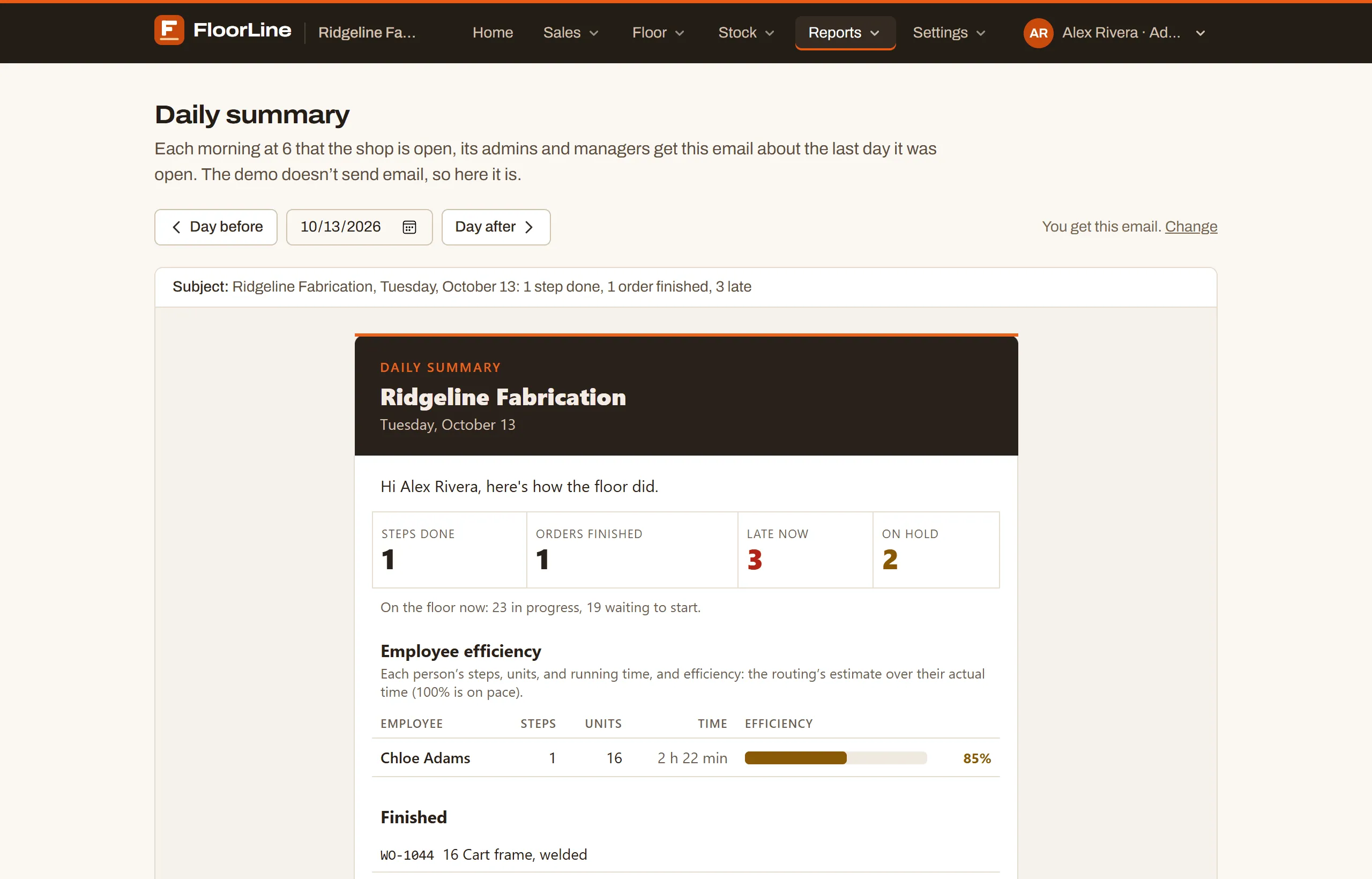
- The numbers: Steps done, Orders finished, Late now, and On hold, with a line for what’s on the floor now (in progress and waiting to start).
- Employee efficiency: everyone who completed or ran a step that day, with their steps, units, and running time. On Mid and up, there’s also each person’s Efficiency: the routing’s estimate over their actual time, where 100% is on pace. Efficiency needs throughputs on routing steps. See Dashboard for how it’s worked out.
- Finished: the work orders finished that day, with those that finished late marked “(late)”.
- Late now: active work orders past their due date, most overdue first, with how many days late.
- Short on materials: what open work orders still need against what’s on hand.
- Expiring within 48 hours (Mid and up): lots and serial numbers in stock dated today or tomorrow, or already past their date. This section is left out when there’s nothing to show. See Lots and serial numbers.
Long lists show the first few and say how many more there are. Open in FloorLine at the bottom opens the shop.
Read it in the app
Section titled “Read it in the app”-
Go to Reports → Daily summary. It opens on the last day the shop was open.
-
Choose Day before or Day after to step through the days. They skip closed days, which count with the open day before them.
-
To jump to a day, pick it in the date box between the buttons. A closed day picked this way shows just that day.
The page shows the email exactly as it was sent. It also says whether you get the email (“You get this email.” or “You’ve turned this email off.”) with a Change link to Account settings. The page works on the demo shop too, so you can see a real summary there.
Scheduled email reports
Section titled “Scheduled email reports”For a longer view, admins can email the dashboard’s numbers each week or month. A report compares the week or month just ended with the one before (“Up 25% from the week before”) and includes steps a day, each station’s and person’s efficiency, and what’s late.
-
Go to Settings → Shop settings and find Scheduled reports. (On the dashboard, Email it weekly or monthly takes you there.)
-
Choose Add a report.
-
Give it a Name, then choose How often: Weekly: the 7 days before (pick the Day) or Monthly: the month before (sent on the 1st).
-
Pick the Time it goes out, in the shop’s time zone. On the High plan, pick a Location or leave it on The whole shop.
-
Under Send it to, tick the admins and managers who should get it.
-
Choose Preview to see the email as it would go out today, or Save.
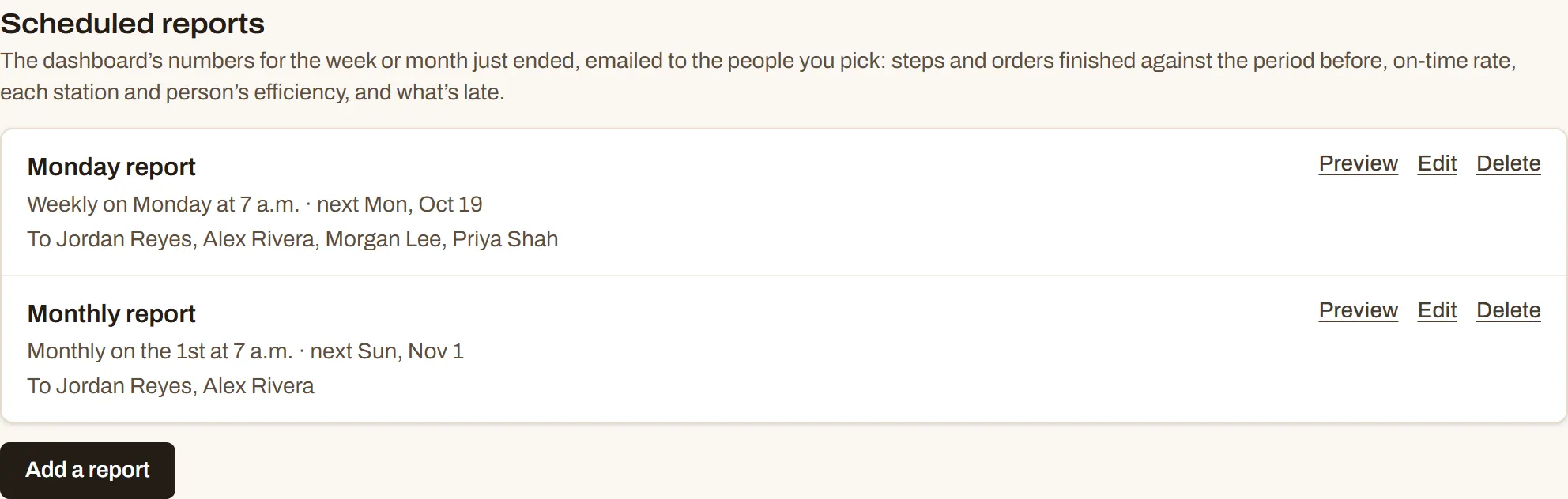
Each report in the list shows its schedule, the next day it goes out, and who gets it, with Preview, Edit, and Delete. In the preview of a saved report, Email it to me sends you a test copy. A shop can have up to 20 reports. See Shop settings for more.