
Replenishment
Replenishment (Stock → Replenishment) tells you what to buy or make, how much, and by when, so nothing runs out once the orders already out are done. From there you place the orders in a few clicks. Admins and managers can use it.
There are two versions, depending on the plan:
- Basic: min/max. A list of items headed to or below their min, with a suggested quantity to bring each back to max.
- Mid and up: MRP. Material requirements planning works through every level of your bills of materials, day by day, and plans orders with need dates and release dates. It also tells you which orders already out to hurry, delay, cut, or cancel, and plans from a weekly forecast (the master schedule).
Both are built on each item’s forecast: on hand, less what’s going out, plus what’s coming in.
Before you start
Section titled “Before you start”Replenishment can only be as good as what the items say. On each tracked item that you reorder (see Set up items):
- Reorder at (min) and Bring back up to (max). Min is your safety cushion: the level you don’t want to go below. Max is where an order should bring you back to. Leave both empty and FloorLine only steps in when the forecast drops below zero.
- Purchasing lead time (bought items) or Manufacturing lead time (made items), in days. Without one, FloorLine can’t say when to order.
- Vendors for bought items. The preferred vendor’s terms (purchase unit such as a box of 100, lead time, minimum order, price) round suggestions up to whole packs and the minimum, and give the cost. A bought item with no active vendor can’t be ordered from here.
- A routing for made items. A made item without one can’t go on a work order.
Untracked items never show on Replenishment.
Replenishment on Basic (min/max)
Section titled “Replenishment on Basic (min/max)”What’s on the list
Section titled “What’s on the list”An item shows up when its forecast falls to or below its min, or below zero if it has no min. The list is in order of urgency: items already short first, then by when they go short. An archived item still shows while open orders need it.
Each line has:
| Column | What it shows |
|---|---|
| Item | Name, SKU, and where it comes from (“From” its vendor, or “Made in house”). |
| On hand | Stock now. |
| Going out | What active work orders still need and open delivery orders will ship. |
| Coming in | What work orders will make and purchase orders will bring. |
| Forecast | On hand − going out + coming in. Red when below zero. |
| Min / max | The item’s reorder levels. |
| Short | The order that takes it to or below min (for example WO-1042) and when, or Now if it’s short already. Under it, Order by or Make by a day: when it goes short, less the lead time. Once that day is today or past, it says Order now or Make now. |
| Suggested | Order 47 ft or Make 12: enough to bring the forecast back to max (or up to zero with no min and max), rounded up to the vendor’s packs and minimum, with packs in brackets (“Order 300 ft (3 box)”) and the cost when the vendor has a price. |
Click a line to see the orders behind it: when each moves stock, what it takes or adds, and the stock left after it. Open the item from there.
A bought item’s suggestion is also a link: it starts a new purchase order with that item and quantity filled in, so you can change the vendor or quantity before saving.
Create the orders
Section titled “Create the orders”-
Go to Stock → Replenishment.
-
Tick the lines to order, or tick the box in the header to pick every line that can be ordered.
-
Choose Create orders for N items.
FloorLine creates, at the suggested quantities:
- One purchase order per vendor for the bought items, expected today plus the longest lead time among its items.
- One work order per made item, due today plus its manufacturing lead time.
Each is noted “From replenishment”. The page then lists what it created, with links. It’s all or nothing: if one line can’t be ordered, nothing is created and the page says why.
A line can’t be ticked when:
- “No vendor: set one on the item” (a bought item with no active vendor)
- “No routing: give it one on the item” (a made item with no usable routing)
If creating the work orders would go over your plan’s limit on active work orders, FloorLine says so; pick fewer or finish some first.
Replenishment on Mid and up (MRP)
Section titled “Replenishment on Mid and up (MRP)”On Mid and High, the Replenishment page shows MRP’s planned orders: what to buy or make, how much, when it’s needed, and when to place it. Above them are the action messages.
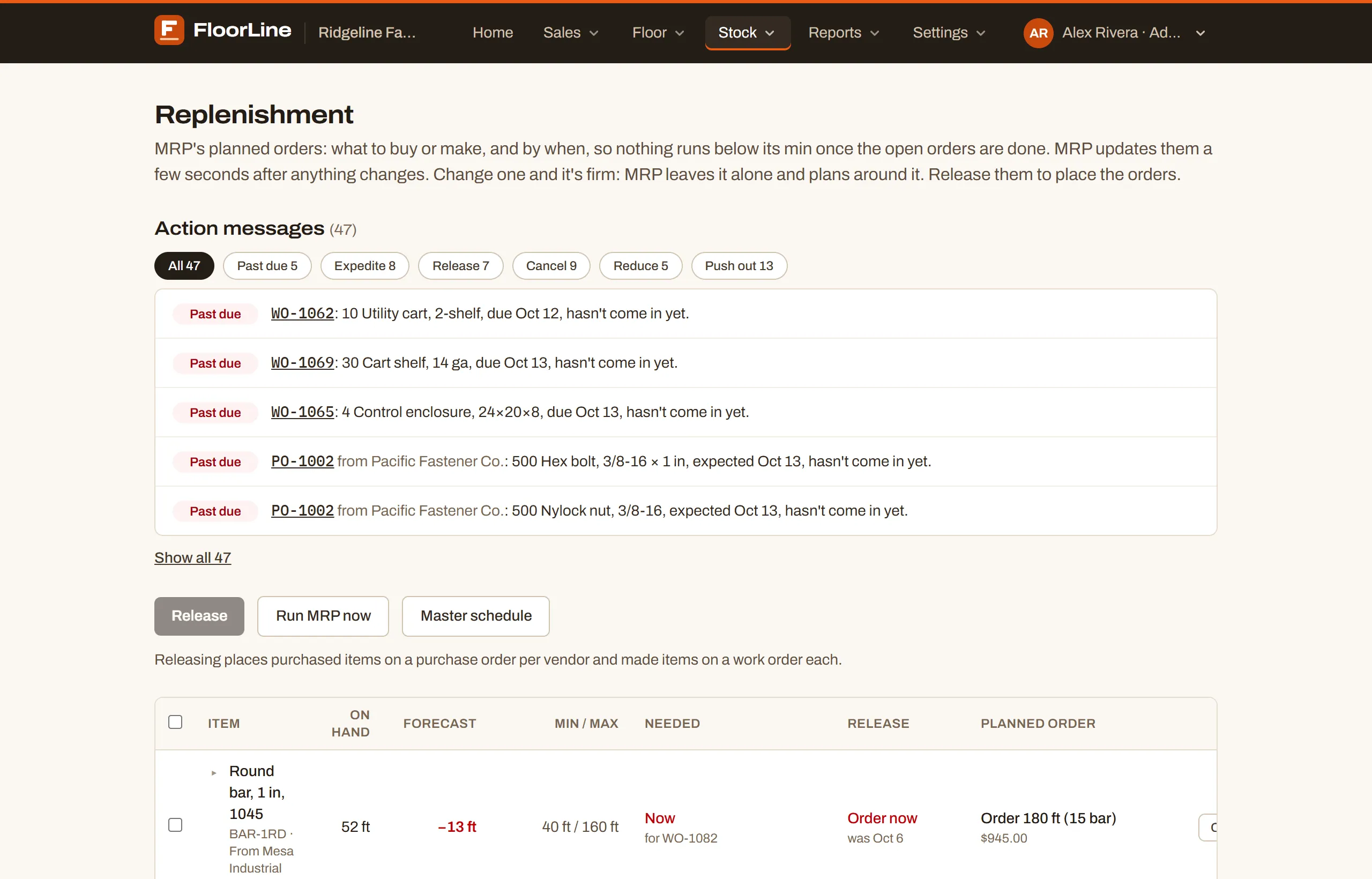
How MRP plans
Section titled “How MRP plans”You don’t run MRP by hand. It runs a few seconds after anything it depends on changes (work orders, purchase and delivery orders, items, stock, the master schedule), and again every night. Run MRP now runs it right away.
-
Level by level. MRP plans finished goods first, then what they’re made from, then what that’s made from. So when it plans a subassembly, it already knows every planned order above it that needs one.
-
Day by day. For each item, MRP walks forward through every day something takes or adds stock: work orders’ materials, delivery orders, the master schedule’s forecast, open purchase and work orders arriving, firm planned orders, and what parents’ planned orders need. Work orders count at their planned times when the planner has them.
-
First, hurry what’s coming. On a day that would go short, MRP first pulls in an order that’s already on its way later (and suggests an Expedite message for it) instead of ordering again.
-
Then plan an order. If that’s not enough, the item’s lot rule sizes a new planned order.
-
Explode. A made item’s planned order needs its bill of materials (with scrap) on the day it’s released. Those needs become demand for the next level down.
Each planned order has:
- a need date: the day the item goes short without it. “No date” when the demand behind it has no date.
- a release date: the need date less the lead time, counted in the shop’s open days (from Shop settings). That’s when to place the purchase order or start the work order. The lead time is the preferred vendor’s if it has one, else the item’s.
Lot rules
Section titled “Lot rules”Each item’s lot rule decides how MRP sizes its orders. Set it on the item page under Planned orders (MRP), with Lot rule.
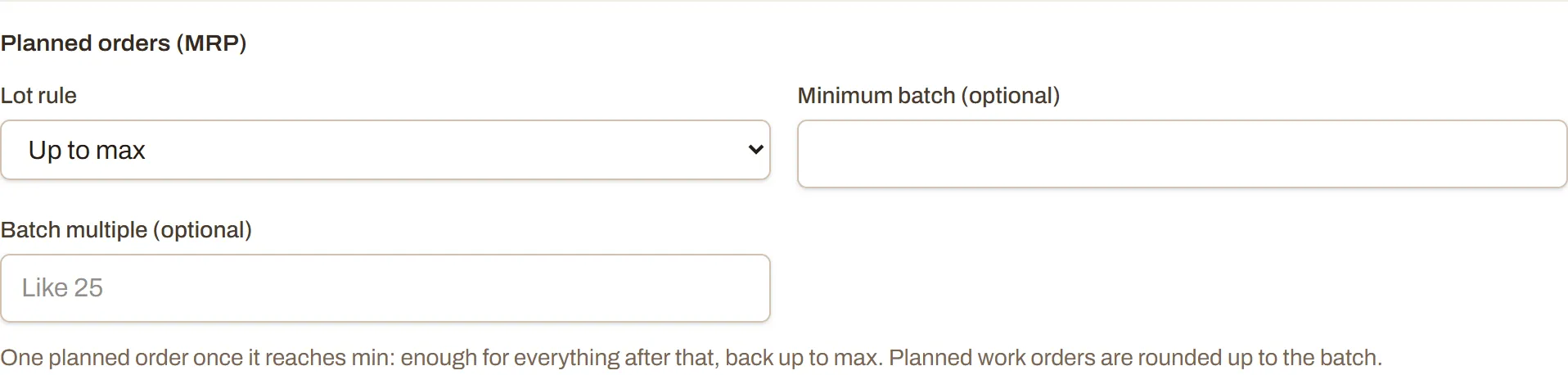
| Lot rule | What MRP plans |
|---|---|
| Up to max (the default) | One planned order once the item reaches min: enough for every demand after that, and back up to max. |
| Lot for lot | Exactly what each shortage takes, an order for each day it would drop below min. Nothing extra on the shelf. |
| Fixed quantity | Whole lots of Lot size, as many as each shortage takes. |
| Days of supply | Enough to cover the next Days of supply calendar days of demand in one order. |
With Up to max, “short” means at or below min. With the other rules, MRP keeps stock from dropping below min (below zero with no min).
Quantities are then rounded:
- Bought items: up to the preferred vendor’s packs and minimum order.
- Made items: up to the item’s batch: at least Minimum batch, and a multiple of Batch multiple (both optional).
On the planned orders table, the lot rule shows under the quantity when it isn’t Up to max.
Read the planned orders
Section titled “Read the planned orders”| Column | What it shows |
|---|---|
| Item | Name, SKU, and vendor or “Made in house”. |
| On hand, Forecast, Min / max | As on the item. |
| Needed | The need date, or Now in red. Under it, what it’s for: “for WO-1002”, “for DO-1003”, “to make Bike” (a parent’s planned order needs it), or “for the forecast, week of Oct 5”. |
| Release | Order by or Make by the release date, or Order now / Make now once it’s due. If the release date has passed, “was” the date it should have gone out. |
| Planned order | Order 180 ft (15 bar) or Make 25, the cost, a Firm badge if it’s firm, and the lot rule. |
The list is ordered soonest to release first.
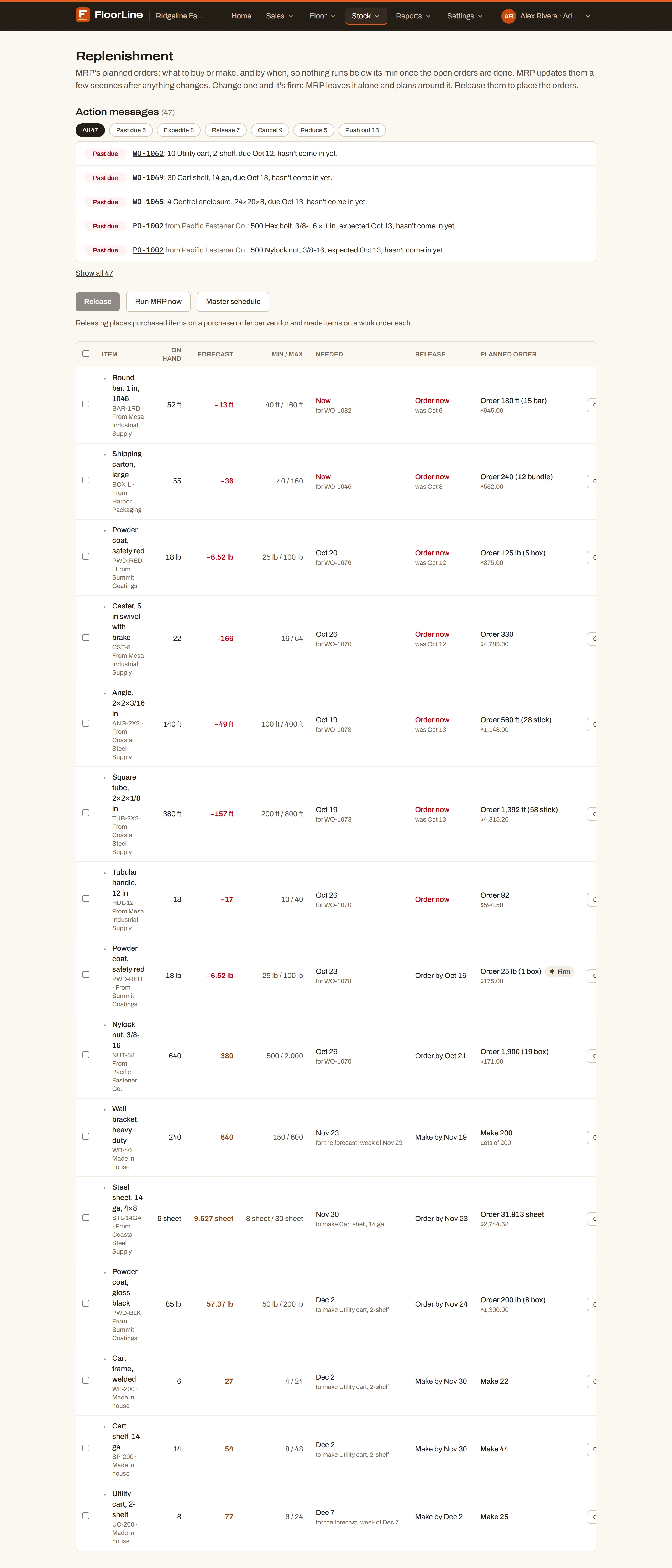
Click a row to open it: What it’s for traces the order all the way up to the demand at the top, and below it are the orders behind the item’s forecast. For example:
- “40 ft for DO-1003 to Northwind, ship by Oct 20 · through Bike → Frame (WO-1042)”: 40 ft are for a delivery order, through the bike and the frame work order it needs.
- “7 ft to keep stock up”: topping the item back up to its min or max.
- “for the master schedule, Shelf the week of Oct 5”: the weekly forecast.
That tells you what’s at stake if the order is late, and who to call.
Change a planned order, or firm it
Section titled “Change a planned order, or firm it”MRP rewrites unfirmed planned orders every time it runs. When you know better (a vendor ships only on Tuesdays, you want to buy a full pallet), change it, which makes it firm: MRP won’t change it again and plans everything else around it.
-
Choose Change on the planned order’s row.
-
Set the Quantity and Needed by date.
-
Choose Save and firm.
To hand a firm planned order back, open Change and choose Let MRP decide. The next run keeps it, changes it, or removes it.
Firm planned orders count as supply: MRP plans other orders around them, and can suggest moving or cancelling them like real orders. Sales orders also create firm planned orders for bought parts they need, for you to review and release here.
Release planned orders
Section titled “Release planned orders”Releasing turns planned orders into real orders.
-
Tick the planned orders to place, or tick the header box to pick every one that can be released.
-
Choose Release N planned orders.
- Bought items go on one purchase order per vendor, expected on the latest need date among its lines, but never sooner than today plus the purchasing lead time.
- Made items get a work order each, due on the need date.
- Several planned orders for the same item become one line, with their quantities added and the soonest need date.
- Each new order is noted “From a planned order”. Released planned orders disappear from the list.
It’s all or nothing. If MRP changed one of them since the page loaded, nothing is created and the page says “MRP changed some of those since the page loaded. Check the list and release again.”
A planned order can’t be released if its item has no vendor or no routing, or is archived; the row says why.
Action messages
Section titled “Action messages”Planned orders cover what isn’t ordered yet. Action messages cover the orders already out: what to change so they match what’s needed. They sit above the planned orders, most urgent first, with a count for each kind. Click a count to show only that kind; the first five show until Show all.
| Kind | What it means | One-click fix |
|---|---|---|
| Past due | An open purchase order is past its expected date, or an active work order is past due. | None: the order’s number links to it. |
| Expedite | An open order (or a firm planned order) arrives later than it’s needed. MRP counted it in early. | Move to the day it’s needed. |
| Release | A planned order’s release date is today or past. | Release, which places it. |
| Cancel | Nothing needs the order. | Cancel it (a work order or firm planned order) or Take it off (a purchase order line). |
| Reduce | The order is bigger than needed. | Reduce to the quantity needed. |
| Push out | The order isn’t needed until at least 3 days after it’s due. | Move to the day it’s needed. |
How the fixes work:
- Move to changes a work order’s due date, a purchase order’s expected date, or a firm planned order’s need date.
- Reduce to lowers a work order’s quantity (never below what’s finished), a purchase order line (never below what’s received), or a firm planned order. Cuts are in whole packs, and a reduce is suggested only when it cuts at least 10%.
- Take it off removes the line from the purchase order. An order left with no lines is canceled; one whose other lines are all received is done.
- An order that has started (a work order on the floor, a purchase order partly received) is only ever reduced, never canceled.
Each fix follows the same rules as changing the order by hand. If the order has moved on since the message appeared, FloorLine says “That order has moved on since. MRP will update its messages in a moment.” Applying a fix re-plans, and the messages update.
Master schedule
Section titled “Master schedule”Some demand arrives before the orders do: you know you sell about 40 shelves a week, but the customers order a few days before they want them. The master schedule is where you enter that expected demand by week, so MRP plans for it ahead of time. Use it for items you make or keep in stock.
Open it with Master schedule on the Replenishment page.
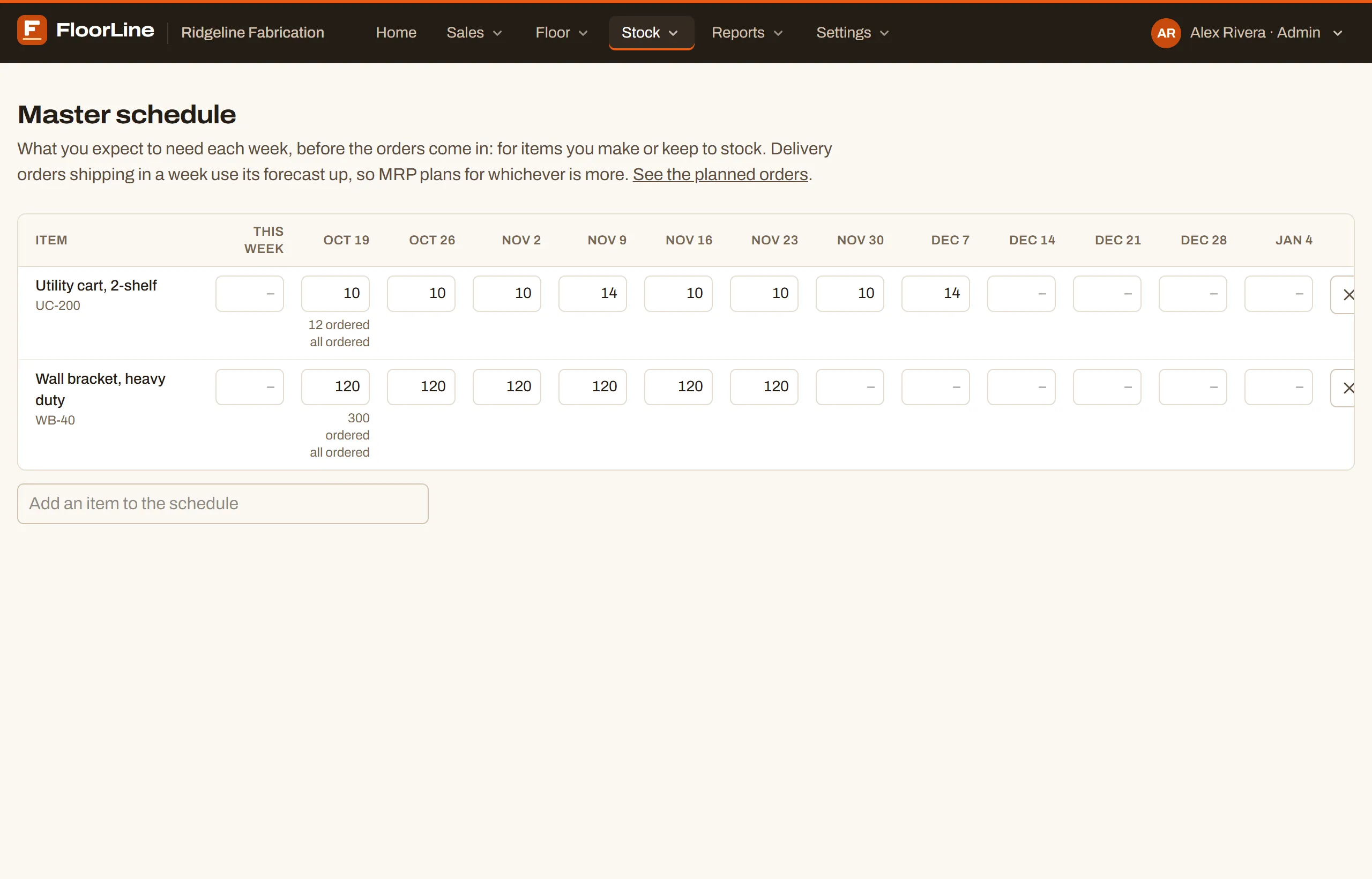
-
Under the grid, use Add an item to find the item and add its row. Only tracked items can be added.
-
Type the quantity you expect to need in a week’s cell, starting with This week. It saves when you leave the cell or press Enter.
-
To clear a week, empty the cell or type 0. To take an item off the schedule (from this week on), choose the X at the end of its row.
The grid shows 13 weeks from this week. Past weeks can’t be changed.
Orders use the forecast up
Section titled “Orders use the forecast up”Delivery orders shipping in a week (by ship-by date) use that week’s forecast up instead of adding to it. MRP plans for whichever is more:
- Forecast 40, delivery orders for 25 that week: MRP plans for 40 (the 25 ordered and 15 more).
- Forecast 40, delivery orders for 55: MRP plans for 55.
Each cell shows what’s ordered so far that week and what the forecast still adds (“15 more”, or “all ordered”). The forecast counts as demand on the week’s Monday (this week’s from today). Planned orders it causes say “for the forecast, week of” the date.
The MRP grid on an item
Section titled “The MRP grid on an item”Every tracked item’s page has an MRP, week by week section: the classic MRP table for that one item, from the same numbers MRP runs on. Nothing on it is saved; it’s a view.
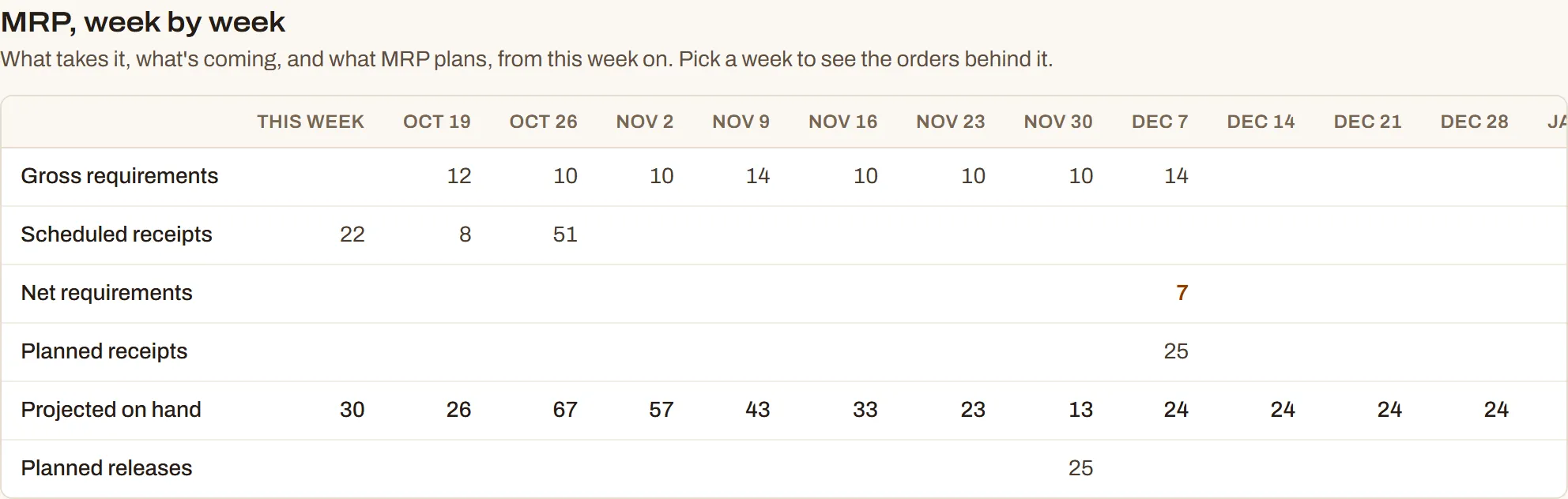
There’s a column for each of the next 13 weeks, starting with This week (anything earlier counts in it), and Later for anything past that or with no date. The rows:
| Row | What it is |
|---|---|
| Gross requirements | What takes the item: work orders’ materials, deliveries, parents’ planned orders, the master schedule. |
| Scheduled receipts | Open purchase and work orders bringing it in. |
| Net requirements | How far stock would fall below min (below zero with no min) without new orders. Amber. |
| Planned receipts | MRP’s planned orders arriving. |
| Projected on hand | Stock at the end of the week. Red when below min. |
| Planned releases | When to place or start those planned orders. |
Zeros are left blank so the weeks that matter stand out. Click a week’s heading to list the orders behind its numbers, with links.