
Vendors and customers
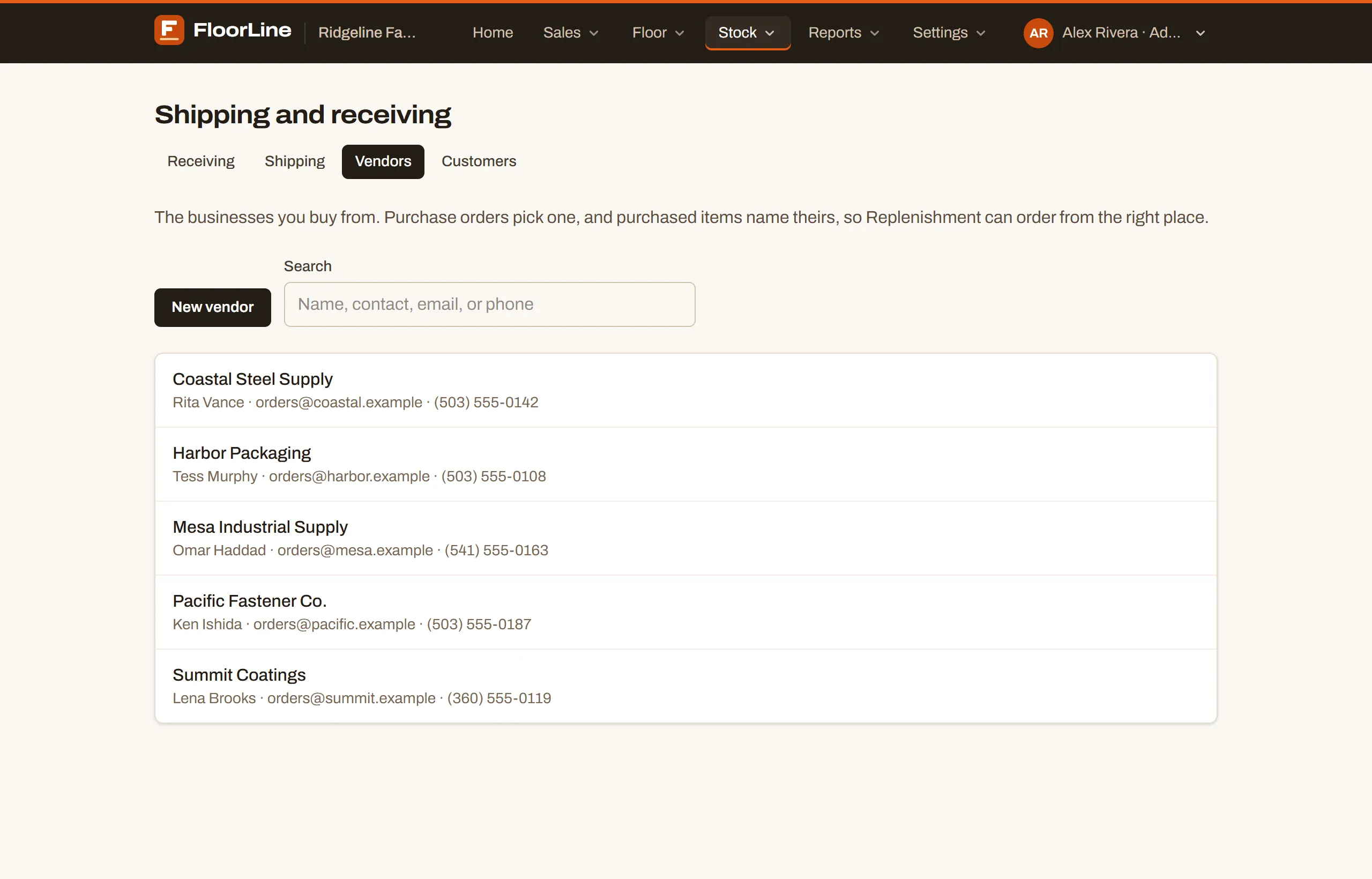
Vendors are the businesses you buy from; customers are the businesses you ship to. A company can be both. Purchase orders and purchased items name a vendor, so Replenishment knows where to order from; delivery orders and sales orders name a customer. Admins and managers keep the list.
Where to find them
Section titled “Where to find them”- Vendors: Stock → Shipping and receiving, then the Vendors tab.
- Customers: Sales → Customers, or the Customers tab under Stock → Shipping and receiving.
Each list has a Search box (name, contact, email, or phone). A company that’s both shows a Vendor and customer badge. Archived companies are listed at the bottom under Archived vendors or Archived customers.
Add a vendor or customer
Section titled “Add a vendor or customer”-
On the Vendors or Customers tab, click New vendor or New customer.
-
Enter the Name. Active companies need different names.
-
Under It’s a, tick Vendor (you buy from them), Customer (you ship to them), or both. At least one is needed.
-
Fill in what you have: Contact, Email, Phone, Address, and Notes are all optional.
-
Click Add vendor or Add customer.
Add one from an order
Section titled “Add one from an order”You don’t have to leave an order to add a company. On a new purchase order, delivery order, or sales order, click New vendor or New customer under the company box, enter a Name (and an Email if you like), and click Add vendor or Add customer. The order picks it, and you can add the contact, phone, and address later on its page.
A company’s page
Section titled “A company’s page”Click a company in the list to open its page: the contact details, and Edit and Archive at the top.
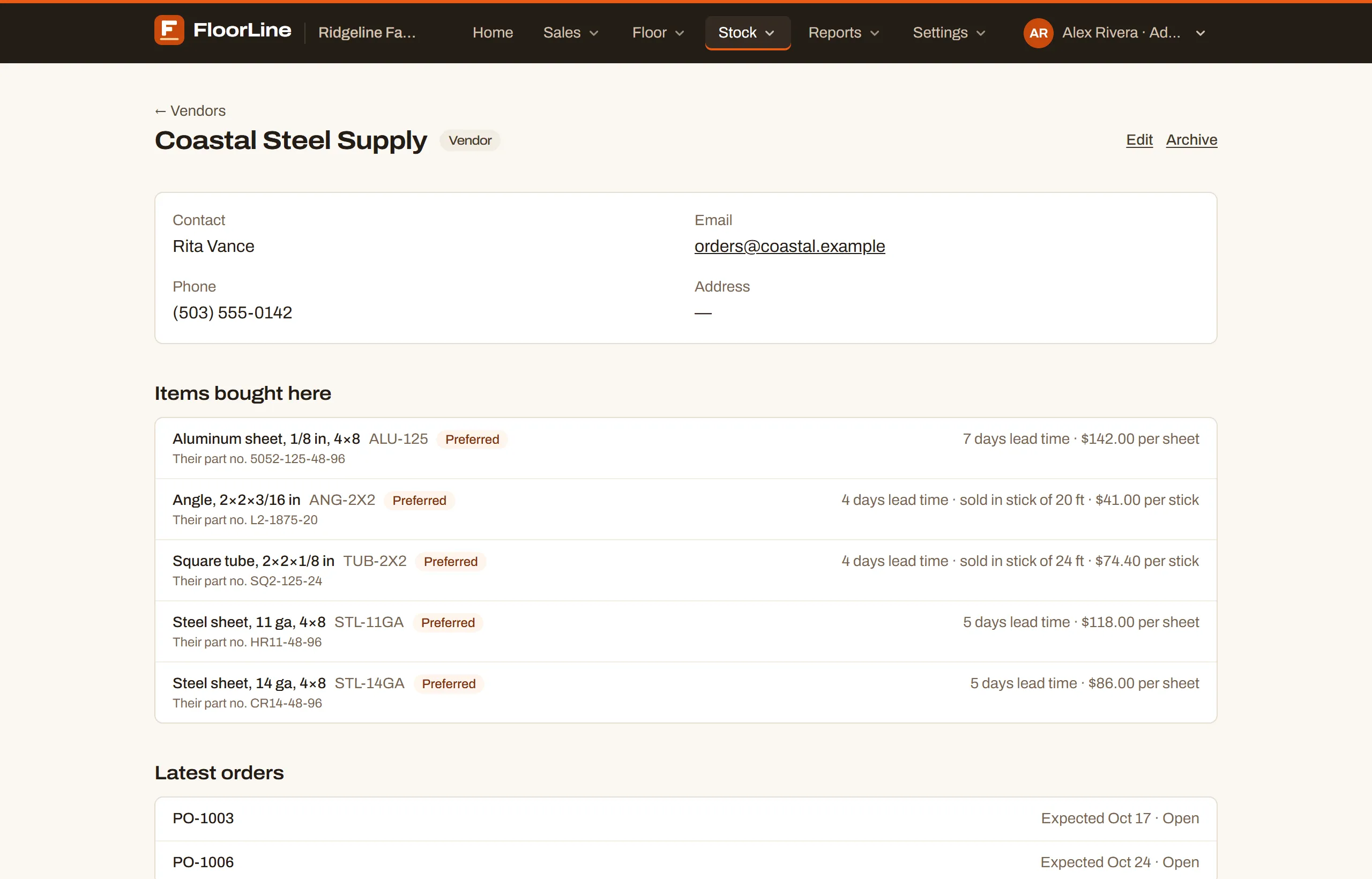
- Items bought here (vendors) lists each purchased item that names this vendor, with a Preferred badge where it’s the preferred vendor, their part number, lead time, the pack it’s sold in, and the price. You set these terms on each item’s page; see Vendors for a purchased item.
- Latest orders lists its recent purchase orders or delivery orders, with the date and status. Each links to the order.
To change a company, click Edit, change the details, and click Save changes. When you rename a company, its orders show the new name.
Vendor, customer, or both
Section titled “Vendor, customer, or both”You can tick or untick Vendor and Customer on a company at any time, with one exception: a role that’s in use can’t be dropped.
- A company stays a vendor while any active purchased item names it or it has open purchase orders: “It’s still a vendor for items or open purchase orders, so it has to stay a vendor.”
- A company stays a customer while it has open delivery orders: “It still has open delivery orders, so it has to stay a customer.”
Take it off those items, or finish or cancel those orders, first.
Archive a vendor or customer
Section titled “Archive a vendor or customer”Companies are never deleted, so the orders that name them keep their history. On the company’s page, click Archive. An archived company can’t be picked on new orders or added to items, and can’t be changed. To bring it back, open it from the archived list and click Restore.
Import them from a spreadsheet
Section titled “Import them from a spreadsheet”On Mid and up, you can bring in your whole vendor and customer list from a CSV file. A name already in use updates that company. See Import from spreadsheets.