
Import from spreadsheets
If your shop’s data lives in spreadsheets or another system, you can bring it into FloorLine in a few files instead of typing it in. Each kind of data has a template: download it, fill it in with Excel or Google Sheets, save it as CSV, and upload it. FloorLine checks the whole file before saving anything.
Admins and managers import under Settings → Import from spreadsheets (the Import button on the Items list goes there too). Only admins can import stations.
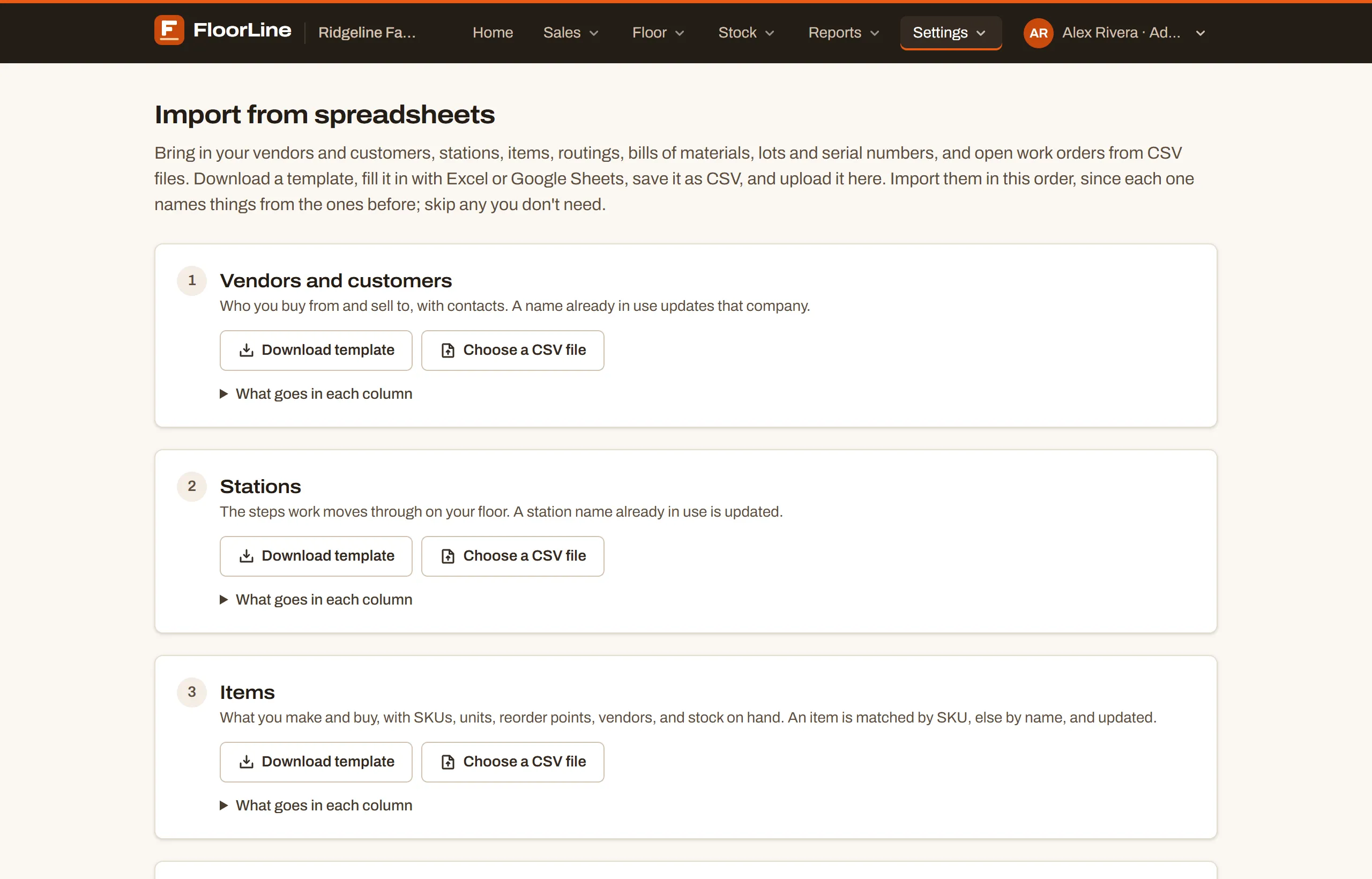
The seven imports, in order
Section titled “The seven imports, in order”Import them in this order, since each one names things from the ones before. Skip any you don’t need.
| # | Import | What it does |
|---|---|---|
| 1 | Vendors and customers | Who you buy from and sell to, with contacts. A name already in use updates that company. |
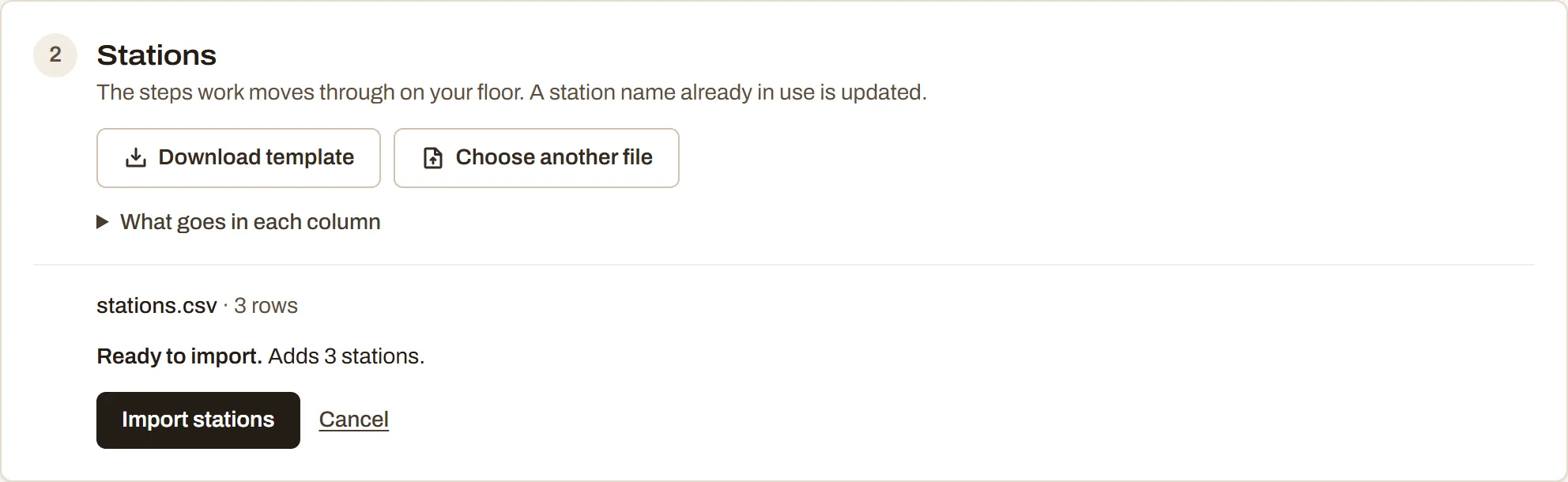
| 2 | Stations | The stations work moves through on your floor. A station name already in use is updated. |
| 3 | Items | What you make and buy, with SKUs, units, reorder points, vendors, and stock on hand. An item is matched by SKU, else by name, and updated. |
| 4 | Routings | The stations each made item goes through, in order, with each step’s operation and speed. Each item’s routing is replaced by its rows in the file. |
| 5 | Bills of materials | What goes into each made item, how much, and at which step. Each item’s bill of materials is replaced by its rows in the file. |
| 6 | Lots and serial numbers | Stock of items counted by lot or serial number, with expiry dates. Each lot is counted to its quantity; each serial number is put in stock. |
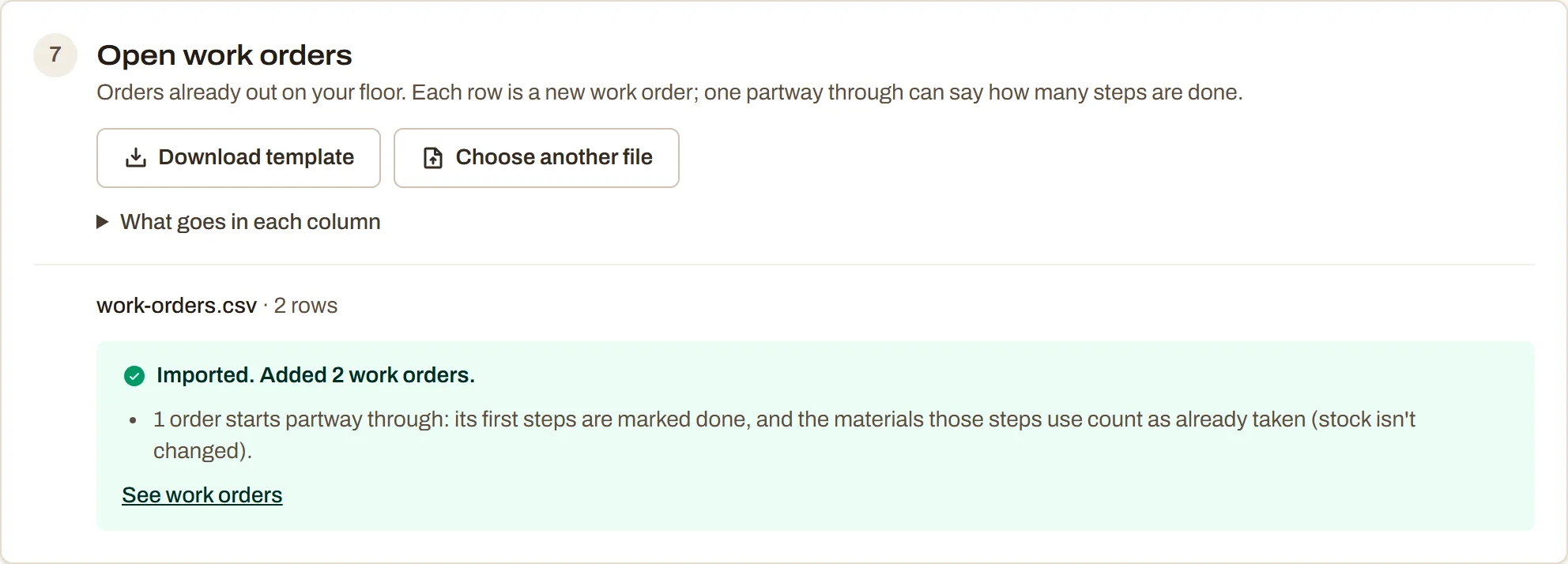
| 7 | Open work orders | Orders already out on your floor. Each row is a new work order; one partway through can say how many steps are done. |
The templates’ example rows fit together (the routings template names the items template’s items, and so on), so they also show how the files connect.
Import a file
Section titled “Import a file”-
Go to Settings → Import from spreadsheets and find the card for what you’re importing.
-
Click Download template. You get a CSV file with the header row and a few example rows.
-
Open it in Excel or Google Sheets. Replace the example rows with your own, keeping the header row. Open What goes in each column on the card for a guide to every column.
-
Save it as CSV. In Excel, choose CSV UTF-8 as the file type; in Google Sheets, File → Download → Comma-separated values.
-
Back on the card, click Choose a CSV file and pick your file.
-
FloorLine reads the file and checks it against your shop (“Checking it against your shop…”). If it’s ready, the card says Ready to import. and what it will do, like “Adds 5 items.” or “Adds 3 stations and updates 2 stations.”, with notes such as categories or vendors it will add along the way.
-
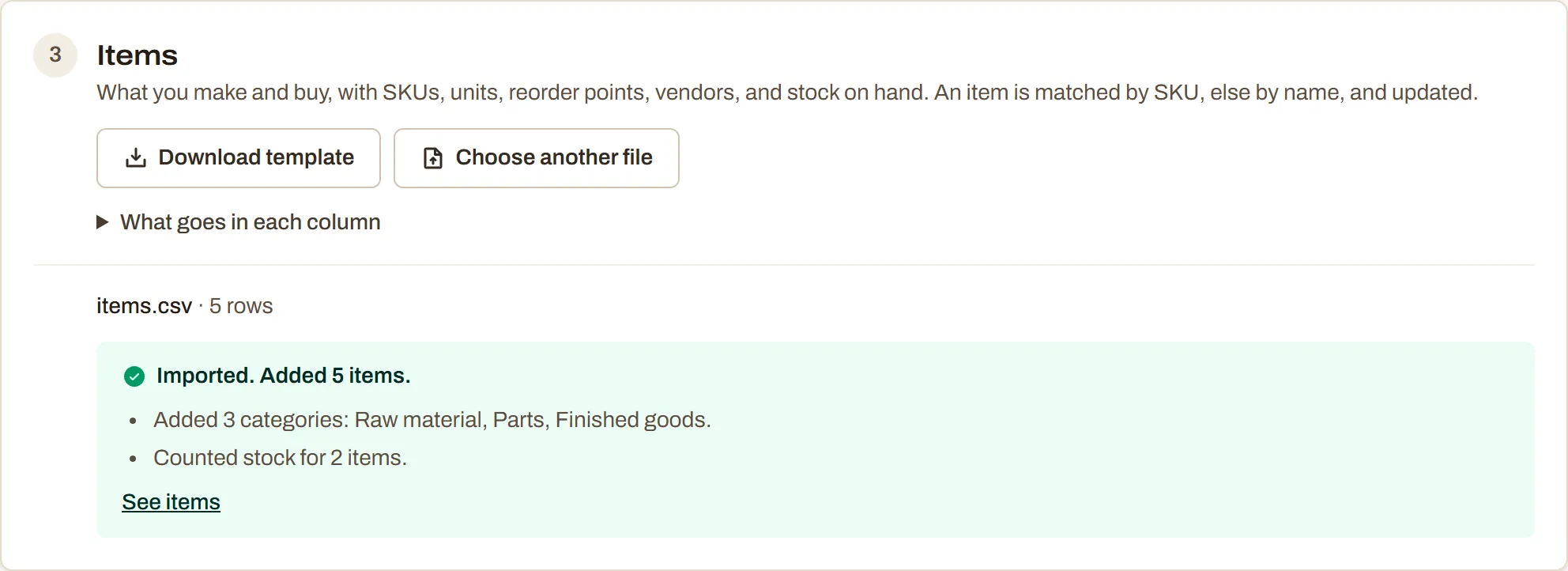
Click the import button, like Import items. The card says Imported. with what it did, and a link to see the result.
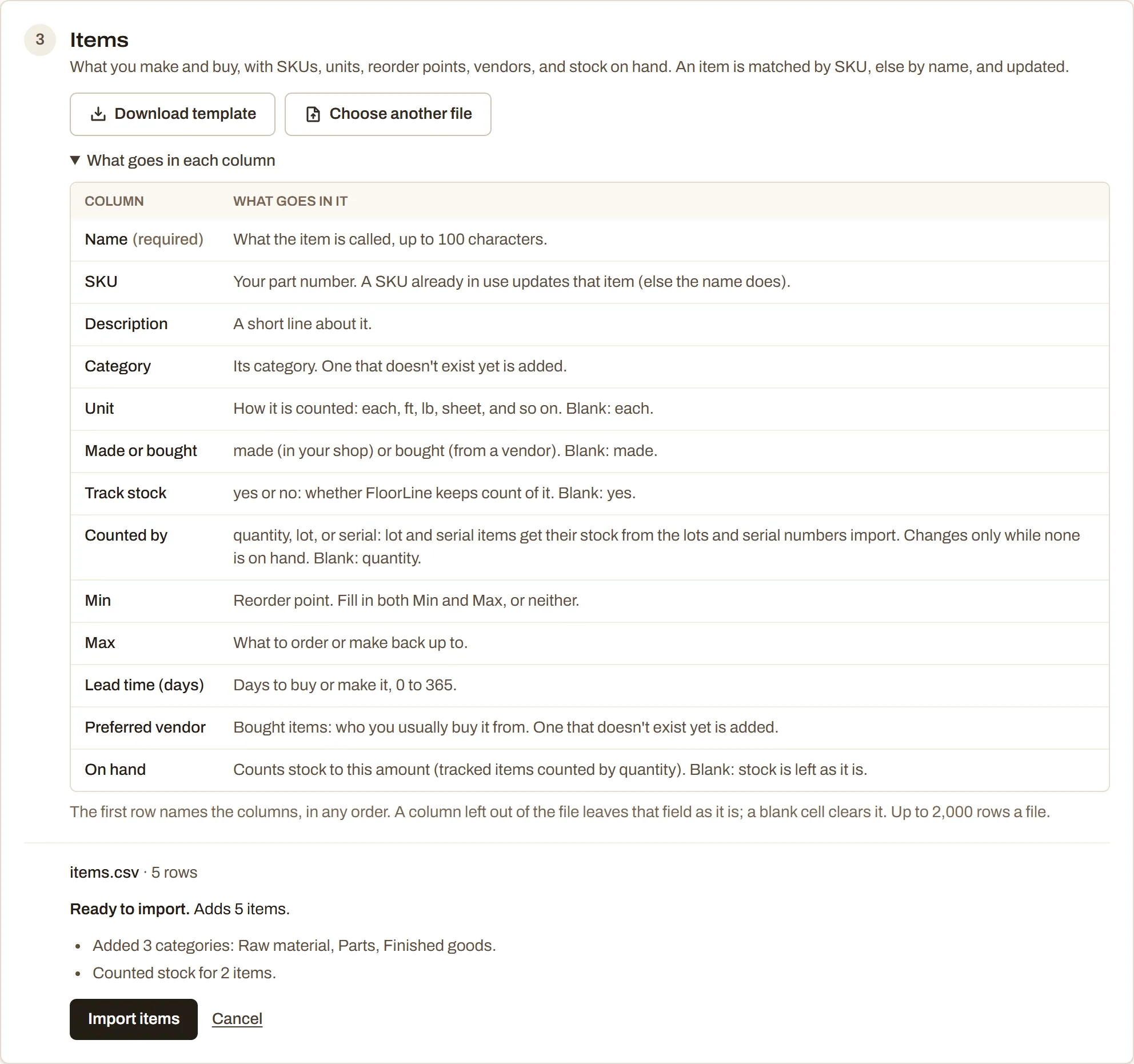
Cancel puts the file aside without importing. Choose another file reads a different (or a fixed) file.
When there are problems
Section titled “When there are problems”An import is all or nothing. If any row has a problem, nothing is imported, and the card lists every problem with its line number, so you can fix the whole file in one pass. Line 1 is the header row, so your first row of data is line 2.
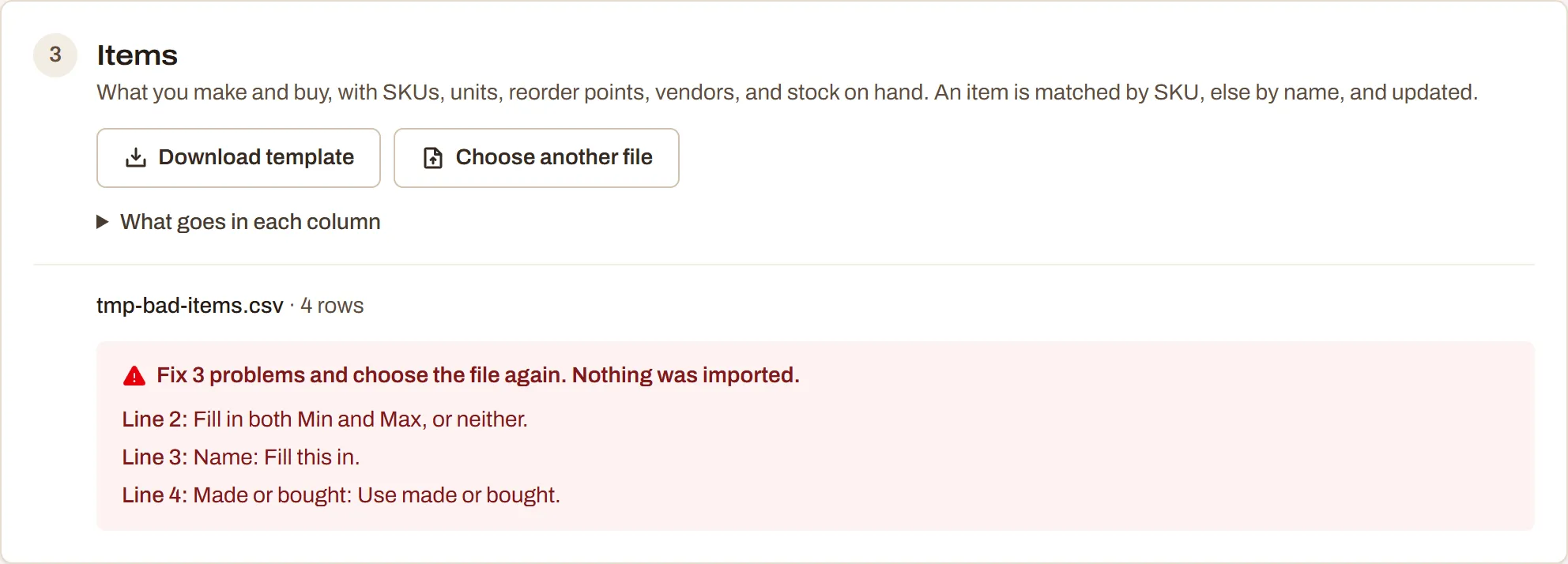
The card shows the first ten problems; Show all lists the rest. Fix them in your spreadsheet, save it as CSV again, and choose the file again. Problems are found in two passes: first the file itself (missing columns, values it can’t read, the same SKU twice), then against your shop (a station that doesn’t exist, an item that’s bought but given a routing). Fixing the first set can reveal the second.
How files are read
Section titled “How files are read”- The header row names the columns, in any order. Headers are matched ignoring upper and lower case, and several columns accept other common names (listed below). A column FloorLine doesn’t know, or one that’s in the file twice, is a problem.
- A column left out of the file leaves that field as it is on everything the file updates. Only the columns you include change.
- A blank cell clears that field, or, for something new, uses the default.
- Yes and no columns take yes, y, true, 1, or x for yes, and no, n, false, or 0 for no.
- Numbers can have commas, like 1,250.
- Dates can be written 2026-11-20, or the US way, 11/20/2026 or 11/20/26.
- At most 2,000 rows a file. Split a longer list into several files.
Columns for each import
Section titled “Columns for each import”The same guide is on each card under What goes in each column. Required columns are marked; every other column can be left out of the file.
Vendors and customers
Section titled “Vendors and customers”Companies match by name (ignoring case). Each must end up a vendor, a customer, or both. A company keeps a role while it’s in use: it stays a vendor while items or open purchase orders name it, and a customer while it has open delivery orders. See Vendors and customers.
| Column | Required | What goes in it |
|---|---|---|
| Name | Yes | The company. A name already in use updates that company. |
| Vendor | yes if you buy from them. Mark each company a vendor, a customer, or both. | |
| Customer | yes if you sell to them. | |
| Contact (or Contact name) | Who you deal with there. | |
| Their email address. | ||
| Phone | Their phone number. | |
| Address | Their street address. | |
| Notes | Anything else worth keeping. |
Stations
Section titled “Stations”Admins only. Stations match by name; new ones are added at the end of your floor order. A file can only add as many stations as your plan has room for; if it would go over, the import says how many more fit. See Set up stations.
| Column | Required | What goes in it |
|---|---|---|
| Name | Yes | The station, like “Saw” or “Weld 2”. A name already in use updates that station. |
| Jobs at once (or Capacity) | How many jobs it runs at the same time, 1 to 50. Blank: 1. | |
| Location | High plan: which of your locations it’s at. Blank: your first location. The template includes this column only when your shop has several locations. |
Items match by SKU, else by name. Categories and preferred vendors named in the file are added if they don’t exist yet (and a company that was only a customer becomes a vendor too). A new item with blank cells gets the defaults: unit each, made in house, stock tracked, counted by quantity. See Set up items.
| Column | Required | What goes in it |
|---|---|---|
| Name | Yes | What the item is called, up to 100 characters. |
| SKU | Your part number. A SKU already in use updates that item (else the name does). | |
| Description | A short line about it. | |
| Category | Its category. One that doesn’t exist yet is added. | |
| Unit | How it’s counted: each, ft, lb, sheet, and so on. Blank: each. | |
| Made or bought (or Source, Make or buy, Made or purchased) | made (in your shop) or bought (from a vendor). Blank: made. Also accepts make, in house, made in house, manufactured, buy, purchased, purchase. | |
| Track stock (or Tracked) | yes or no: whether FloorLine keeps count of it. Blank: yes. | |
| Counted by (or Tracking, Tracked by) | quantity, lot, or serial. Lot and serial items get their stock from the lots and serial numbers import. Changes only while none is on hand. Blank: quantity. | |
| Min (or Reorder min, Minimum) | Reorder point. Fill in both Min and Max, or neither. | |
| Max (or Reorder max, Maximum) | What to order or make back up to. | |
| Lead time (days) (or Lead time) | Days to buy or make it, 0 to 365. | |
| Preferred vendor (or Vendor) | Bought items only: who you usually buy it from. One that doesn’t exist yet is added. | |
| On hand (or Stock, Quantity on hand) | Counts stock to this amount (tracked items counted by quantity). Blank: stock is left as it is. |
Rules worth knowing:
- An On hand value is saved as a stock count, shown in the item’s history as counted by the import.
- A made item that already has a routing or bill of materials can’t be changed to bought in the file. Clear them on its page first.
- An item that isn’t tracked can’t have Min, Max, On hand, or a lot or serial Counted by.
- Lot and serial items take no On hand here: leave it blank and use the lots and serial numbers import.
Routings
Section titled “Routings”Each item named in the file gets its whole routing replaced by its rows. A step at the same place and station as before keeps its instructions, quality checks, and speed (unless the file gives a new speed). Bill of materials lines consumed at a station that’s no longer in the routing move to the first step. See Set up routings.
| Column | Required | What goes in it |
|---|---|---|
| Item | Yes | The made item, by name or SKU. Its whole routing is replaced by the rows for it. |
| Step (or Step number, Sequence) | The order of the steps: 1, 2, 3. Blank: the order of the rows. Number every step of an item, or none. | |
| Station | Yes | Where the step is done, by station name. The station must already exist. |
| Operation (or Description) | What’s done at the step, like “Cut to length”. | |
| Units per hour | How fast it goes, for planning. Fill in this or Minutes per unit, not both. | |
| Minutes per unit | Or how long one takes, in minutes. |
Bought items have no routing, and a routing can have up to 50 steps.
Bills of materials
Section titled “Bills of materials”Each item named in the file gets its whole bill of materials replaced by its rows. Import routings first, since Consumed at must name a station in the item’s routing. FloorLine refuses anything that would put an item inside itself. See Set up bills of materials.
| Column | Required | What goes in it |
|---|---|---|
| Item (or Parent, Parent item) | Yes | The made item, by name or SKU. Its whole bill of materials is replaced by the rows for it. |
| Component | Yes | What goes into it, by name or SKU. List each component once per item. |
| Quantity (or Quantity per, Qty) | Yes | How much of the component one of the item takes, in the component’s unit. |
| Scrap % (or Scrap, Scrap percent) | Extra allowed for waste, 0 to 100. Blank: none. | |
| Consumed at (or Consume at, Station) | The station in the item’s routing where it’s used. Blank: the first step. |
Lots and serial numbers
Section titled “Lots and serial numbers”For items counted by lot or serial number (set Counted by in the items import or on the item’s page first). Each lot listed is counted to its quantity; each serial number listed is put in stock. Lots and serial numbers the file doesn’t list are left alone. A serial number already in stock stays as it is, and one that’s being made on a work order can’t be imported. See Lots and serial numbers.
| Column | Required | What goes in it |
|---|---|---|
| Item | Yes | An item counted by lot or serial number, by name or SKU. |
| Lot or serial number (or Lot, Lot number, Serial, Serial number, Number) | Yes | The lot number, or one serial number a row. |
| Quantity (or Qty, On hand) | Lots: how much of the lot is on hand (needed for a lot). Serial numbers: leave blank, since each is one. | |
| Expires (or Expires on, Expiry, Expiry date, Expiration date, Best by) | Its expiry or best-by date, like 2027-03-31. Blank: from the item’s shelf life, if it has one. | |
| Location | High plan: which of your locations it’s at. Blank: your first location. The template includes this column only when your shop has several locations. |
Open work orders
Section titled “Open work orders”Every row creates a new work order; nothing is matched or updated. The file can only add as many as your plan’s active work order limit has room for. See Work orders.
| Column | Required | What goes in it |
|---|---|---|
| Item | Yes | The made item, by name or SKU. It needs a routing. |
| Quantity (or Qty) | Yes | How many to make. |
| Due date (or Due) | When it’s due, like 2026-11-20. | |
| Customer | Who it’s for, if anyone. | |
| Customer PO (or PO, PO number) | The customer’s purchase order number. | |
| Notes | Anything the floor should know. | |
| Steps done (or Steps completed) | For an order already partway through: how many of its first steps are finished. Their materials count as already taken (stock isn’t changed). Blank: 0. |
Steps done can be at most one less than the item’s number of steps, since a fully done order isn’t open. An order with steps done starts as in progress, at its next step. The template’s example rows are dated from today.
Import operators
Section titled “Import operators”Operators are imported from the Users page instead, with a two-column file of names and PINs (also Mid and up). See Set up users.