Job costing
Job costing shows what each work order should cost, what it actually cost, and what it made you. FloorLine builds the numbers from what the shop already records: the time each step runs on the tablets, who ran it, and the materials the order took from stock. You add the rates and costs once, and every order is costed from then on.
Admins set the rates. Admins and managers see the costs on each work order and in the Job costs report.
How a job is costed
Section titled “How a job is costed”Every work order has an estimate and an actual, each in three parts:
| Part | Estimate | Actual |
|---|---|---|
| Labor | Each step’s time from its routing throughput, for the order’s quantity, at the shop’s labor rate. | The time each step ran on the tablet, from start until stop, hold, or complete, at the rate of the person who ran it. Someone without their own rate counts at the shop’s rate. |
| Station time | The same estimated time at the station’s own rate. | The time each step ran at that station’s rate. |
| Materials | What the bill of materials needs for the quantity, scrap allowance included, at each material’s unit cost. | What the order took from stock: what it used, wasted, and scrapped, less anything that came back. |
A material’s unit cost is the cost set on its item. With none, FloorLine uses the preferred vendor’s price, divided down to one of the item’s units (a $24 box of 2 is $12 each).
The margin is the order’s sale price less its actual cost, and the percent is the margin out of the sale price.
When a cost is fixed
Section titled “When a cost is fixed”While an order is open, its cost uses today’s rates and unit costs. When it finishes, its cost is fixed: worked out once, at the rates and costs of that day, and kept. Changing a rate or a unit cost later changes the cost of open orders, not of finished ones. An order finishes when its last step is completed on the tablet, when someone chooses Mark complete, or when the rest of it is scrapped after some units were finished.
- The sale price can still change after an order finishes, and the margin follows it.
- Reopening an order lets go of its fixed cost. It’s costed at today’s rates again until it finishes again.
- Orders that finished before job costing kept costs (before October 16, 2026) stay at today’s rates until they’re recosted.
Recost at today’s rates
Section titled “Recost at today’s rates”If an order finished before its rates or costs were right (say, before you set the shop’s labor rate), an admin can work it out again:
- On the work order, under Job cost, choose Recost at today’s rates, then Recost.
- For every order finished in a period, open Reports → Job costs, pick the days, choose Recost these orders at today’s rates, then confirm.
The new cost is fixed in turn, as of the day you recost.
Set the rates
Section titled “Set the rates”-
Go to Settings → Shop settings and find Job costing.
-
Enter the Shop labor rate, an hour. It’s used for estimates, and for anyone without their own rate.
-
Under Stations, enter what an hour at each station costs beyond labor: machine time, power, tooling, overhead. Leave a station blank if its cost is already in the labor rate.
-
Under People, enter a rate for anyone who’s paid differently. Blank means they count at the shop’s rate.
-
Choose Save rates.
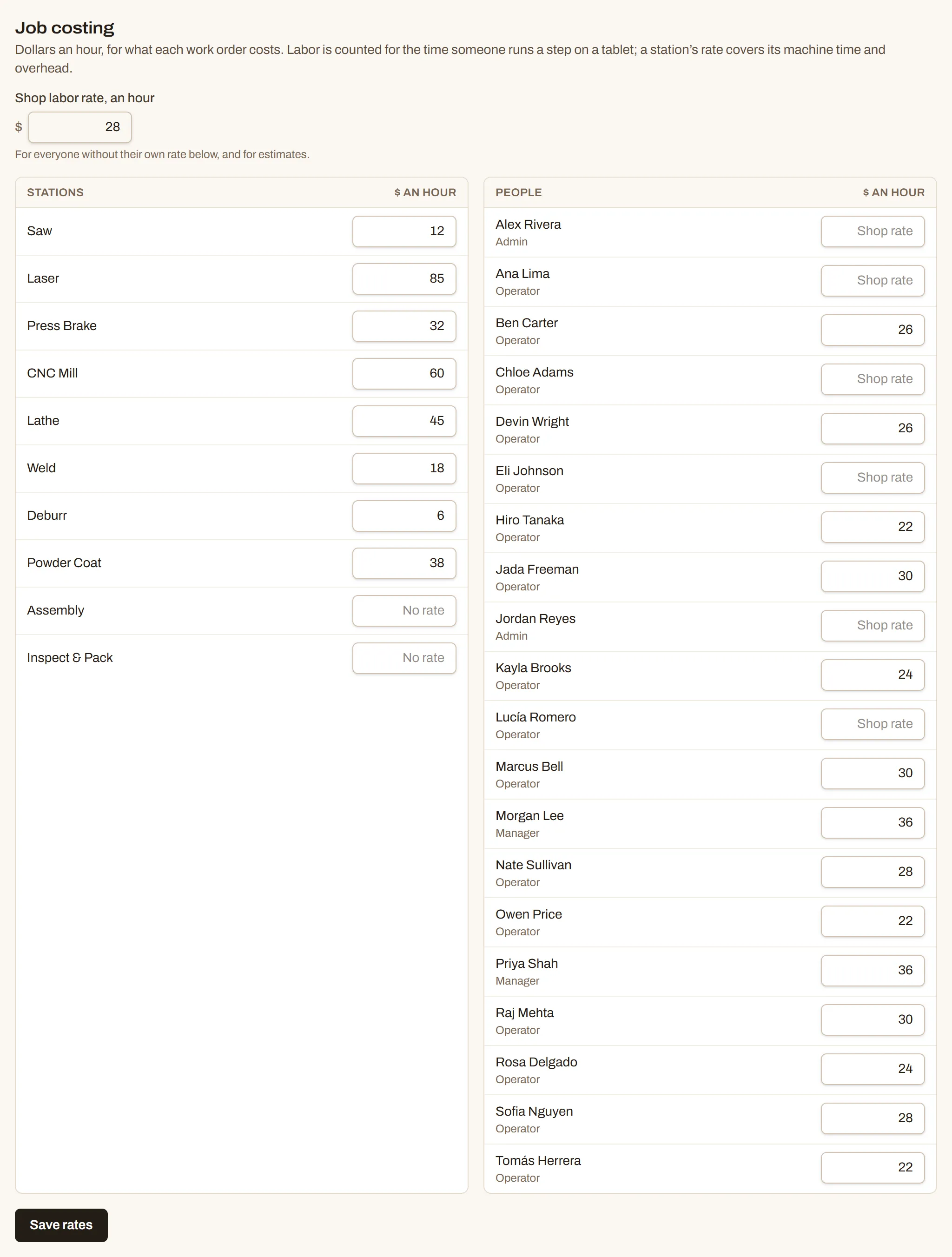
Rates are in dollars an hour, up to two decimal places. Only admins see this section.
Set unit costs on items
Section titled “Set unit costs on items”Materials need a cost to count. For a purchased item, a price on its preferred vendor is enough (see Items). To use a different figure, or for a part you make yourself and use in other items, set its Unit cost ($) in the item’s Details and choose Save. When a vendor price is there, the empty field shows it.
A work order’s job cost
Section titled “A work order’s job cost”Open a work order. The Job cost section shows:
- Estimate and Actual for labor, station time, materials, and the total. When the actual runs past the estimate, the total says by how much.
- Sold for: the price of the whole order. Choose Add the price (or Change), type the amount, and choose Save. Leave it blank and save to clear it.
- Margin, in dollars and percent, once there’s a price.
- Actual cost per unit: the actual total over the order’s quantity.
Choose By step and material to see each step’s estimated and actual time with its labor and station cost, and each material’s unit cost, planned and used quantity, and cost.
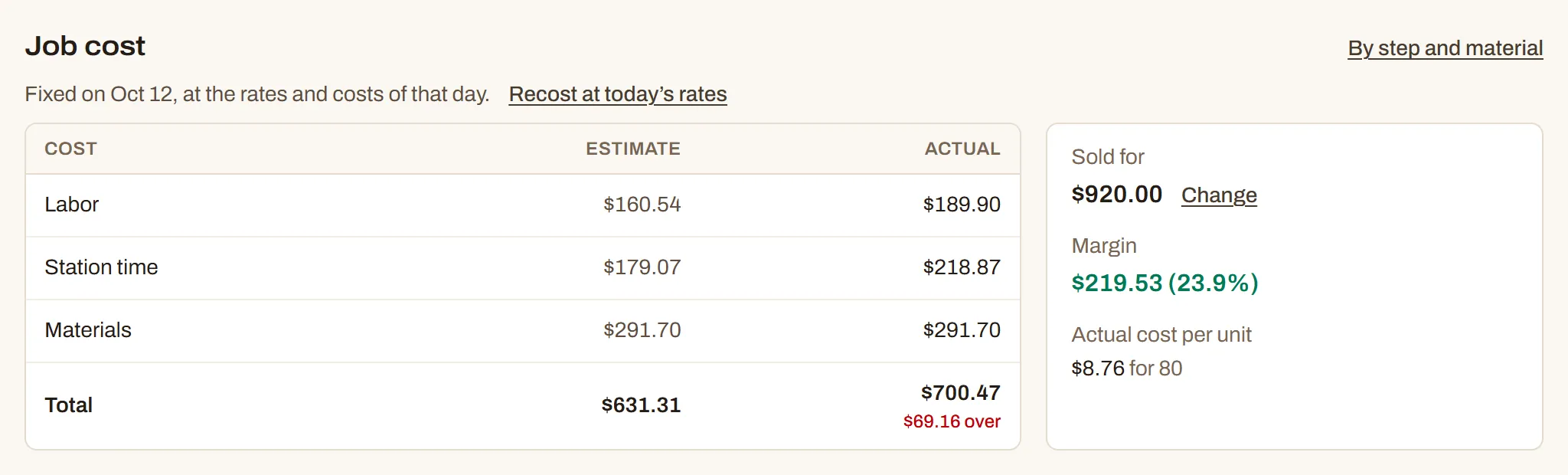
The numbers grow as the floor works: an order in progress shows what it has cost so far. A line under the heading says which rates they use: “At today’s rates. The cost is fixed when the order finishes.” while it’s open, and “Fixed on Oct 14, at the rates and costs of that day.” once it’s done (the day it finished, or was last recosted).
When something’s missing
Section titled “When something’s missing”If part of an order can’t be costed, an amber note says what:
- There’s no labor rate for the shop: someone ran a step without their own rate and the shop has none. Set one in Shop settings.
- A step has no throughput: that step has no time estimate. Set a throughput on the item’s routing (see Routings).
- No cost for a material: give the item a unit cost, or its vendor a price.
That part counts as zero until it’s set.
The Job costs report
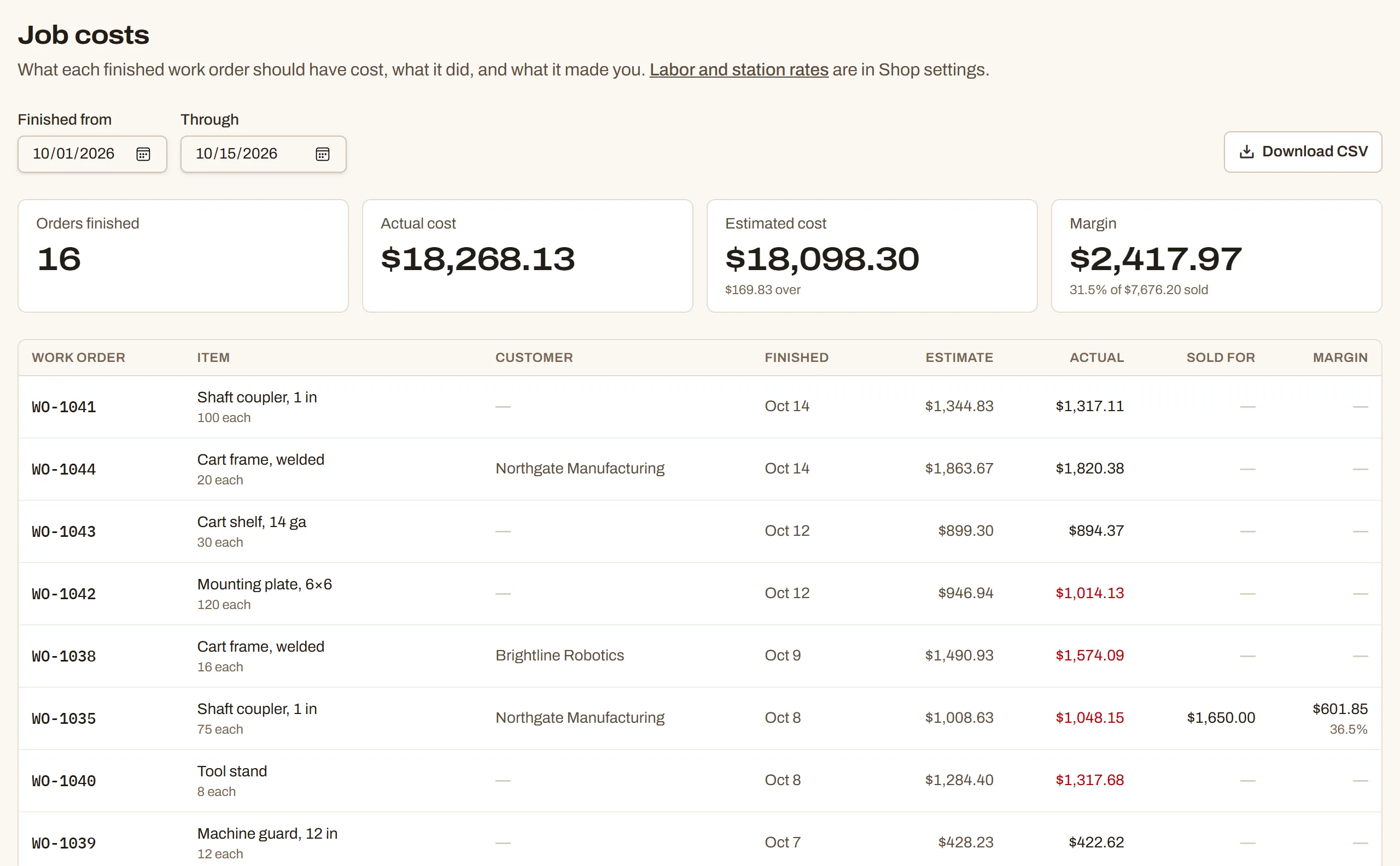
Section titled “The Job costs report”Go to Reports → Job costs. It lists the work orders finished between two days, this month by default:
- Tiles across the top: how many orders finished, their actual and estimated cost (and how far over or under), and the margin over the orders that have a sale price.
- A row for each order: the item and quantity, customer, the day it finished, estimate, actual (red when over the estimate), sale price, and margin. A warning mark means something is missing from that order’s numbers; open it to see what. An order marked today’s rates finished before costs were kept.
Pick other days with Finished from and Through, up to a year at a time. Download CSV saves the same list for a spreadsheet. Admins can recost the orders shown (see Recost at today’s rates).