
Set up tablets
Each station can have one tablet: the floor screen where its operators tap their name, enter their PIN, and start, stop, and complete the jobs waiting there. Any tablet or computer with a current web browser works, and there’s nothing to download from an app store.
Admins and managers set up and manage tablets. Go to Settings → Tablets.
Before you start
Section titled “Before you start”- Add your stations. A tablet is set up for one station.
- Add your operators with PINs, so there are names to tap on the tablet.
- Connect the tablet to the internet (Wi-Fi is fine).
Set up a tablet for a station
Section titled “Set up a tablet for a station”You do this on the tablet itself, so that tablet becomes the station’s floor screen.
-
On the tablet, open your shop’s address (like
yourshop.floorlinehq.com) and sign in with your email and password. -
Go to Settings → Tablets.
-
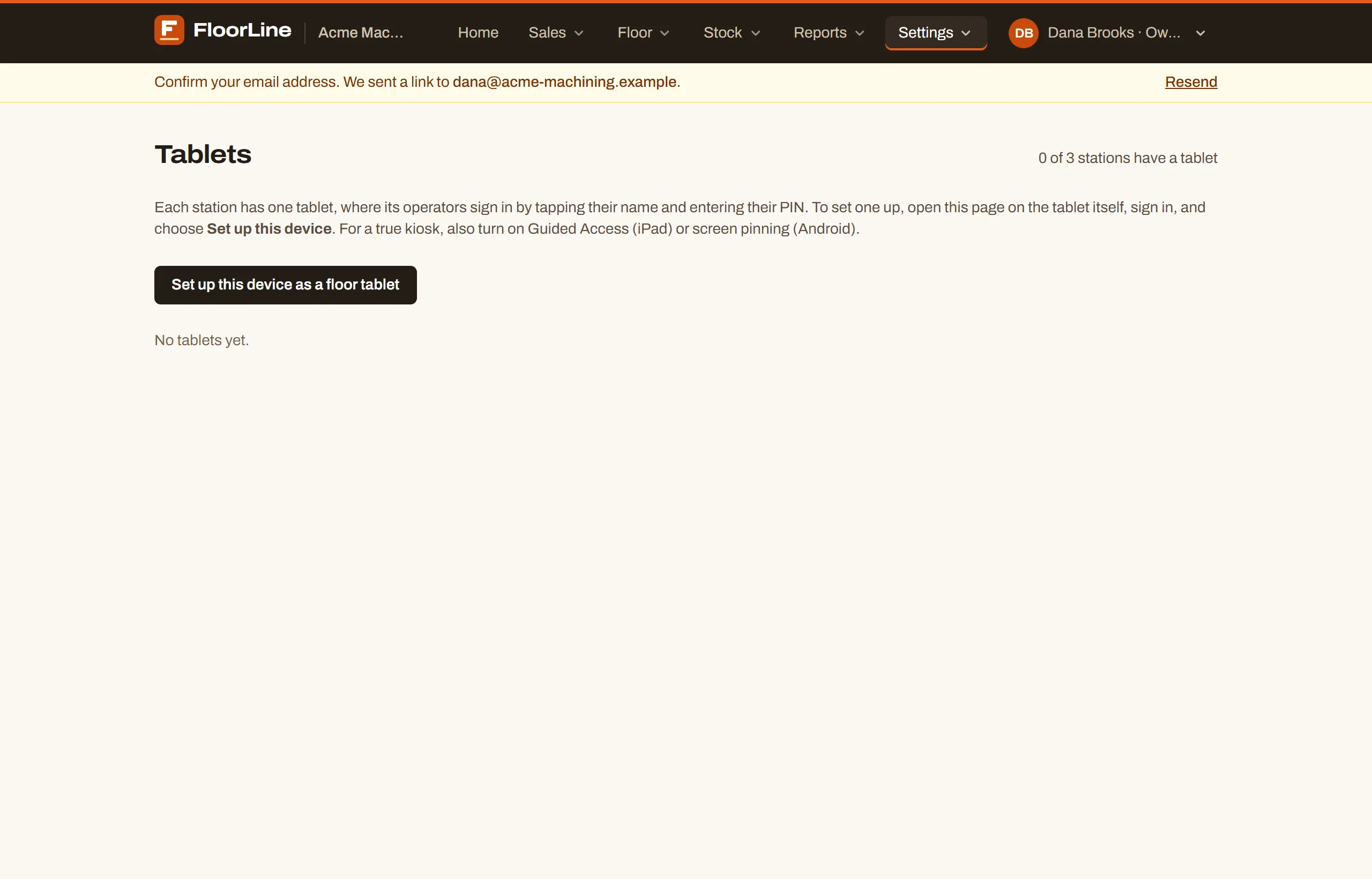
Choose Set up this device as a floor tablet.
-
Pick the Station. Only stations that don’t have a tablet yet are offered.
-
Check the Tablet name. FloorLine suggests one from the station (like “Saw tablet”); any name that says where it is works.
-
Choose Start floor mode.
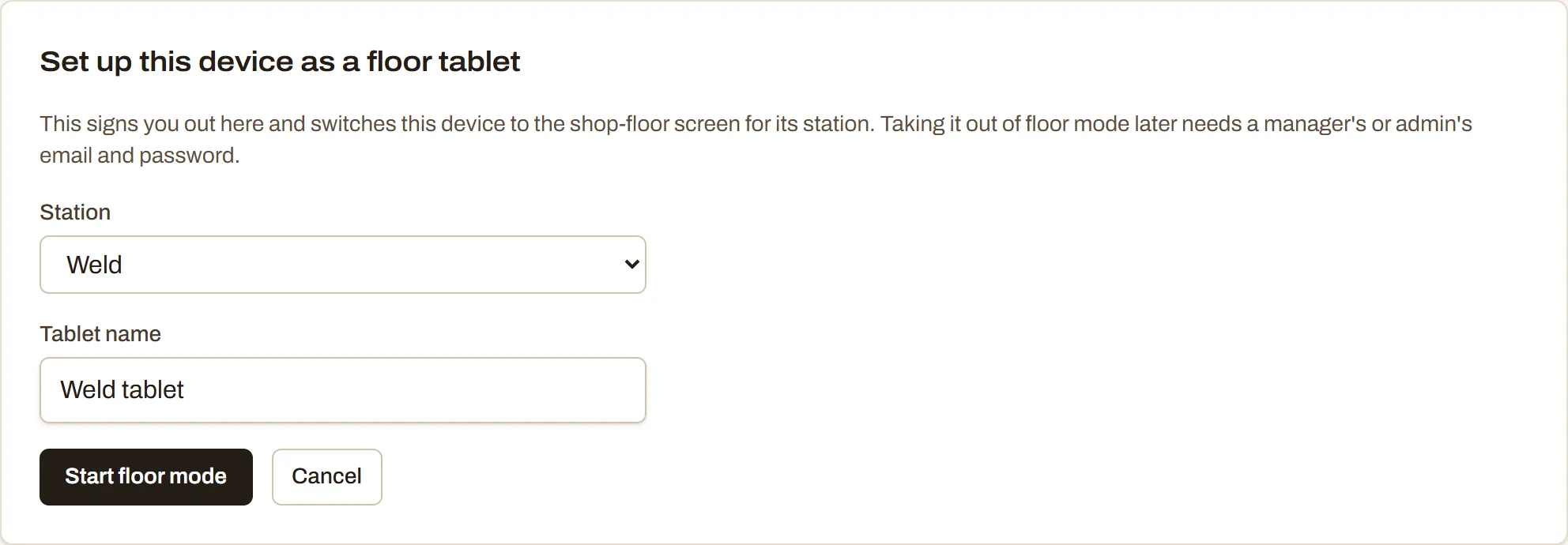
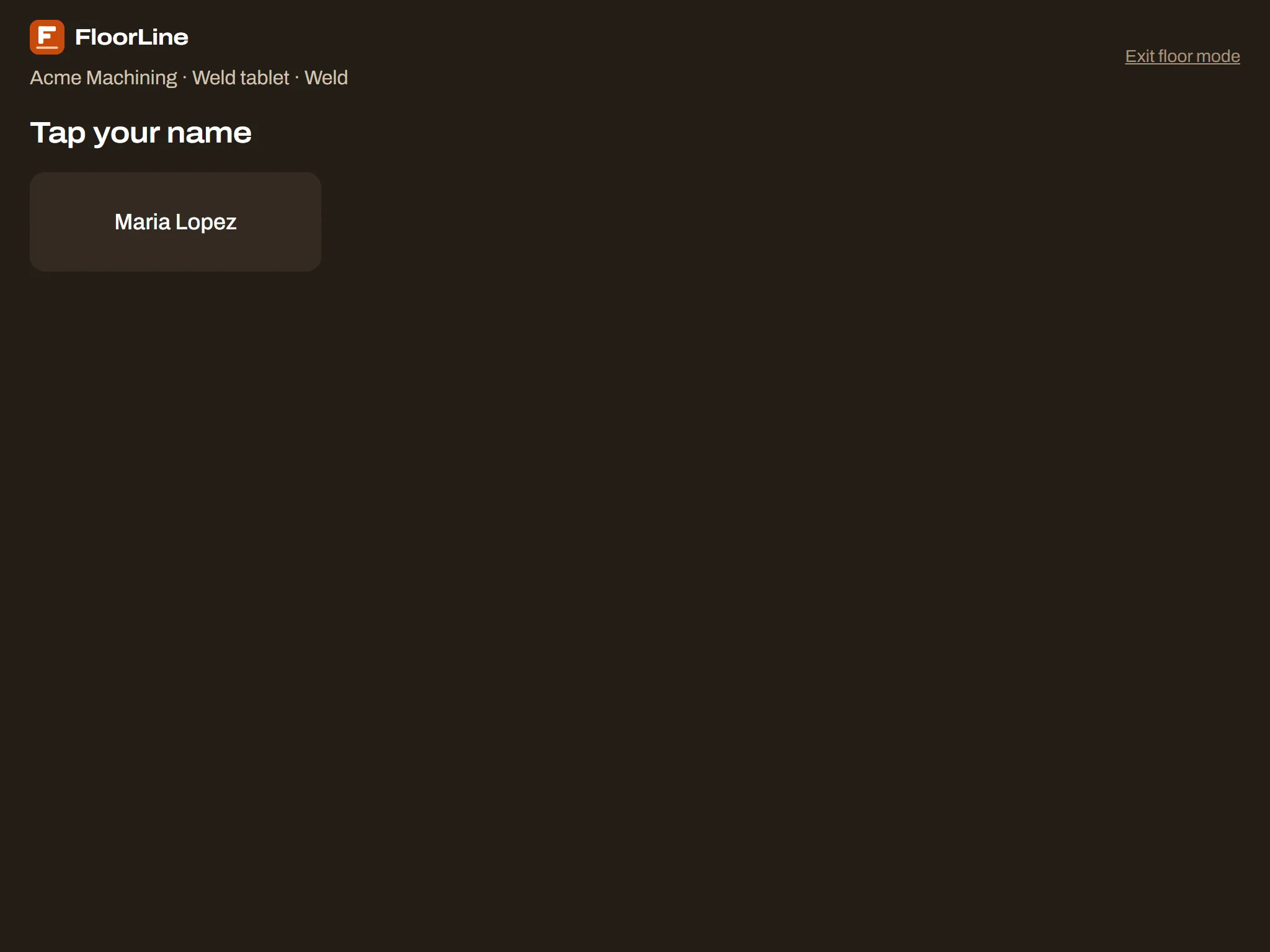
The tablet signs you out and switches to the floor screen for that station: the shop name, the tablet’s name, and the station at the top, and a list of names to tap. You’re signed out so the tablet is never left signed in as you.
The tablet stays set up until someone takes it out of floor mode or revokes it. Browsers keep the setting for up to 400 days, and clearing the browser’s data for the site removes it; either way, set the tablet up again the same way.
How sign-in works on the tablet
Section titled “How sign-in works on the tablet”- The name grid lists every active operator with a PIN, plus admins and managers who set their own PIN. On Mid and up, a station can be limited to selected operators.
- An operator taps their name and enters their PIN. The tablet goes back to the names after they choose Done, after a minute without use, or after 30 seconds without use on the PIN pad.
- Five wrong PINs in a row lock that person out for 15 minutes. An admin can unlock them sooner.
For what operators do once signed in, see Use the tablet.
- One tablet per station. A station’s tablet comes with its slot on your plan, so tablets don’t count toward plan limits.
- Each tablet needs its own name.
- If every station already has a tablet, the page says “Every station has a tablet.” Add a station, or revoke a tablet to replace it.
Check your tablets
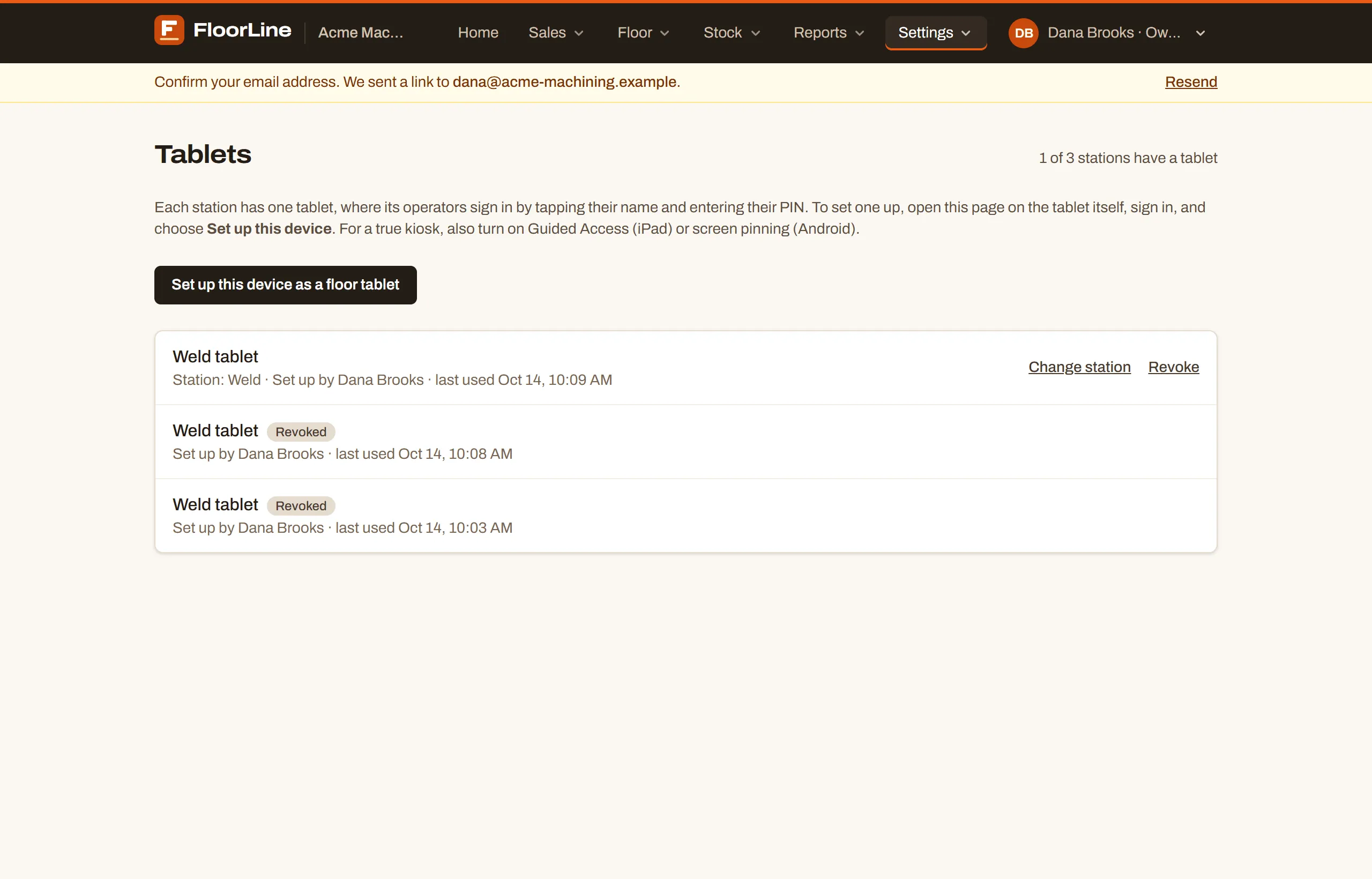
Section titled “Check your tablets”The Tablets page lists every tablet with its station, who set it up, and when it was last used. The top shows how many stations have a tablet.
Move a tablet to another station
Section titled “Move a tablet to another station”-
Go to Settings → Tablets (from any computer).
-
On the tablet’s row, choose Change station.
-
Pick the station in Station for and the tablet’s name. Only stations without a tablet are offered.
-
Choose Save station.
If a tablet’s station was archived, its row shows Needs a station and the tablet says “This tablet isn’t paired with a station. A manager can pick one on the Tablets page.” Choose Pick a station on its row.
Revoke a tablet
Section titled “Revoke a tablet”Revoke a tablet that’s lost, broken, or being replaced. It’s cut off at once, and anyone signed in on it is signed out.
-
Go to Settings → Tablets.
-
On the tablet’s row, choose Revoke.
-
Confirm with Revoke and the tablet’s name (or Keep to back out).
The tablet stays in the list marked Revoked, and its station is free for a new tablet. You can revoke a tablet even while the shop is read-only.
Take a tablet out of floor mode
Section titled “Take a tablet out of floor mode”To use the tablet for something else, take it out of floor mode on the tablet itself.
-
On the name grid, choose Exit floor mode at the top.
-
A manager or admin of your shop enters their Email and Password.
-
Choose Exit floor mode.
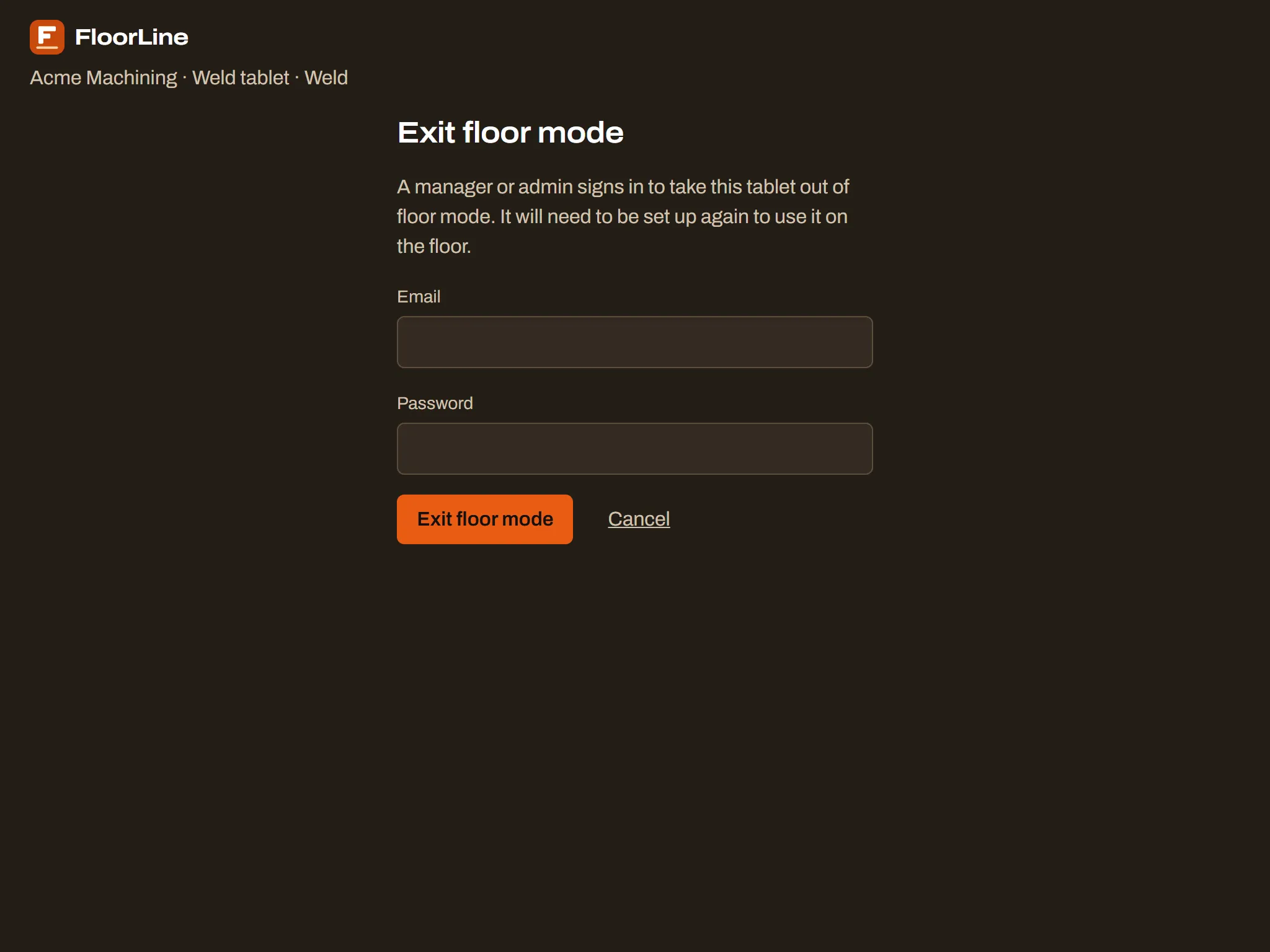
The tablet goes to the sign-in page and is no longer registered. To use it on the floor again, set it up again.
Install the floor app
Section titled “Install the floor app”Installing puts FloorLine on the tablet’s home screen. It then opens straight to the floor screen, full screen, without the browser’s address bar.
- Chrome, Edge, and Android tablets: on the name grid, choose Install app at the top, then confirm in the browser’s dialog.
- iPad and iPhone (Safari): choose Install app on the name grid for the steps, or do it directly: tap Share in Safari’s toolbar, choose Add to Home Screen, then Add. Open FloorLine from the home screen.
Install app doesn’t appear once the app is installed, or in a browser that can’t install it.
Keep the tablet on FloorLine
Section titled “Keep the tablet on FloorLine”To stop people leaving the floor screen for other apps, lock the tablet to it with the tablet’s own settings:
- iPad: turn on Guided Access in Settings → Accessibility, open FloorLine, and start Guided Access (on most iPads, triple-click the top or Home button).
- Android: turn on screen pinning (some devices call it app pinning) in the tablet’s security settings, open FloorLine, and pin it from the recent apps screen.
The exact steps depend on the tablet’s model and system version; check its manufacturer’s help if the names differ.
Allow the camera for scanning
Section titled “Allow the camera for scanning”Operators can scan the barcodes on travelers with the tablet’s back camera. The first time someone chooses Scan, the browser asks to use the camera: allow it. If it was blocked, the scanner says “The camera is blocked. Allow it in the browser’s settings, or type the number.” Operators can always type the work order number instead.
When the connection drops
Section titled “When the connection drops”Signing in needs the connection, because the PIN is checked by FloorLine. Once someone is signed in, they can keep starting, stopping, and completing steps while the tablet is offline. The tablet saves what they do and sends it when the connection is back, and the screen says what’s waiting to send. See Use the tablet.