
Add and manage users
This page covers adding the people in your shop to FloorLine and keeping the list current: who can sign in, with what role, and with which PIN. Only admins can manage users, the owner included. Go to Settings → Users.
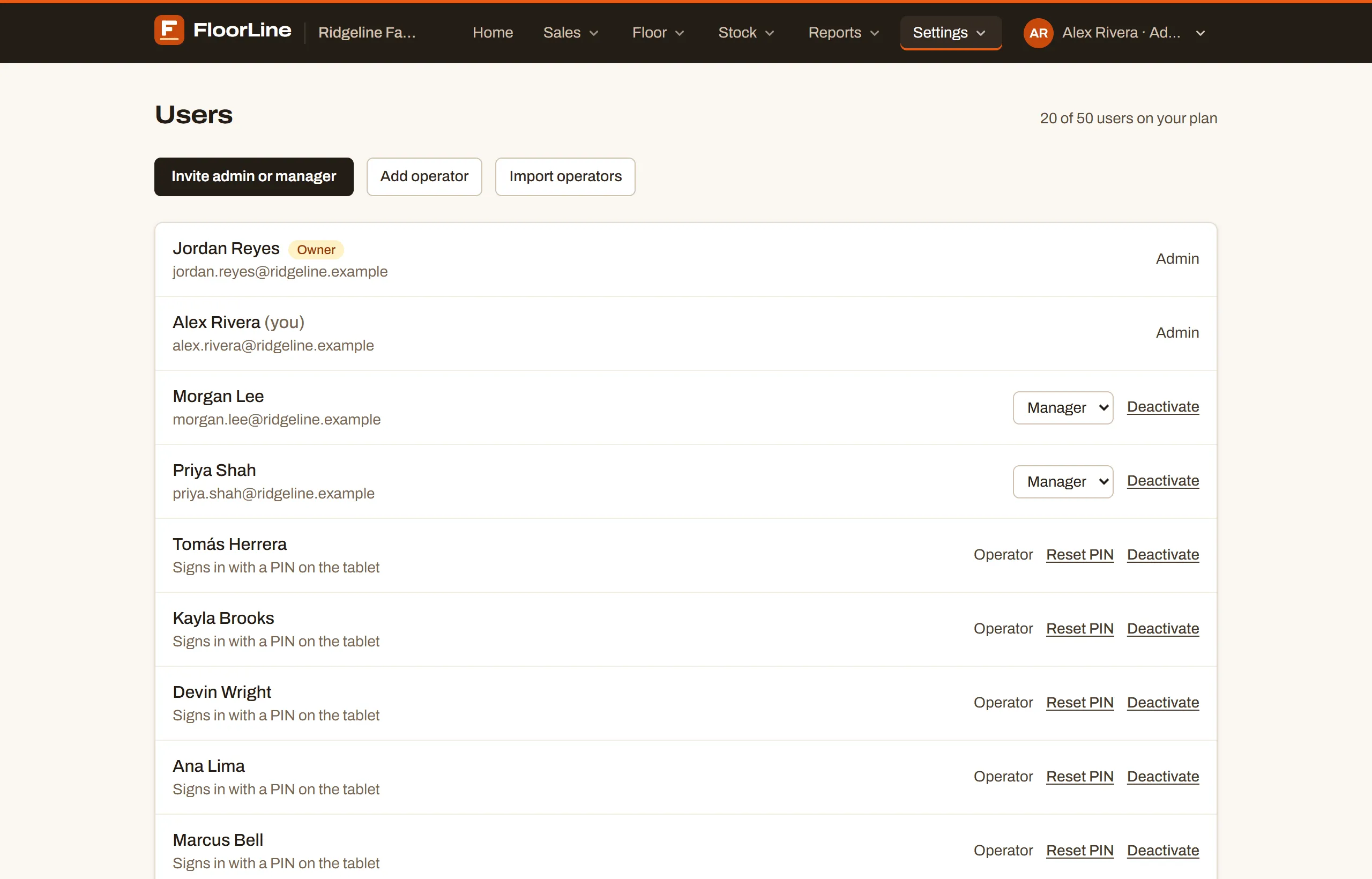
Everyone in FloorLine has one of three roles. One admin, the person who signed the shop up, is also the owner.
| What they can do | Owner | Admin | Manager | Operator |
|---|---|---|---|---|
| Sign in on the web with email and password | Yes | Yes | Yes | No |
| Sign in on a station’s tablet with their name and a PIN | If they set a PIN | If they set a PIN | If they set a PIN | Yes |
| Work orders, items, stock, Live view, planning, reports | Yes | Yes | Yes | No |
| Set up and revoke tablets | Yes | Yes | Yes | No |
| See stations | Yes | Yes | Yes | No |
| Add, change, and archive stations | Yes | Yes | No | No |
| Users, shop settings, and the audit log | Yes | Yes | No | No |
| Billing and plan changes | Yes | No | No | No |
- Operators work on the station tablets: they tap their name, enter their PIN, and start, stop, and complete steps. They don’t use the office pages.
- Managers run the floor: work orders, stock, planning, and tablets.
- Admins also manage users and shop settings.
- The owner is an admin who also sees billing and changes the plan. The owner’s role can’t be changed and the owner can’t be deactivated.
Invite an admin or manager
Section titled “Invite an admin or manager”Admins and managers sign in with their own email and password, so you invite them by email and they choose their password.
-
Go to Settings → Users and choose Invite admin or manager.
-
Enter their Name and Email.
-
Under Role, pick Manager or Admin.
-
Choose Send invite.
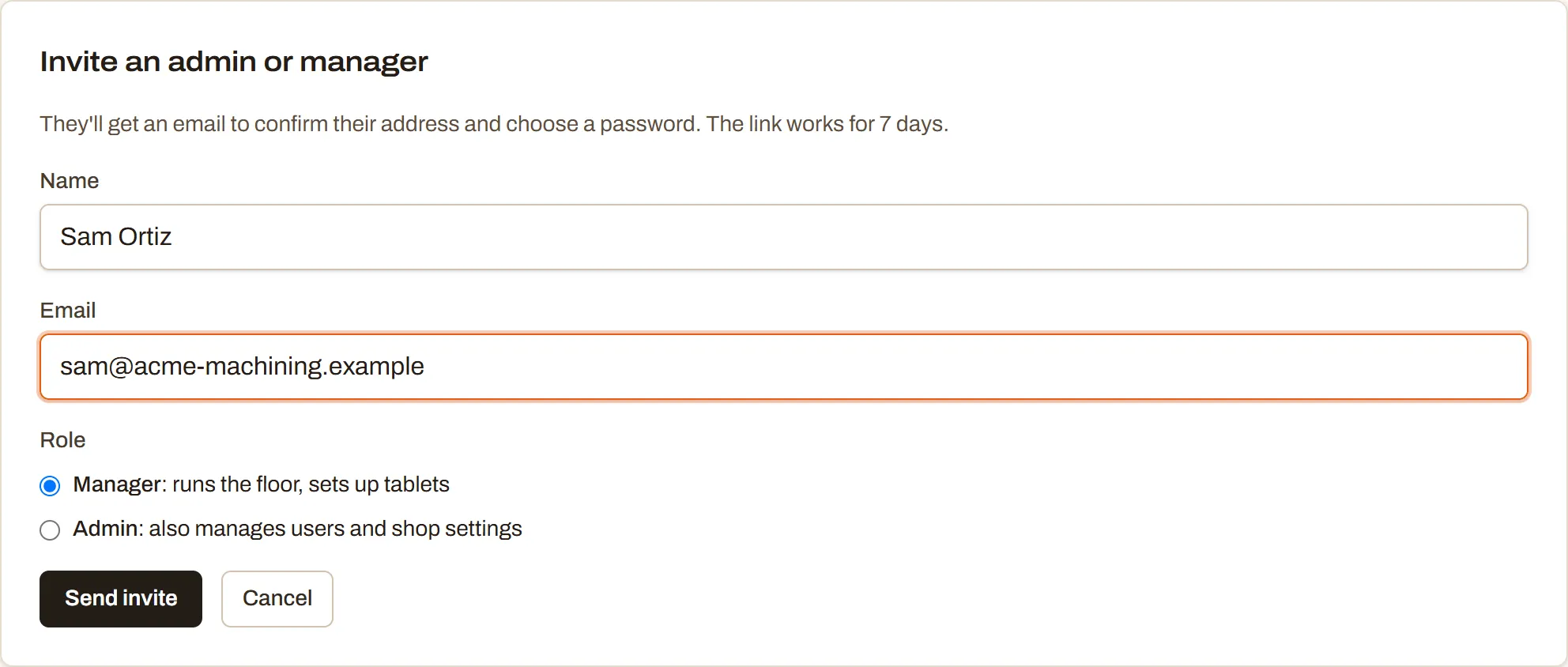
They get an email with a link. The link works for 7 days. On the page it opens, called Join and your shop’s name, they enter Your name, a Password (at least 12 characters), and Confirm password, then choose Create my account. That confirms their email and signs them in.
Until they accept, their row shows Invite sent with two choices:
- Resend invite sends a new link (the old one stops working). You can send one a minute at most.
- Cancel invite deletes the invite. Only pending invites can be deleted; everyone else is deactivated instead, so their history stays.
Each email address can belong to one person in your shop.
Add an operator
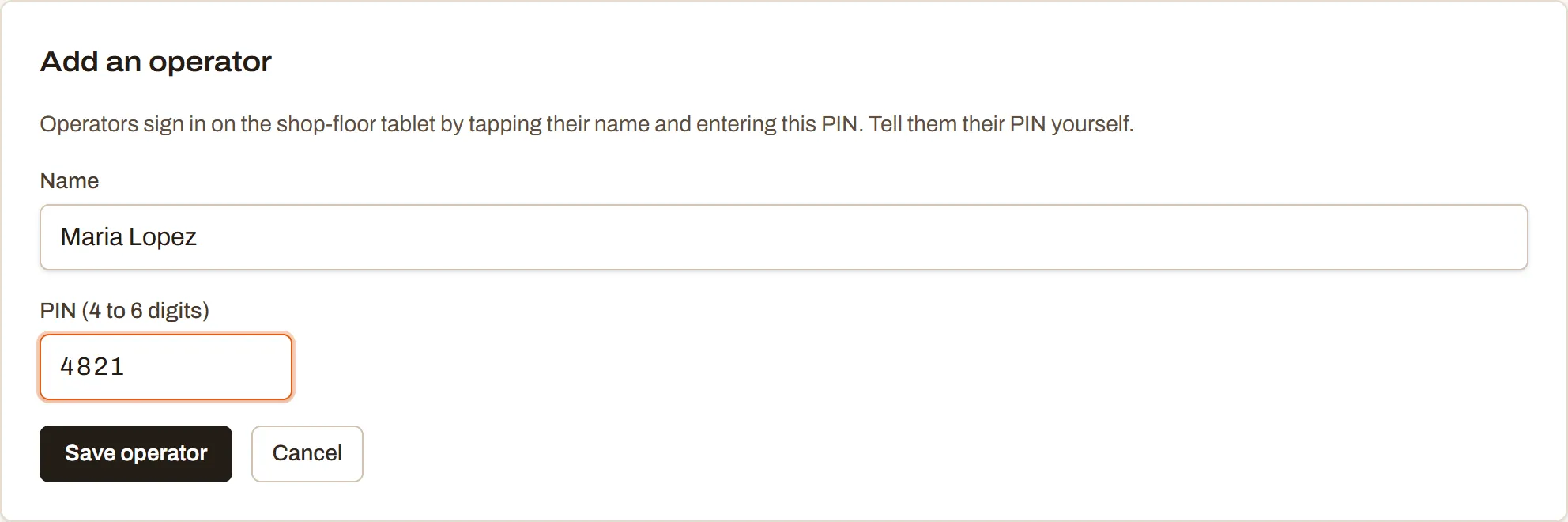
Section titled “Add an operator”Operators sign in on the tablet by tapping their name and entering a PIN, so they need a name and a PIN, not an email.
-
Go to Settings → Users and choose Add operator.
-
Enter their Name the way they’ll recognize it on the tablet, like “Maria G.”
-
Enter a PIN (4 to 6 digits).
-
Choose Save operator.
-
Tell them their PIN yourself. FloorLine doesn’t send it anywhere.
Active operators’ names must be different from each other (ignoring capitals), because operators pick their name from a list on the tablet. If two people share a name, add a last initial.
Import operators from a spreadsheet
Section titled “Import operators from a spreadsheet”To add a whole crew at once, import a CSV file.
-
Go to Settings → Users and choose Import operators.
-
Choose Download a template if you want a starting file. The file has two columns, name and PIN, one operator per line. A header row is optional.
-
Under CSV file, choose your file. FloorLine reads it and lists every problem by line number, or shows how many operators are ready to import.
-
Choose Import with the number of operators, for example Import 12 operators.
- All or nothing: if any line has a problem, nothing is imported. Fix the lines listed and choose the file again.
- At most 250 operators a file, and no more than your plan has room for.
- Names must be unique in the file and must not belong to an operator you already have.
- Spreadsheets drop leading zeros, so a PIN like 0042 becomes 42. Format the PIN column as text before you save the file.
Smaller shops add operators by hand with Add operator. To import stations, items, and other records, see Import from spreadsheets.
Reset an operator’s PIN
Section titled “Reset an operator’s PIN”Admins set operators’ PINs. Operators can’t change their own.
-
Go to Settings → Users and find the operator.
-
Choose Reset PIN.
-
Enter the new PIN in New PIN for and their name, then choose Save PIN.
A new PIN also unlocks someone who was locked out.
Unlock a locked PIN
Section titled “Unlock a locked PIN”Five wrong PINs in a row lock that person out of tablet sign-in for 15 minutes. The tablet says when they can try again, and their row on the Users page shows Locked out of the tablet.
To let them back in sooner, choose Unlock on their row. A correct PIN also resets the count.
Set your own tablet PIN (admins and managers)
Section titled “Set your own tablet PIN (admins and managers)”Admins and managers can sign in on the station tablets too, for example to start a job or to override a step. To do that, set a PIN for yourself.
-
Open the account menu (your name in the header) and choose Account settings.
-
Under Tablet PIN, enter a PIN and Confirm PIN.
-
Enter your Current password and choose Save PIN.
To take your PIN off, choose Remove PIN. Admins and managers with a PIN can sign in at every station, even ones limited to selected operators. See Your account.
Change someone’s role
Section titled “Change someone’s role”On an admin’s or manager’s row, pick Manager or Admin in the role list. It saves right away.
- Operators stay operators. To make an operator a manager, invite them as a manager with their email.
- Nobody can change their own role, and the owner’s role is fixed.
Deactivate or reactivate someone
Section titled “Deactivate or reactivate someone”When someone leaves, deactivate them. They can’t sign in anymore, on the web or on a tablet, and they’re signed out. Their history (the steps they ran, the orders they changed) stays.
-
Go to Settings → Users and find the person.
-
Choose Deactivate, then confirm with Deactivate and their name (or Keep to back out).
Deactivated people are listed under Deactivated users at the bottom. They don’t count toward your plan. To bring someone back, choose Reactivate on their row.
You can’t deactivate yourself or the owner.
User limits
Section titled “User limits”Every user of every role counts toward your plan’s user limit: admins, managers, operators, and pending invites. Deactivated users don’t.
| Plan | Users included |
|---|---|
| Free | 3 |
| Basic | 10 |
| Mid | 50 |
| High | 250 |
The top of the Users page shows how many you’ve used, like “8 of 10 users on your plan”.
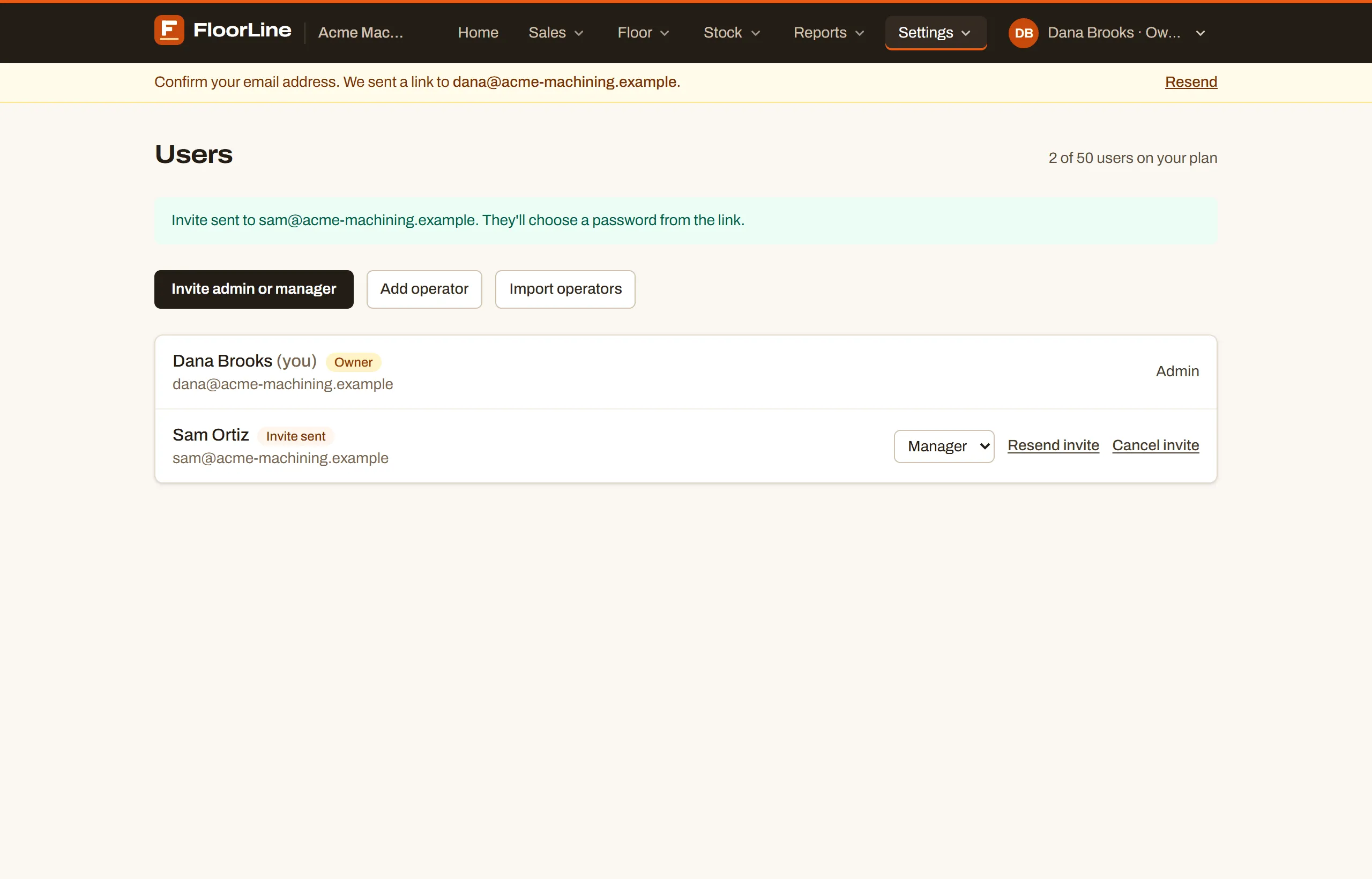 When you reach the limit, adding, inviting, and reactivating are turned off. Deactivate someone, or have the owner add users or upgrade in Billing. On Basic you can add users in blocks of 5, and on Mid in blocks of 10. See Plans and limits and Billing.