
Use the tablet
Each station has a tablet on the floor. Operators sign in with their PIN, pick the job in front of them, and tap Start, Stop, and Complete step as they work. Everything they tap updates the work order, the Live view, and stock right away.
This page is for operators and for the supervisors who train them. To set a tablet up for a station, see Set up tablets. For a one-page summary to post at each station, print the operator quick card.
Before you start
Section titled “Before you start”- The tablet must be set up for your station by a manager or admin. Its screen shows the shop’s name, the tablet’s name, and the station at the top.
- You need a PIN (4 to 6 digits). An admin sets operators’ PINs on the Users page. Admins and managers can set their own PIN on Account settings and sign in on a tablet too. See Users.
Sign in
Section titled “Sign in”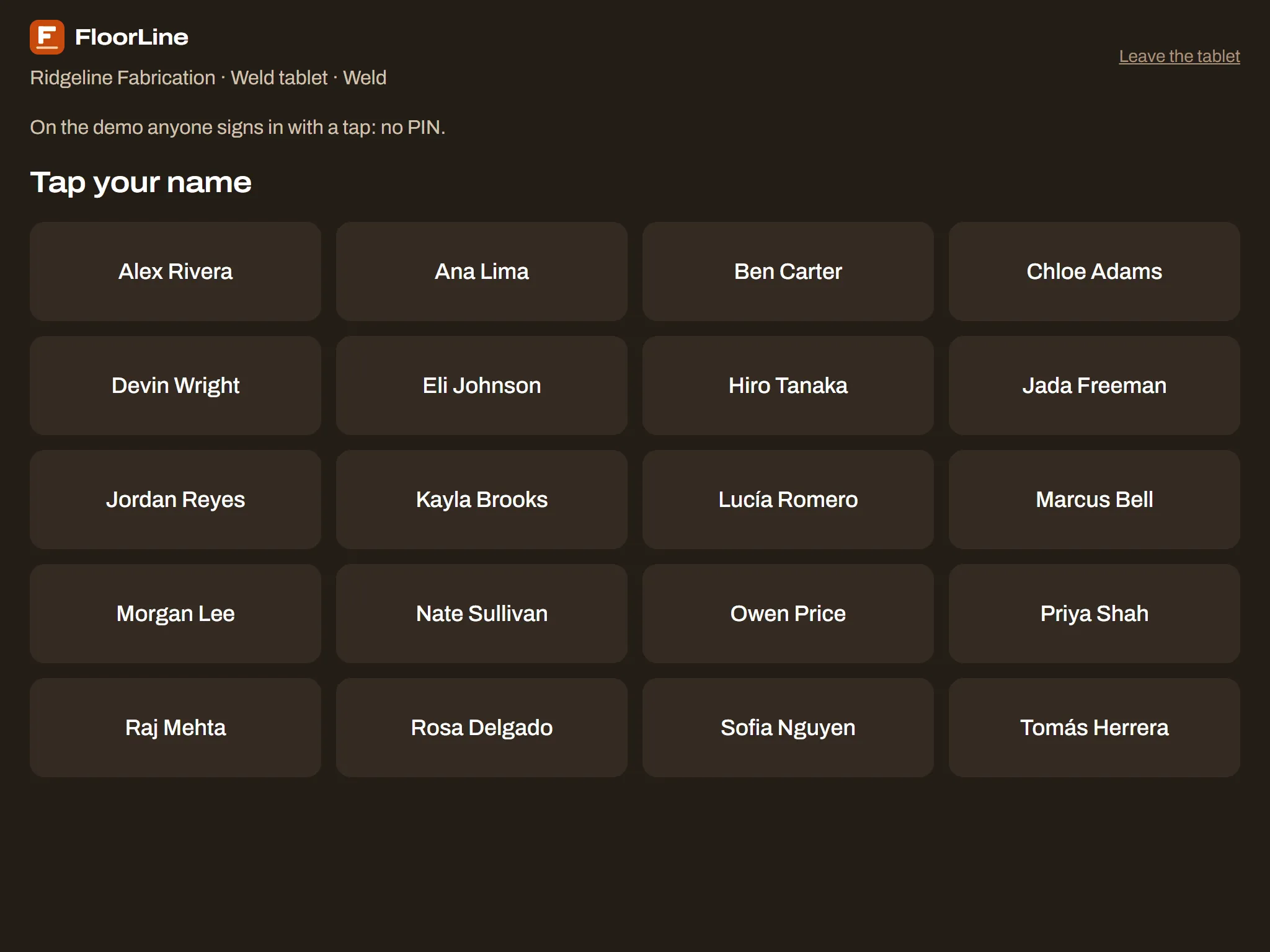
-
On the screen that says Tap your name, tap your name.
-
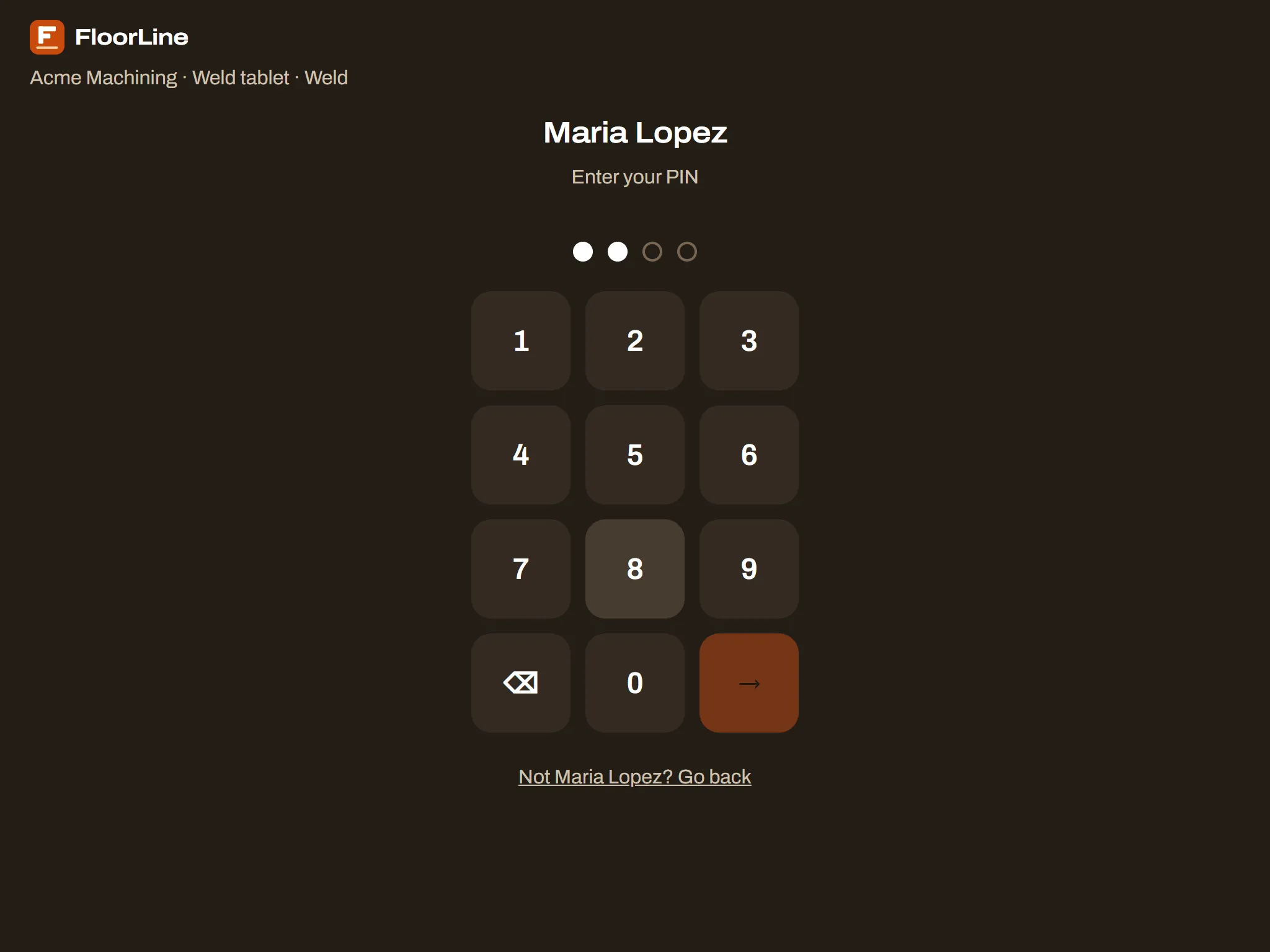
Enter your PIN on the keypad. ⌫ deletes a digit.
-
Tap → to sign in. If you tapped the wrong name, tap Not (name)? Go back.
What can go wrong:
- “Wrong PIN. 3 tries left.” Try again carefully.
- “Too many wrong PINs. Try again after 10:45 AM, or ask an admin to unlock you.” After 5 wrong PINs in a row, you’re locked out for 15 minutes. An admin can unlock you sooner on the Users page, or set you a new PIN.
- “You’re not set up for this station. Ask an admin to add you.” On Mid and up, an admin can limit a station to certain operators. See Stations.
- Your name isn’t on the screen. You don’t have a PIN yet, you were deactivated, or (Mid and up) this station is limited to other operators. Ask an admin.
- “No connection. Signing in needs it.” Your PIN is checked by FloorLine, so signing in needs the tablet to be online. See Working offline.
The PIN pad goes back to the names after 30 seconds without a tap.
The screen
Section titled “The screen”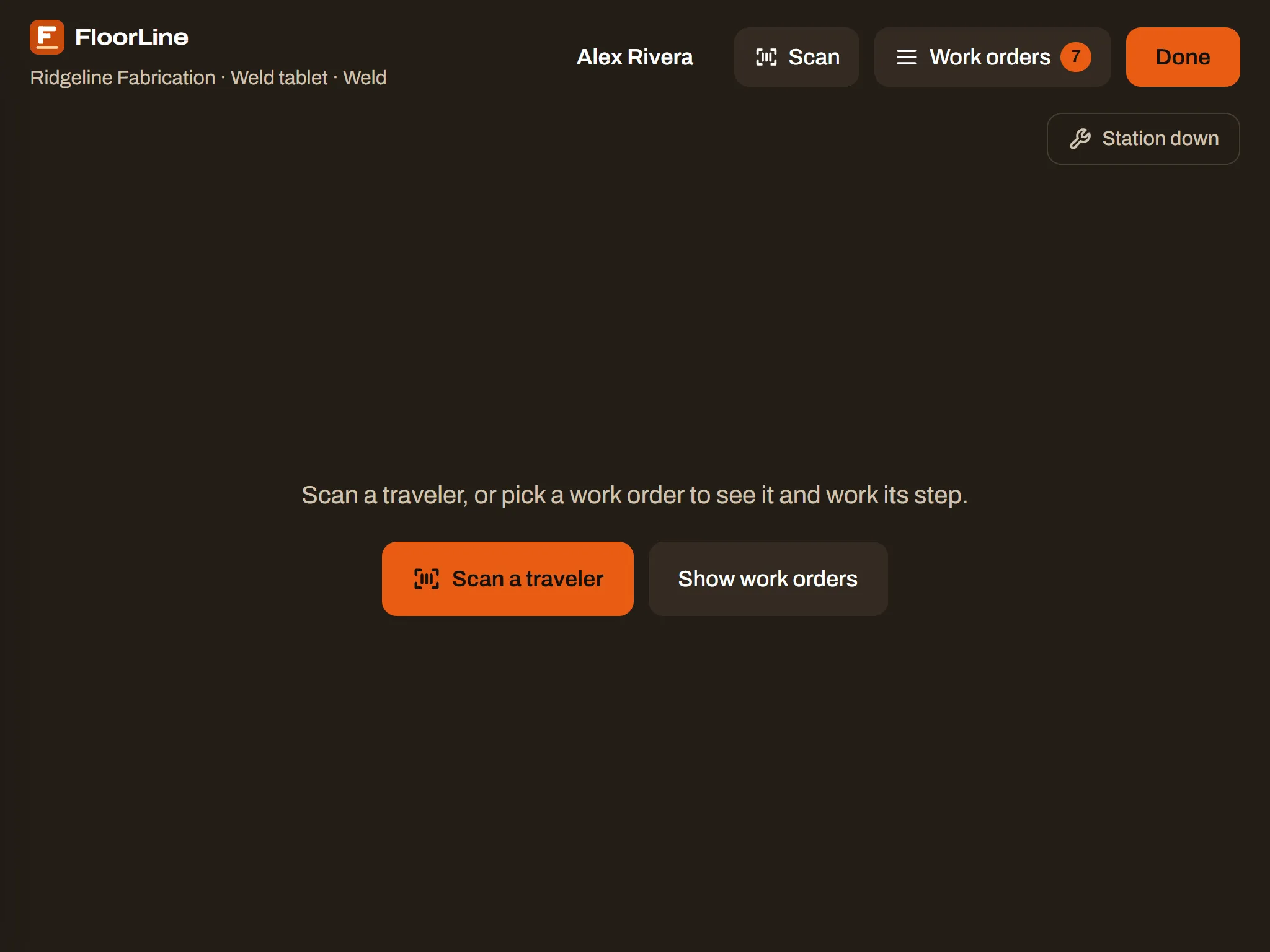
Once you’re signed in, the header shows:
- On the left: the shop, the tablet, and its station.
- In the middle: your name, so everyone can see who’s signed in.
- On the right: Scan (read a traveler’s barcode), Work orders (the jobs at this station, with how many there are), and Done (sign out).
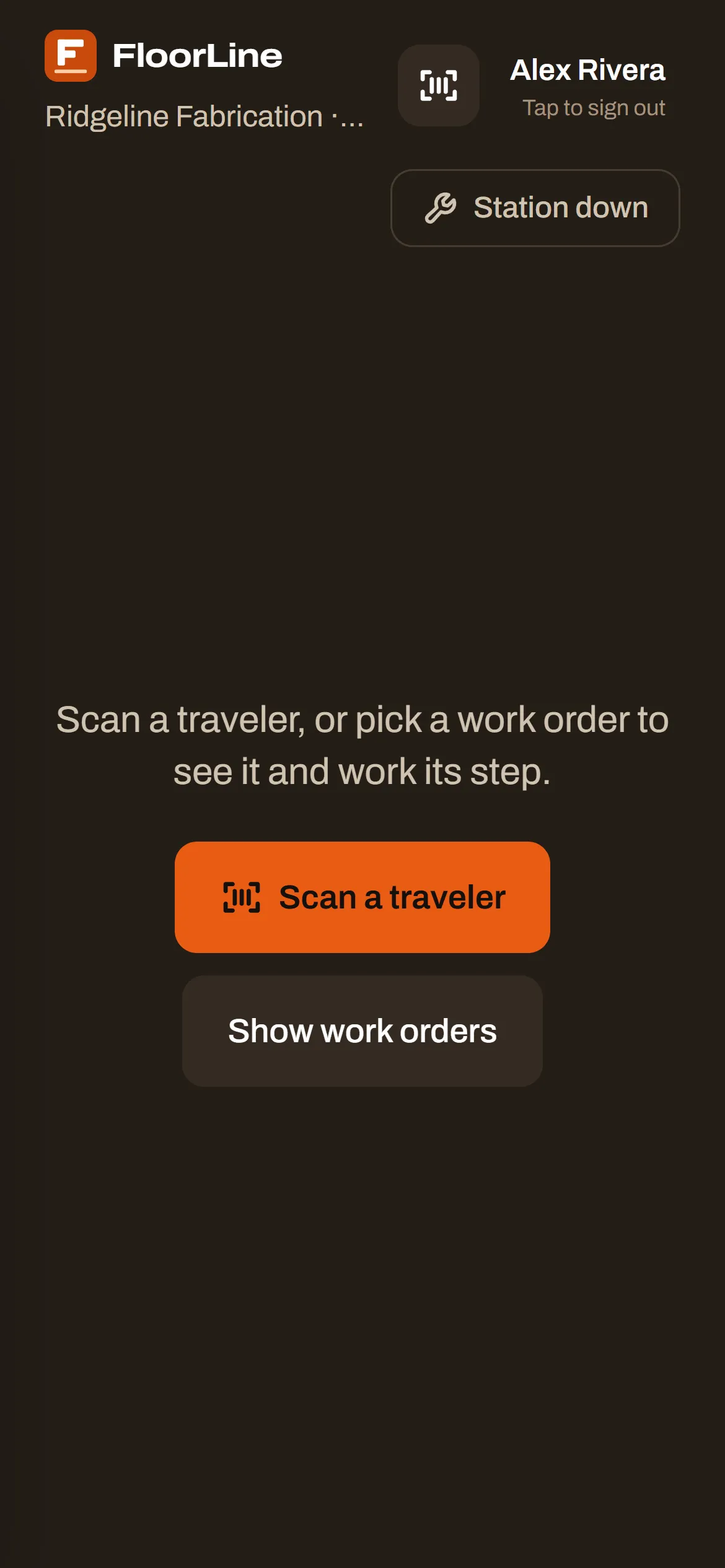
The middle of the screen says “Scan a traveler, or pick a work order to see it and work its step,” with Scan a traveler and Show work orders buttons.
Find your job
Section titled “Find your job”Tap Work orders. A list slides in from the left with the jobs whose current step is at this station, grouped:
- Running: the step is being worked.
- Paused: the step was started, then stopped.
- Ready to start: the job reached this station and nobody has started the step yet.
- On hold: the job is held, with the reason if one was given.
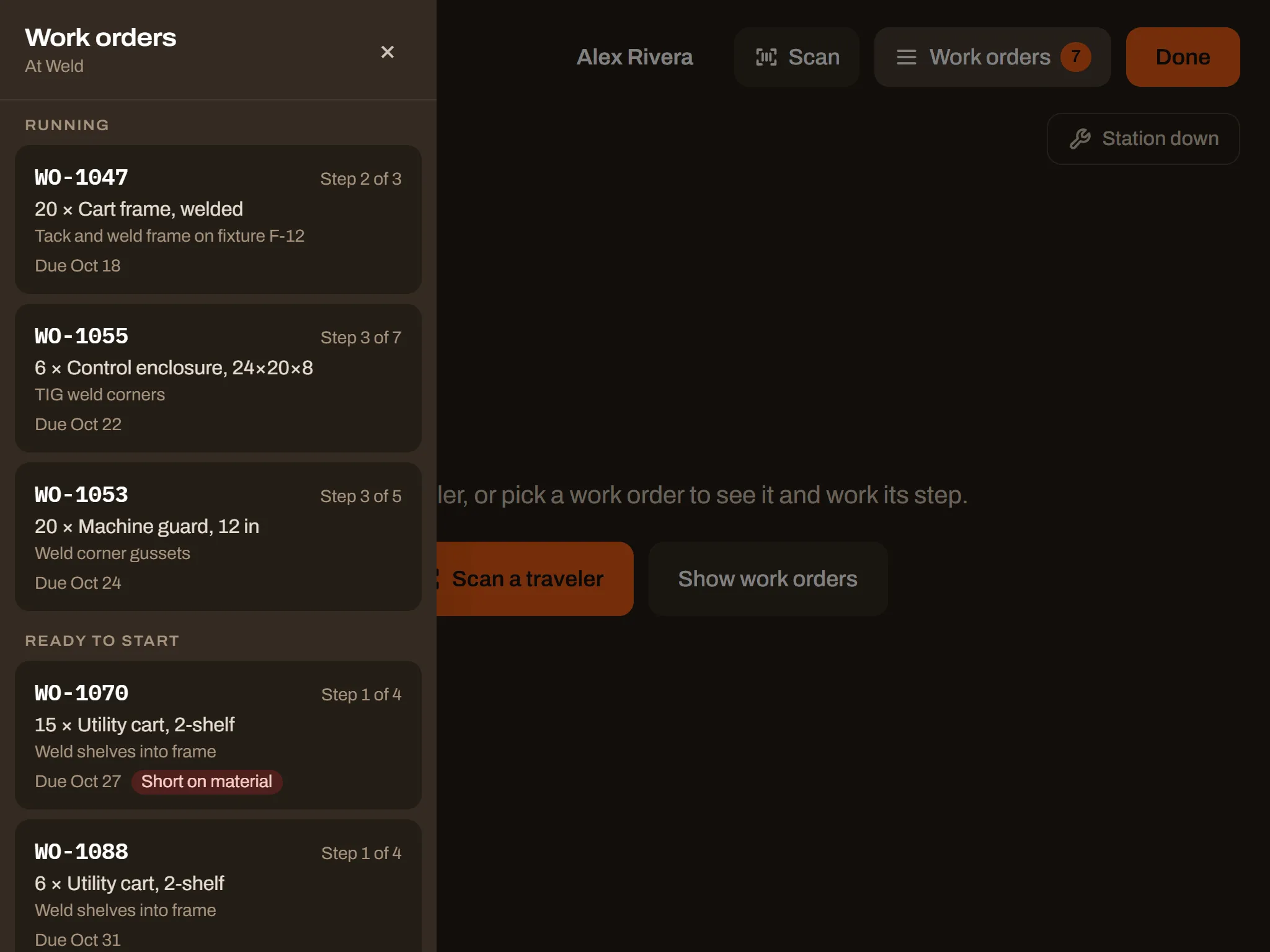
Each job shows its number (WO-1042), which step it’s on (“Step 2 of 4”), the quantity and item, the operation, and its due date. Late marks a job past its due date, and Short on material marks one whose materials aren’t all in stock. Tap a job to open it. Tap × or outside the list to close it.
If the list says “Nothing is waiting at (station) right now”, no job’s current step is at this station. Jobs arrive here as the step before finishes at another station.
Work a job
Section titled “Work a job”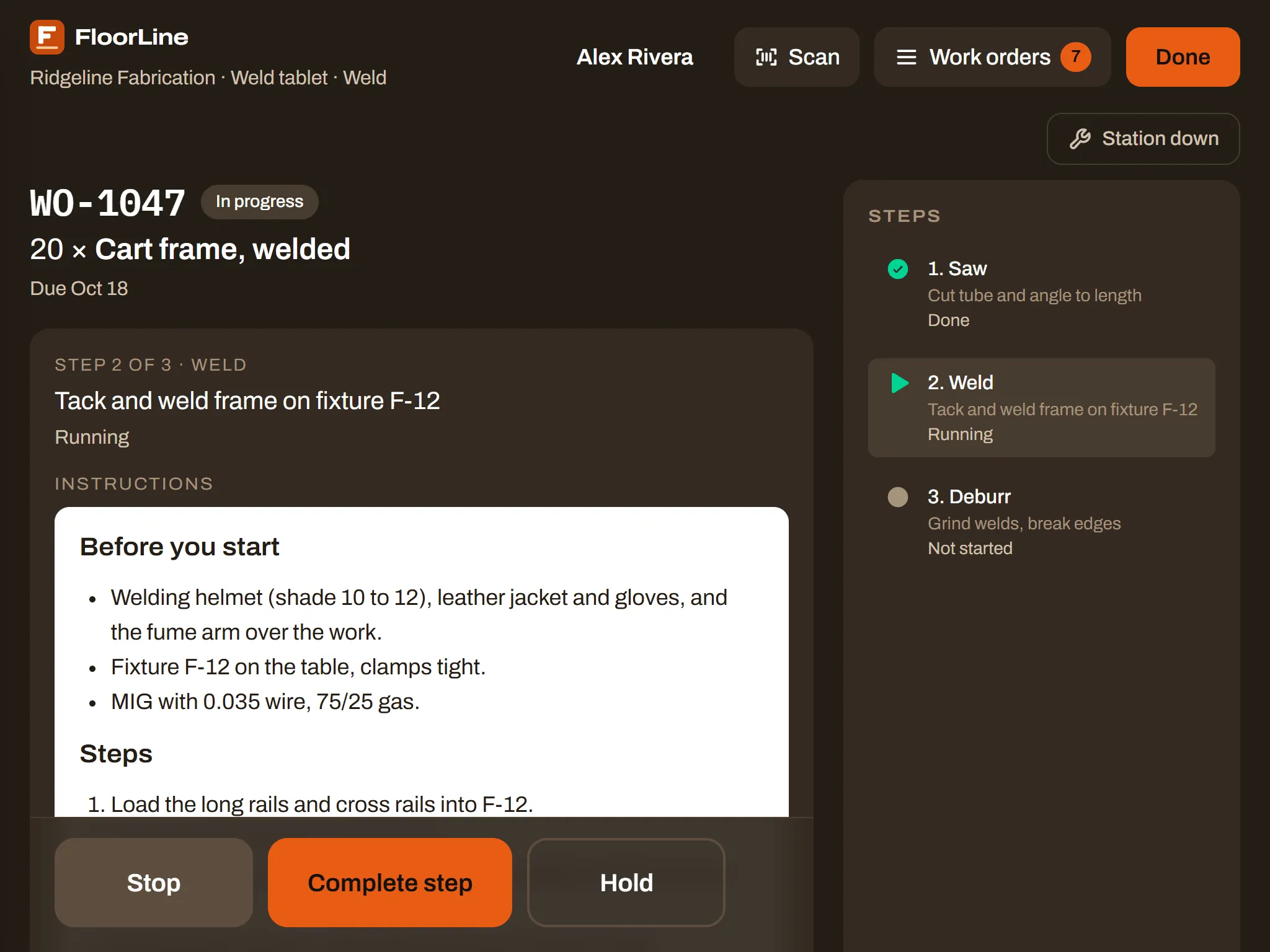
An open job shows:
- The work order number and status, the quantity and item, the customer, and the due date (“Late · due Oct 12” in red when it’s past).
- The order’s notes from the office, in a box, if there are any.
- The current step: “Step 2 of 4 · Weld”, the operation, and whether it’s running, paused, or not started.
- Instructions, if the step has them: written instructions with pictures, or a file with a Download button.
- Steps on the right: every step of the order, with a mark for done, running, paused, or not started. The current step is highlighted.
← All work orders opens the list again.
Start, stop, and complete a step
Section titled “Start, stop, and complete a step”The buttons for the step are in a bar along the bottom of the screen. It stays in place while you scroll through long instructions.
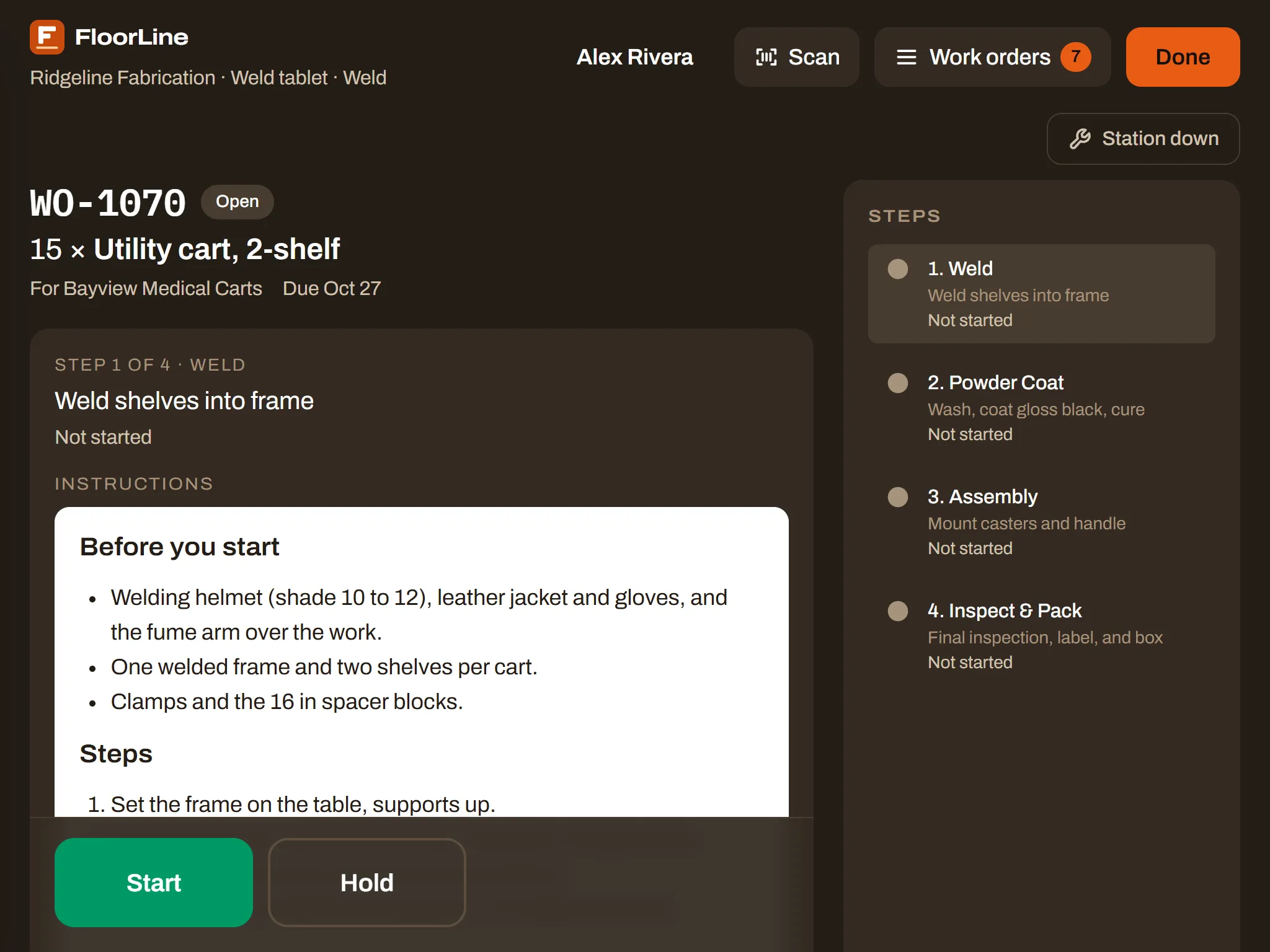
- Start: tap it when you begin the step. On a paused step, it says Start again.
- Stop: tap it when you stop work before the step is finished: a break, the end of the shift, or switching to a more urgent job. The step shows as paused, and anyone can start it again later.
- Complete step: tap it when the step is finished. The job moves on to the next station, or, on the last step, the work order is done.

The rules:
- Steps go in order. Only the current step (the first one not done) can be worked.
- Only at its own station. If the job’s current step is somewhere else, the bar says “This step is at Paint, not this station.”
- Complete step waits for what the step needs. On Mid and up, it stays off until the step’s quality checks are recorded and any lots or serial numbers are entered. The bar says what’s missing.
- On Basic and up, starting a step takes the materials it uses out of stock, and completing the last step puts the finished items into stock.
If the job changed in the office while you had it open (another step finished, it was put on hold), the tablet tells you and refreshes, for example “This job moved on to another step. The list is refreshed.”
Short on material
Section titled “Short on material”If a step uses materials and there isn’t enough in stock, a Short on material box lists them before you start (“Steel tube: needs 40 ft, 12 ft on hand”). You can still start: “Starting takes them from stock anyway. Tell a manager if the count is off.” Often the parts are on the shelf and the count is just behind.
Put a job on hold
Section titled “Put a job on hold”Put a job on hold when it can’t go on: a wrong material, a question about the drawing, a problem with a part.
-
Tap Hold.
-
Type the reason under Why is it on hold? (optional), like “Waiting on material”.
-
Tap Put on hold.
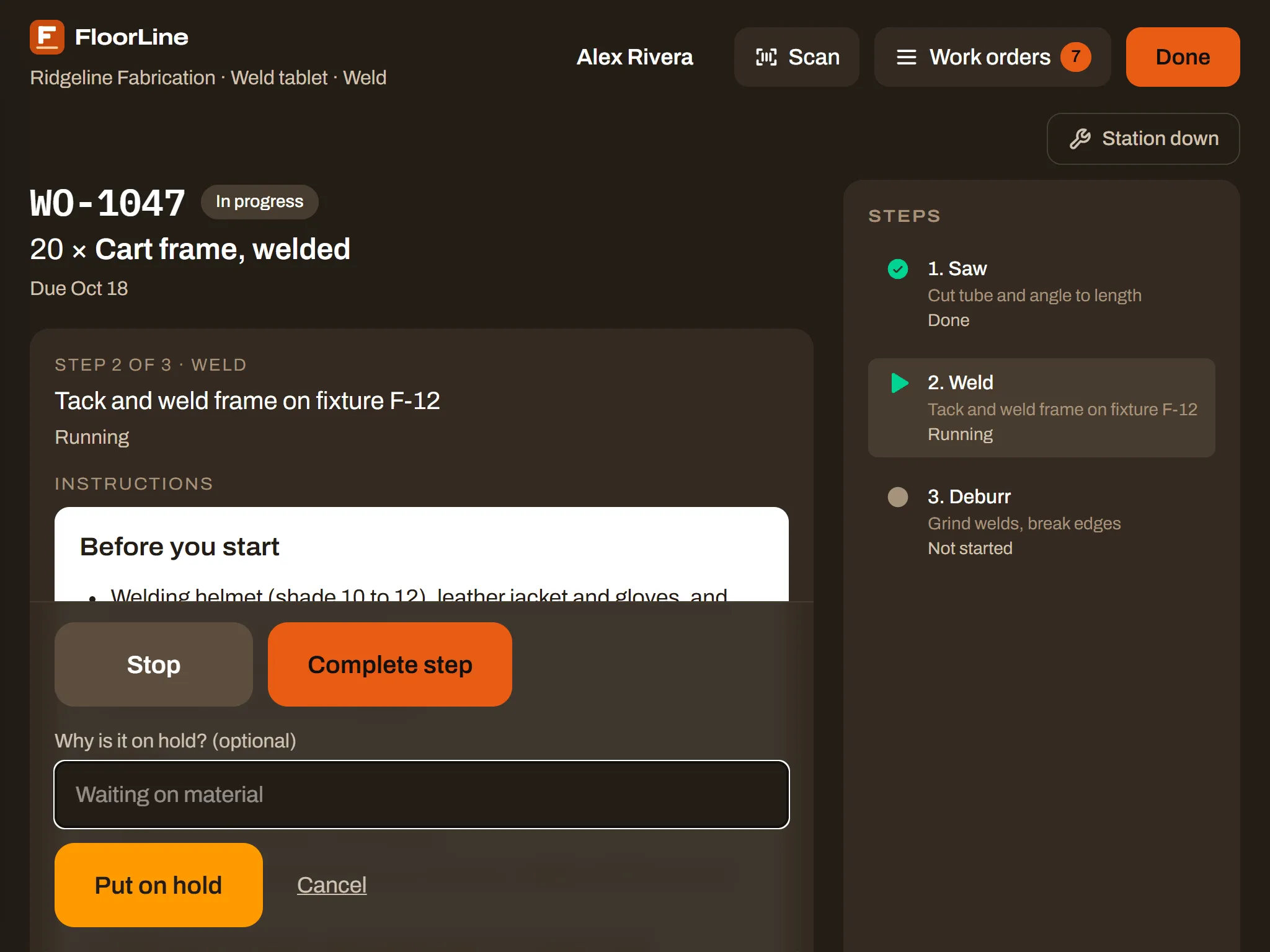
A running step pauses, and the job shows On hold with the reason, on the tablet and in the office. Nobody can work it until it’s released. When the problem is fixed, open the job and tap Release hold (or a manager releases it from the work order page). Release is on every plan.
Quality checks
Section titled “Quality checks”A step can have quality checks: a question to answer, a measurement to take, or a photo. They show on the step once it’s started. Before you start it, the list says “Start the step to record them.”
- An answer or a measurement: type it in the box and tap Save. A measurement shows its allowed range next to its name.
- A photo: tap Take a photo and take it with the tablet’s camera.
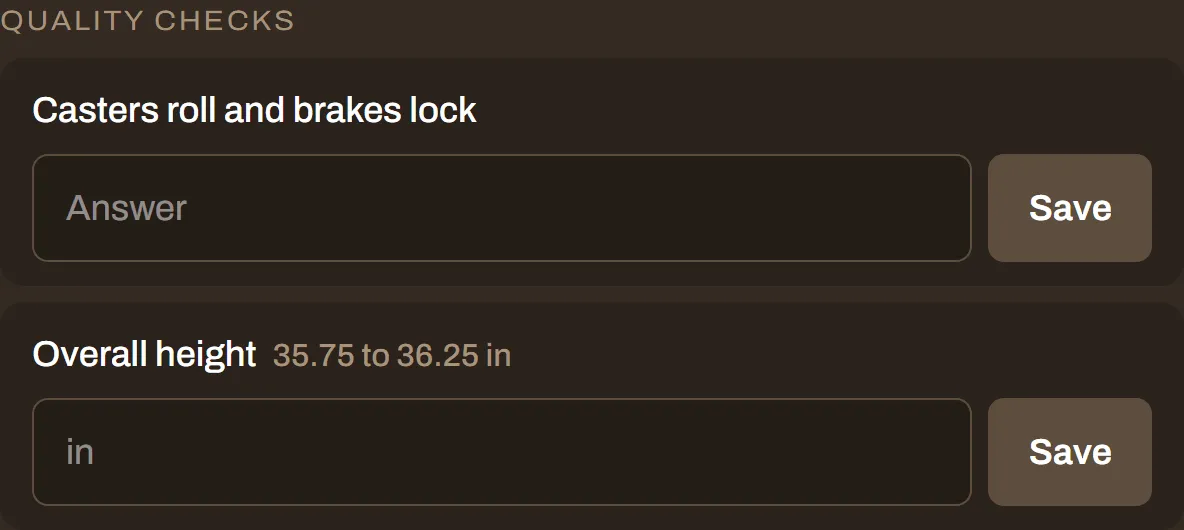
A saved check shows Recorded. A measurement outside its range shows Out of range in red. It’s flagged for the office, but it doesn’t stop you: tell your supervisor. Tap Redo to record a check again; the latest answer counts.
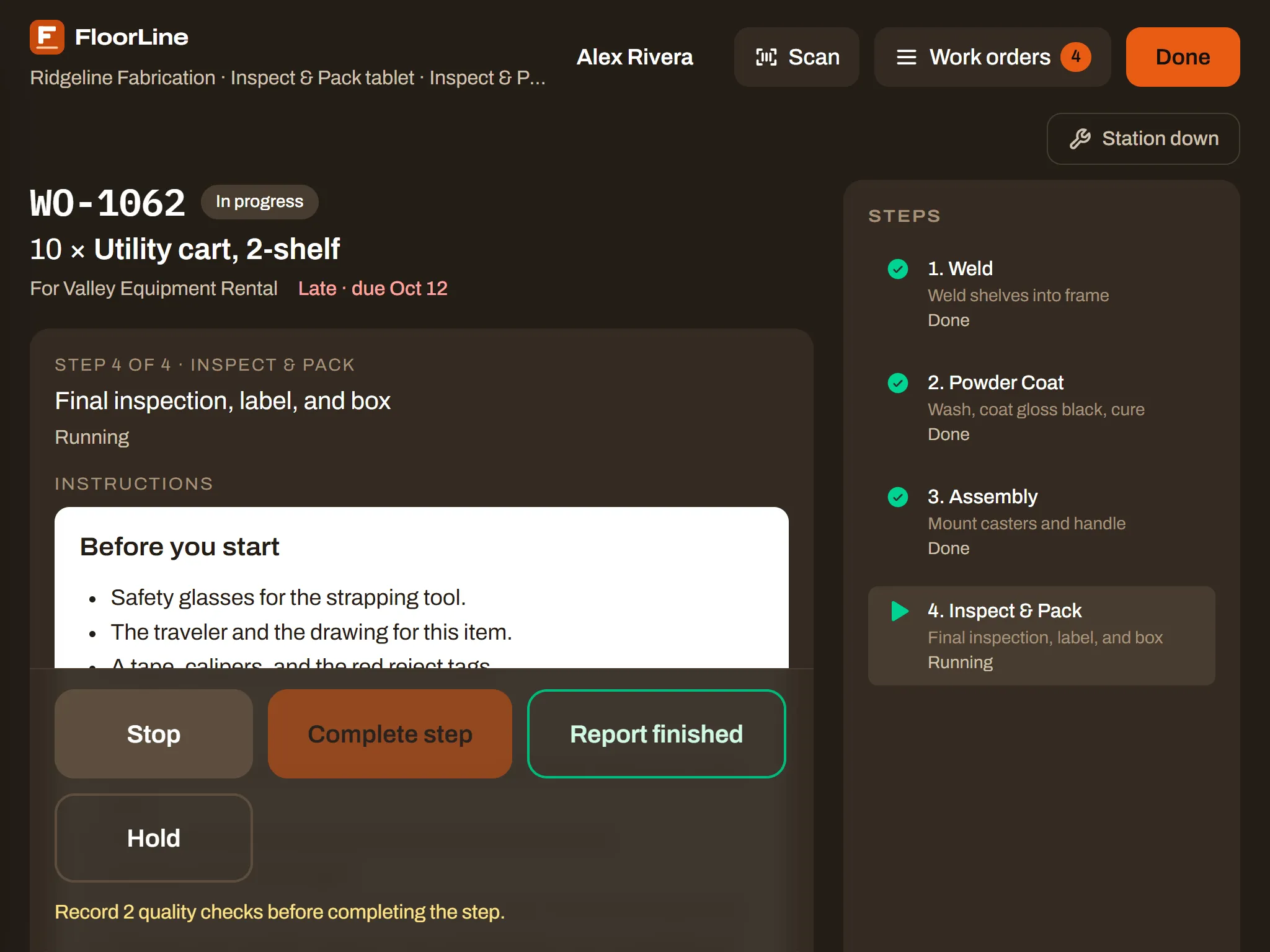
Complete step stays off until every check on the step is recorded. The bar says how many are left, like “Record 2 quality checks before completing the step.”
Lots and serial numbers
Section titled “Lots and serial numbers”When your shop tracks a material or a product by lot or serial number, the step shows a Lots and serial numbers section:
- A material shows how much the order needs, at which step, and “Needed before step 2 completes”. Tap Enter lots or Enter serials, pick or type the lot numbers or serial numbers you used, and tap Save. The tablet offers what’s in stock at this location, with the soonest-dated first.
- What the order makes shows “Lot number needed” or how many serial numbers are needed. Tap Enter lot or Enter serials, type them, and tap Save. You can do this at any step.
Complete step waits until the step’s materials are entered (and, on the last step, what it makes). Lots and serial numbers need the connection. See Lots and serial numbers.
Report finished units
Section titled “Report finished units”On the last step, once it has started, Report finished puts some finished units into stock before the whole order is done, for example a first pallet that has to ship.
-
Tap Report finished.
-
Enter How many are finished (for serial-tracked items, tick which serial numbers) and an optional Note.
-
Tap Put them in stock.
It must be fewer than what’s left. If they’re all done, tap Complete step instead.
Report waste or scrap
Section titled “Report waste or scrap”Below the step, Report waste and Scrap units record losses on the job:
- Report waste is material lost beyond what the job uses, like a mis-cut bar. Pick the Material, enter How much was lost, add What happened (optional), and tap Report waste. The job still makes its full quantity.
- Scrap units is finished or part-made units of the job that were lost. Enter how many, untick any material that can still be used, add what happened, and tap Scrap them. The job’s quantity goes down by that many.
Both need the connection. See Work orders for what each does to stock.
Station down
Section titled “Station down”When the station can’t run (a breakdown, no material, maintenance), tell FloorLine so the planner and the Live view know.
-
Tap Station down (under the header, on the right).
-
Under Why?, tap the reason.
-
Under About how long?, tap 15 min, 30 min, 1 h, 2 h, 4 h, Rest of the day, or Not sure.
-
Add a Note if it helps, like “Blade snapped, maintenance called”.
-
Tap Mark it down.
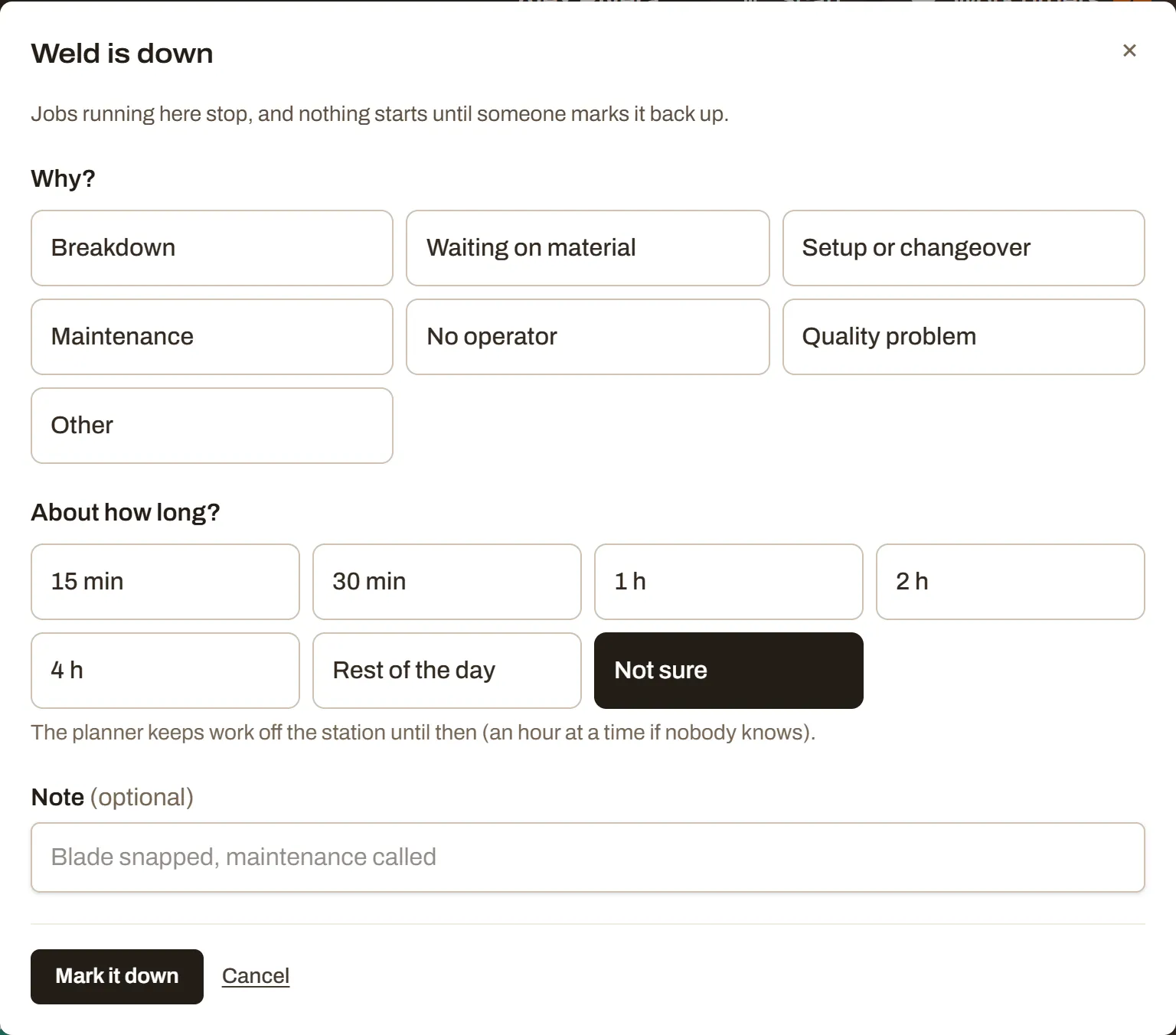
Jobs running at the station stop, and nothing can start there until it’s back up. An amber banner shows the reason, since when, who marked it, and when it’s expected back. The planner keeps work off the station until then (an hour at a time if nobody knows).
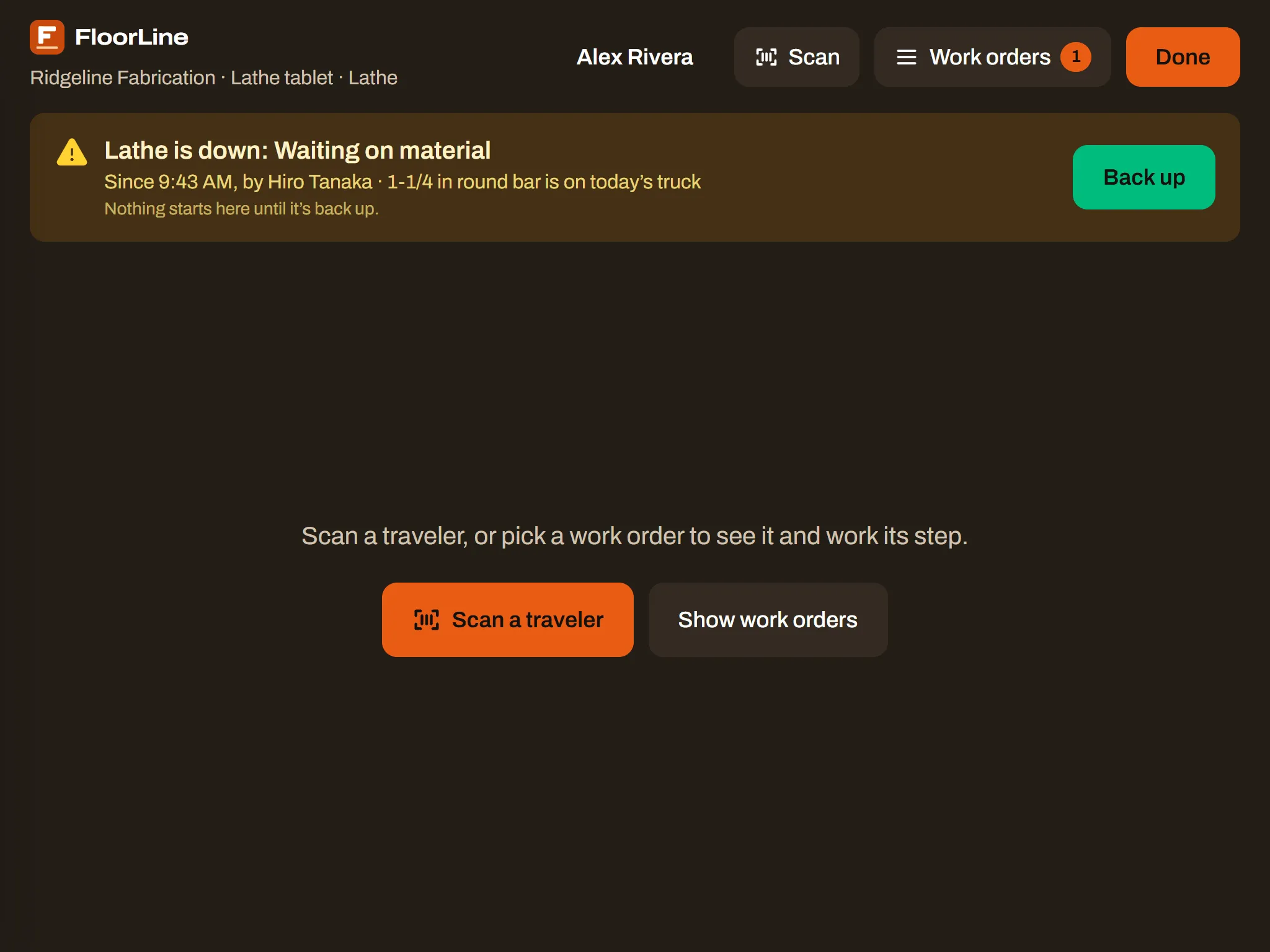
When the station is running again, tap Back up. Then start the jobs that were stopped. A manager can also mark it back up from the Stations page. Marking a station down or up needs the connection. See Downtime and OEE.
Scan a traveler
Section titled “Scan a traveler”Every work order’s printed traveler has barcodes: one for the order at the top, and one for each step. Scanning works on every plan.
-
Tap Scan (or Scan a traveler). The camera opens.
-
Hold the traveler so the barcode sits inside the orange box. Only what’s inside the box is read, so the steps above and below don’t get in the way.
-
The tablet reads it and closes the camera.
- The order’s barcode opens that work order.
- A step’s barcode opens the order and starts that step if it’s the current step, at this station, and not already running. If it can’t, it says why, like “That’s step 3’s barcode. The step being worked is 2.”
- A barcode that isn’t from a FloorLine traveler: “That barcode isn’t a FloorLine traveler.” Keep aiming at the right one.
- In a dark corner, tap Light to turn on the tablet’s flashlight (where it has one).
- Cancel closes the camera.
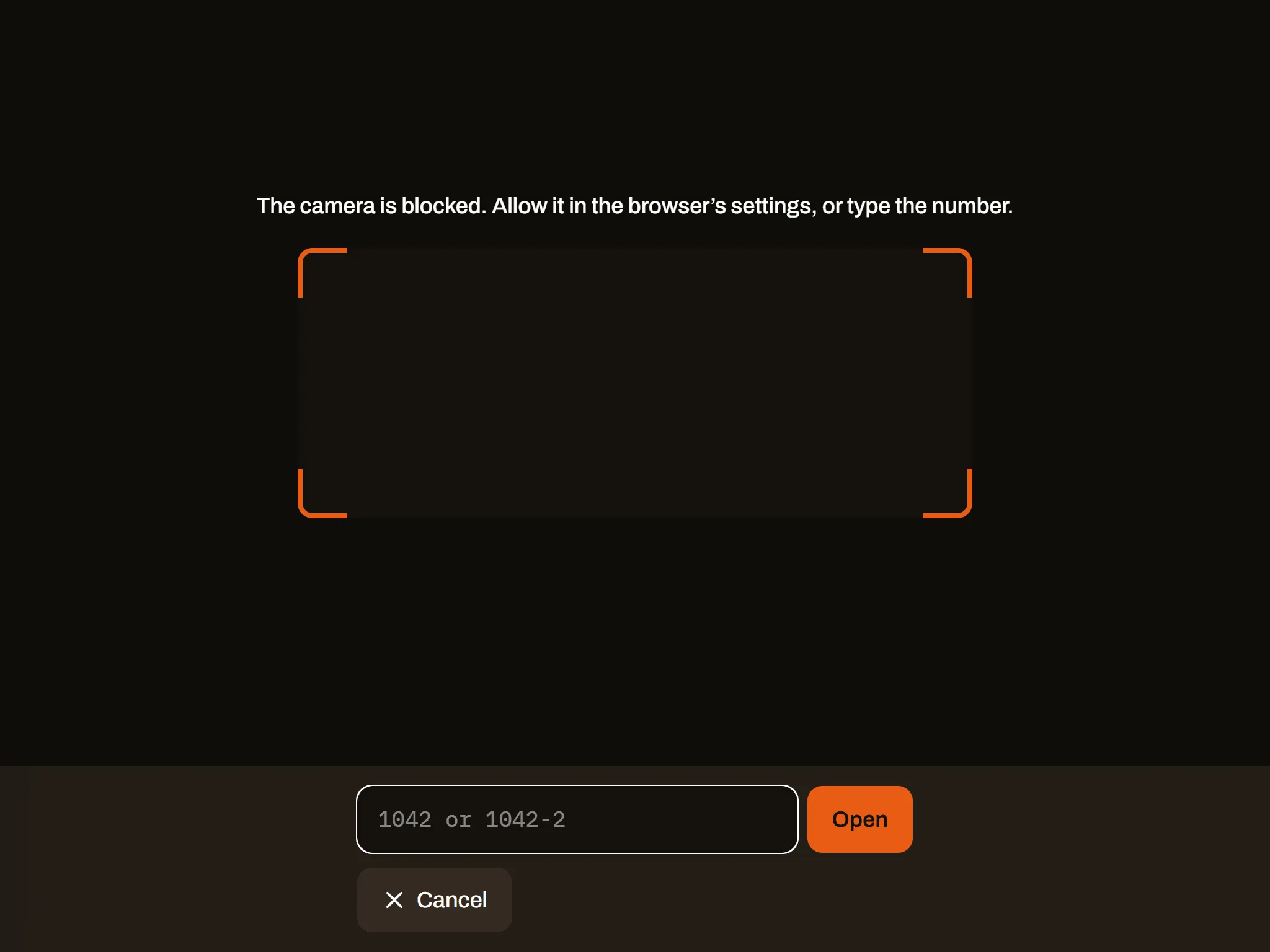
No camera, or a barcode that won’t read? Tap Type it, type the number from the traveler (1042 for the order, 1042-2 for its second step), and tap Open. If the camera is blocked, the tablet says so and shows the box to type in right away; a manager can allow the camera in the browser’s settings.
Sign out
Section titled “Sign out”Tap Done when you walk away. The tablet goes back to the names for the next person.
The tablet also signs you out by itself:
- after 1 minute without a tap, and
- 15 minutes after you signed in, even if you’re still using it. Tap your name and enter your PIN again.
Signing out doesn’t stop your step. A running step keeps running until someone taps Stop or Complete step.
Working offline
Section titled “Working offline”If the tablet loses its connection, you can keep working. A No connection line at the top says “Keep working: what you do is saved on this tablet and sent when it’s back.”
Saved on the tablet and sent later:
- Start, Stop, and Complete step
- Hold and Release hold
- Quality check answers and measurements
The screen shows them done right away. When the connection is back, the tablet sends them in order (“Sending 3 actions saved on this tablet…”). Nothing is lost if the tablet reloads.
Needs the connection (the buttons are off, or say so, until it’s back):
- Signing in (your PIN is checked by FloorLine). Whoever is signed in keeps working.
- Photos for quality checks
- Report finished, Report waste, and Scrap units
- Lots and serial numbers
- Station down and Back up
- Scanning an order that isn’t one of this station’s jobs
Sometimes an action saved offline can’t go through, because the job changed in the meantime: someone put it on hold, or another tablet finished the step. The tablet then shows “One action from while the tablet was offline didn’t go through”, with the job and why. Check the job, do it again if it still needs doing, and tap OK.
On a phone
Section titled “On a phone”The floor screen works on a phone too, for a station that uses one. The header is smaller: the barcode button scans, and your name is at the right. Tap your name to sign out. Show work orders opens the job list.
Install the app
Section titled “Install the app”On the name screen, Install app adds FloorLine to the tablet’s home screen, so it opens full screen like an app. On an iPad or iPhone, it shows the steps: tap Share in Safari, then Add to Home Screen. It doesn’t show once the app is installed. To keep a tablet on FloorLine, use iPad Guided Access or Android screen pinning. See Set up tablets.